
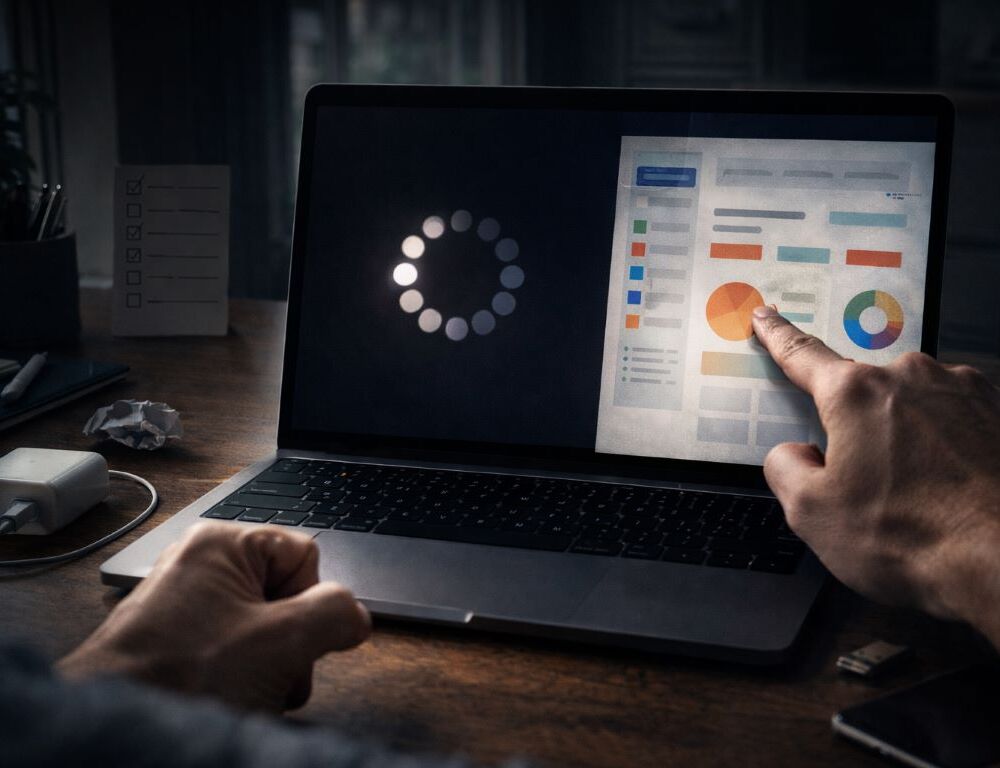
You click, and the laptop answers a second later. A tab opens with hesitation, the fan spins up like it’s offended, and the whole machine feels “heavy.” When a laptop is lagging like this, most people end up searching laptop is slow what to do and hoping for something more useful than “restart it.” The fix is usually safer than random tweaks, but it helps to narrow down why is my laptop so laggy first.
- What counts as “slow,” and which symptoms actually matter?
- How can you diagnose the cause step by step without making it worse?
- Fixes by root cause: storage, memory, heat, and more
- Why did Windows or macOS suddenly start booting slowly?
- What should you do if disk usage stays near 100%?
- How can you tell if you’re running out of RAM?
- What should you do if lag spikes line up with high CPU usage?
- Will an SSD help, and is NVMe worth it?
- How do you reduce overheating-related slowdowns without overdoing it?
- Why does performance drop on battery power even when the laptop is fine on AC?
- Why does a laptop lag in Chrome, gaming, videos, or even while typing?
What counts as “slow,” and which symptoms actually matter?
Not all slowness is the same. One stubborn app is a different story than a system-wide drag. The fastest way to avoid wasted effort is to identify the pattern first. If you’ve ever followed a practical laptop selection guide, you already know the logic: define the use case, then choose the fix.
Common symptoms worth noting:
- Boot takes longer than usual, login feels delayed.
- Browser stutters, tabs reload, heavy pages hitch.
- File Explorer/Finder actions lag (open, search, right-click).
- Menus respond late; typing feels slightly behind.
- Fan noise ramps up quickly; chassis feels warm at idle.
- Storage activity hits 100% during simple tasks.
If it’s only one app, focus there. If the laptop running slow and lagging is system-wide, keep reading, it’s usually one of a handful of causes.
How can you diagnose the cause step by step without making it worse?
The safest approach is a quick decision path: small checks, one change at a time, and a clear stop if something looks off.
- If startup is slow → open Task Manager (Windows) or Login Items (macOS).
- Too many startup programs = longer boot and background load. Disable only what you recognize as non-essential; U3A Havelock North (n.d.) notes that unnecessary startup apps consume RAM and CPU cycles from the moment you log in and directly affect boot time and responsiveness.
- If it gets worse after a few minutes → listen for fan surges and feel for heat.
- Heat can trigger performance drops long before the laptop “overheats” visibly.
- If slowdowns happen with many tabs/apps → check memory pressure.
- Knowing the difference between 8GB vs 16GB RAM helps you spot whether the laptop is simply running out of breathing room.
- If launching apps and copying files feels sluggish → check storage and free space.
- A nearly full drive can behave like a crowded desk: everything takes longer to find and move.
- If laptop slow after Windows update is the pattern → look for driver updates and background tasks.
- Sometimes the system is finishing indexing, syncing, or patching. Sometimes it’s stuck.
After each tweak, test the same action again (open the same app, load the same site). That’s how you learn what actually helped, and it’s the core of how to fix a lagging laptop without turning it into trial-and-error.
Fixes by root cause: storage, memory, heat, and more
Why did Windows or macOS suddenly start booting slowly?
Most of the time it’s not “age,” it’s clutter: startup bloat, update helpers, cloud sync tools, and launchers all racing to start first.
If laptop slow because startup programs is the story, trimming that first-minute pileup usually brings the biggest immediate win. On Windows 11 laptop slow and laggy behavior often comes from the same mix of startup bloat plus post-update background work. If laptop lagging after update Windows 11 started overnight, let the system finish its background tasks and then do one full restart.
Try this:
- Trim startup items to essentials.
- Keep 15–20% free space on the system drive.
- Do a real restart occasionally (not just sleep).
On older systems, laptop lagging Windows 10 often improves after startup cleanup and one full restart. The same startup pile-up can also look like laptop lagging Windows 11 when the system is already short on RAM.
Then reboot once and compare boot time and responsiveness to your “before” baseline.
What should you do if disk usage stays near 100%?
Laptop 100 disk usage slow often boils down to two things: you’re out of space, or your storage can’t keep up. A Micron technical brief (n.d.) states that for typical desktop use, setting aside about 10% of the user area as free space is often sufficient, and when an SSD is nearly full, performance may be impaired.
Practical moves:
- Run a storage cleanup and remove apps you don’t use.
- Pause aggressive syncing while you work.
- Check drive health (SMART) if the system feels “grindy” all the time.
If you’re still on an HDD, moving to an SSD is often the biggest single improvement you can make.
How can you tell if you’re running out of RAM?
Laptop lagging low RAM usually shows up as “micro-stutters”: tabs reload, apps hang briefly, and multitasking feels fragile.
Look for:
- Memory consistently above ~85–90% during your normal workload.
- Heavy browsers plus multiple apps pushing the system into swapping.
- Non-upgradeable memory (common in thin laptops) forcing you to optimize instead.
If RAM pressure is constant, simplify the workload or plan an upgrade that matches your use case.
What should you do if lag spikes line up with high CPU usage?
Laptop lagging high CPU usage usually means one app or service is hogging the processor.
When the slowdown feels random, laptop slow because of background processes is often the reason.
Try this:
- Sort by CPU in Task Manager or Activity Monitor and watch which process jumps during the stutter.
- Pause or exit the obvious offenders first: updaters, sync tools, browser tabs, or anything running scans while you work.
- If the same process comes back after reboot, check its settings or uninstall it if you don’t need it.
Confirm the change by repeating the same action that triggered the lag, then check whether CPU spikes still coincide with the slowdown.
Will an SSD help, and is NVMe worth it?
HDD → any SSD is a major leap. SSD → faster SSD is more nuanced. Whether is NVMe worth it depends on what you do: large photo/video libraries, big project folders, frequent exports, and lots of file transfers benefit more than everyday browsing. Strategic Thermal Labs (2022) reports that, for one tested system, the reboot-time difference between HDD and SSD could be about 19 seconds, which matches why the upgrade feels immediate in day-to-day use.
A laptop overheating and slow pattern usually means the system is cutting performance to stay safe. That is why laptop lagging because of overheating can show up even during light tasks. If performance drops as temperatures climb, laptop thermal throttling slow is the plain-English label for what you’re seeing. IRJET (2023) describes thermal throttling as a mechanism that slows the processor to prevent overheating, which can negatively impact performance.
Safe steps:
- Use a hard, flat surface and avoid blocking vents.
- Gently clear external vents (no sharp tools).
- Check power mode: “Best performance” isn’t always the best choice.
Even these low-risk steps can reduce heat-related slowdowns when airflow is the main issue.
Why does performance drop on battery power even when the laptop is fine on AC?
Laptop lagging when unplugged is common because the system saves energy by lowering CPU and GPU limits.
That is why laptop performance drops on battery can feel dramatic compared to the same workload on the charger.
If laptop slow on battery power is your main complaint, start with power settings rather than hardware swaps.
On Windows, people often search best power plan for performance Windows 11, but the practical move is to use a higher-performance mode only when you need it and confirm temperatures stay reasonable.
Try this:
- Switch to a higher performance mode while plugged in, and use a balanced mode on battery when you prefer quieter operation.
- Reduce background syncing and close heavy browser tabs before you unplug.
- Repeat the same task once plugged in and once on battery to measure the real difference.
If the drop only happens on battery, that’s often expected behavior. If the slowdown stays the same while plugged in, go back to the storage, RAM, CPU, and heat checks above.
Why does a laptop lag in Chrome, gaming, videos, or even while typing?
Scenario-specific lag usually ties back to one bottleneck showing up at the worst moment. The fixes tend to look similar across brands because the same few limits show up again and again.
- Laptop lagging Chrome often comes from extension overload and heavy tabs. The same pattern shows up in HP laptop lagging cases when the browser is doing the heavy lifting.
- Laptop lagging when watching videos often points to CPU load during playback, driver issues, or background apps competing for resources. It’s a common complaint in Lenovo laptop lagging threads when a driver update or browser change lands at the wrong time.
- Laptop lagging when gaming is frequently about power limits, thermals, and background tasks. If you see Dell laptop lagging only in games, confirm it’s plugged in and airflow is clear before you chase settings.
- Laptop lagging when typing can be triggered by background indexing, syncing, or a busy browser. If Asus laptop lagging shows up while typing, test in a clean session with fewer startup items running.
Acer laptop lagging reports often trace back to the same basics: power limits on battery, too much background load, or heat caps that appear under sustained use.
| Symptom | Likely cause | Quick fix |
| Slow boot | Startup bloat, updates | Reduce startup items, restart after updates |
| Browser stutter | RAM pressure, extensions | Close tabs, trim extensions, upgrade workload fit |
| 100% disk activity | Low space, weak drive | Clean storage, check drive health, consider SSD |
| Fan noise + lag | Heat buildup | Improve airflow, review power mode |
| Slower after updates | Drivers, background tasks | Update drivers, allow tasks to finish, restart |
Once you match the symptom to the cause, how to speed up a slow laptop stops being guesswork, it becomes a calm, repeatable routine you can trust.
Sources:
- Micron, Over-Provisioning Micron Client SSDs Using Storage Executive Software for Microsoft Windows, n.d.
- Strategic Thermal Labs, Storage Wars: SSD vs HDD, 2022
- IRJET, Heat transfer analysis on laptop cooling system before and after introducing a cooler at exhaust, 2023
- U3A Havelock North, Our four-step guide to making Windows 11 faster and more private, n.d.