
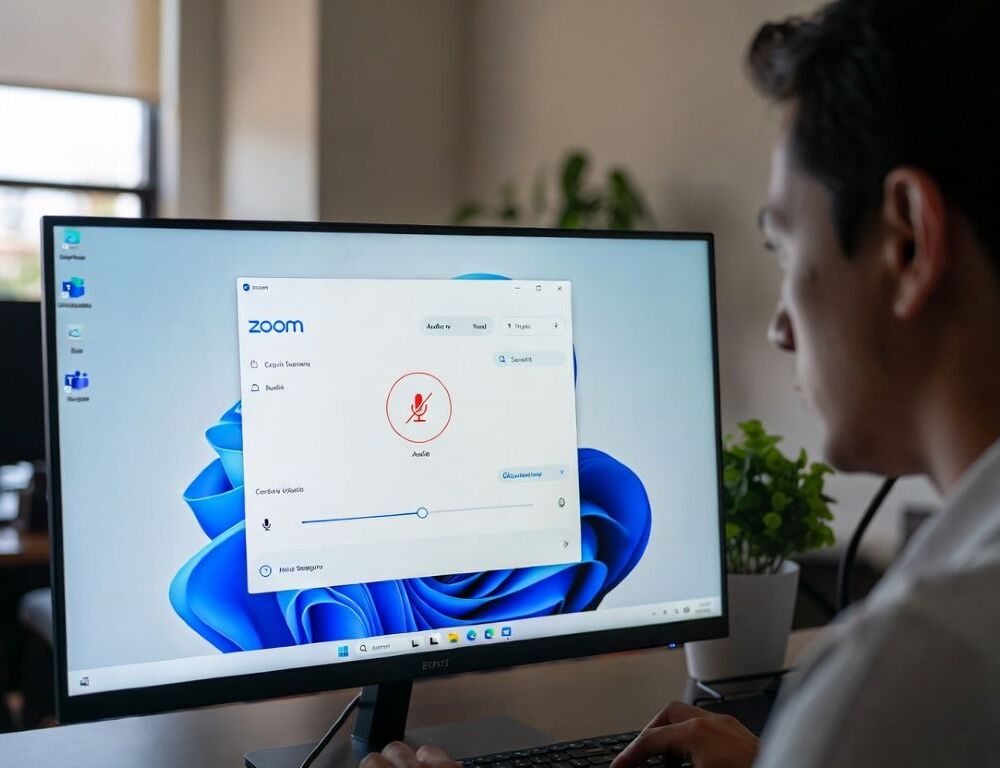
Windows 11 can make Zoom or Teams “lose” your microphone because of privacy permissions, the wrong input device, or driver-level audio control. It feels like hardware failure, but it’s usually a settings chain you can restore in 10–15 minutes. The workflow below starts with zero-risk checks and only moves to deeper actions if the earlier steps don’t change anything.
- What should you check first when your Zoom/Teams mic isn’t working?
- Why does Windows 11 block microphone access for Zoom or Teams?
- How do you set the correct default microphone in Windows 11?
- How exclusive mode and audio enhancements can break mic stability
- What mistakes keep people stuck with a silent mic in Zoom/Teams?
- When should you stop troubleshooting and get support?
What should you check first when your Zoom/Teams mic isn’t working?
The first checks when your Zoom/Teams mic isn’t working on Windows 11 should confirm the app is listening to the right input and Windows is actually receiving signal. This is the fastest way to separate an app setting from a system issue.
Before you start:
- Safe: confirm you’re not muted, pick the mic explicitly, watch the input meter in Windows, restart the app.
- Medium risk: reset the app’s audio settings, restart audio services.
- Stop and get help: if the mic never appears as a device, USB disconnects repeatedly, or the audio driver is missing.
Quick checklist:
- In Zoom/Teams, confirm the mic is not muted and the correct microphone is selected.
- In Windows, open Settings → System → Sound and check whether the input level meter moves when you speak.
- If you use a USB headset, plug it into a different port and avoid an unpowered hub.
- Close any app that may be grabbing the mic (recorders, streaming tools) and try again.
After this, you should know whether the problem lives in the app, the device selection, or Windows.
This table ties common symptoms to the next best move.
| Symptom | Likely cause | What to do |
| Windows shows input level, app shows silence | App is on a different input | Select the mic manually in Zoom/Teams |
| Windows input meter is flat | Permissions or wrong default input | Fix privacy permissions and default input |
| Audio cuts out or sounds processed | Exclusive mode or enhancements | Disable exclusive control and enhancements |
| USB headset keeps dropping | Port/power/driver | Switch ports, avoid hubs, update drivers |
Once the basics are clear, the next steps become very targeted.
Why does Windows 11 block microphone access for Zoom or Teams?
Windows 11 blocks microphone access for Zoom or Teams most often because microphone privacy permissions are off at the system level. When this happens, the app can look fine while the OS refuses to provide audio input.
Where do you enable microphone permissions in Windows 11?
Microphone permissions in Windows 11 are enabled in the Privacy settings, and a single toggle can disable everything. Go to Settings → Privacy & security → Microphone and check both the main access switch and the app access list.
Expected result: Zoom/Teams starts receiving input immediately after you re-enable access. Rollback: you can turn it off again later, but calls will fail again.
Why can the browser version of Zoom/Teams miss the microphone?
The browser version of Zoom/Teams can miss the microphone when site permissions are blocked or the browser is using a different input device. Check the permission indicator near the address bar and confirm the selected input in the browser’s site settings.
This covers the most common “it suddenly stopped” scenario, but the default input device is another frequent culprit.
How do you set the correct default microphone in Windows 11?
Setting the correct default microphone in Windows 11 prevents Zoom/Teams from bouncing between a laptop mic, a webcam mic, and a headset mic. When multiple inputs exist, “Default” can point to a device you don’t expect.
Open Settings → System → Sound → Input and set the intended microphone as the default. Then, inside Zoom/Teams, select the same device explicitly to keep both sides aligned.
Expected result: the Windows input meter moves and the app’s test meter also reacts. Rollback: switch the default back if audio routes to the wrong device.
How exclusive mode and audio enhancements can break mic stability
Exclusive mode and audio enhancements can break mic stability in Windows 11 when another app takes full control of the device or when processing is too aggressive. The common symptom is choppy voice, delays, or “robot” audio even though the mic is detected.
In the microphone properties, disable exclusive control and, if needed, turn off enhancements like noise suppression or automatic gain. Expected result: voice becomes steady and predictable. Rollback: re-enable one option if your mic becomes too quiet.
This is a practical fix after driver updates, headset changes, or new conferencing app installs.
What mistakes keep people stuck with a silent mic in Zoom/Teams?
Mistakes that keep people stuck with a silent mic in Zoom/Teams on Windows 11 usually come from relying on “Default” and skipping basic validation. If you don’t confirm where the signal disappears, you end up changing random settings.
Common missteps:
- Leaving the input on “Default” in the app and assuming Windows will always pick the right mic.
- Forgetting the Windows 11 microphone privacy permission switch.
- Testing only inside a call instead of watching the Windows input meter.
- Using an unpowered USB hub and getting intermittent disconnects.
One change at a time, one test after each change, is the fastest way out.
When should you stop troubleshooting and get support?
You should stop troubleshooting and get support when Windows 11 does not detect the microphone as a device or audio drivers keep failing. If the mic is missing everywhere, the issue may be hardware, a failing port, or a deeper driver problem.
The practical takeaway is simple: confirm mute and input selection, verify permissions, set a stable default input, then address exclusive mode and enhancements. That order fixes most Zoom/Teams mic failures without unnecessary risk.