
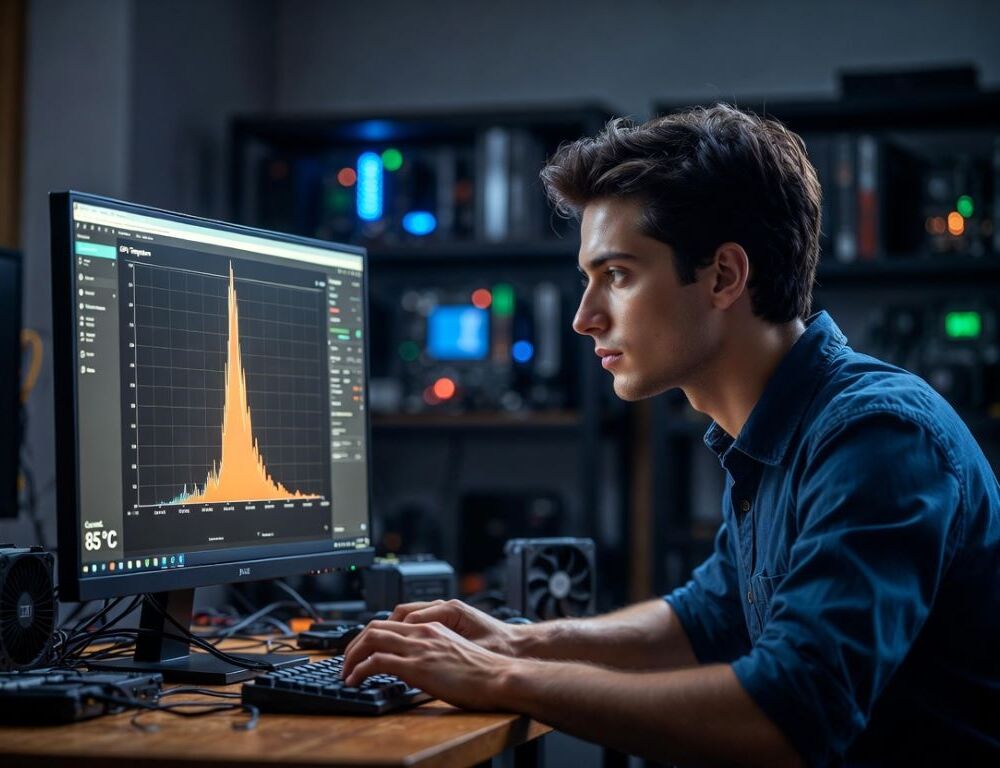
Normal GPU temperature can rise after a driver update because power limits, boost behavior, or fan control rules change.
A small increase is not always a fault, but a sudden jump often comes with more noise, throttling, or stutters, so it is worth verifying.
- Why can normal GPU temperature increase after a driver update?
- What should you check first to separate “expected change” from a real issue?
- Which readings matter most: GPU temp, hotspot, or VRAM?
- Which settings commonly change heat behavior right after an update?
- Diagnostic table: match your symptom to the most likely cause
- What actions reduce temperature safely without hardware risk?
- What mistakes keep normal GPU temperature higher than it should be?
- Which signs suggest the driver is not the root cause and you should escalate?
- How do you keep normal GPU temperature stable across future updates?
Why can normal GPU temperature increase after a driver update?
Normal GPU temperature may increase when the driver changes how boost clocks, voltage, and power targets are managed.
Some updates push higher sustained clocks, reset vendor profiles, or alter how a game is scheduled, which can keep the GPU under steadier load.
Common drivers of the change:
- Higher average clocks in the same scene.
- A quieter fan curve after profile reset.
- A removed FPS cap that makes the GPU work harder.
Software changes can look like “worse cooling” even when nothing physical changed.
What should you check first to separate “expected change” from a real issue?
Normal GPU temperature is best judged with hotspot, fan speed, and throttling, not one number.
Start with a clean comparison: same game, same location, same graphics preset, 5–10 minutes of warm-up.
Fast, low-risk triage:
- Log GPU temp, hotspot (junction), and fan RPM.
- Check for throttling: clocks dropping as temperature rises.
- Confirm FPS is not higher than before, because higher FPS often means more heat.
If clocks are stable and there is no throttling, a small temperature bump is often just new boost logic.
Which readings matter most: GPU temp, hotspot, or VRAM?
Normal GPU temperature can look fine on “GPU temperature” while hotspot or VRAM runs near the limit.
Hotspot reflects the hottest point on the die, and it often explains extra fan noise better than the average temperature.
A practical interpretation:
- GPU temp up a bit, hotspot similar: likely a boost/power behavior change.
- Hotspot up a lot, fans not ramping: suspect fan curve or power limits.
- VRAM noticeably hotter in games: load pattern or memory airflow may be the trigger.
Capture readings after the system is fully warmed up, not right after launch.
Which settings commonly change heat behavior right after an update?
Normal GPU temperature often returns after restoring stable defaults and removing extra load sources.
Begin with changes that are easy to undo, and validate one change at a time.
Does resetting the driver profile and turning off overlays help?
Resetting the driver profile can remove conflicts between old tweaks and a new driver version.
Restore defaults, disable recording and overlays, and close any overclocking tools during the test.
Validation: temperatures and clocks should become more consistent in the same scene.
Rollback: re-enable one feature at a time if performance or latency changes in a specific game.
Can Windows power mode keep the GPU hotter than expected?
Windows power mode can keep performance states high and reduce idle downclocking on some systems.
Use Windows Settings search for “Power” and select Balanced, or an efficiency-focused mode on laptops.
Validation: idle clocks and temperatures should drop faster after you exit a game.
Rollback: switch back if you see micro-stutter or reduced performance in a workload that needs peak power.
If you are also dealing with when a laptop lags badly, the root cause may be broader than the GPU, especially on battery or hybrid graphics.
Diagnostic table: match your symptom to the most likely cause
Normal GPU temperature is easier to restore when you map symptoms to a specific fix path.
| Symptom | Likely cause | What to do first |
| +5°C, same FPS | Higher sustained boost | Set an FPS cap, re-test |
| More noise, fans stay low | Fan curve/profile reset | Restore auto, adjust curve |
| Hotspot jumps higher | Voltage/boost behavior shift | Reset profile, try mild undervolt |
| Stutters after update | Conflicting settings/cache | Clean driver install |
Validate each step with the same warmed-up test run so you do not chase random variance.
What actions reduce temperature safely without hardware risk?
Normal GPU temperature often drops when the GPU stops rendering unnecessary frames and running at full utilization all the time.
The safest tools are an FPS cap, sensible sync settings, and avoiding accidental resolution or render-scale increases.
A practical checklist:
- Cap FPS to your display refresh rate.
- Check render scale did not increase after the update.
- Disable background recording and overlays for testing.
- Compare borderless vs exclusive fullscreen if behavior changed.
Validation: GPU utilization becomes less pinned, temperatures fall, and fan noise becomes steadier.
What mistakes keep normal GPU temperature higher than it should be?
Normal GPU temperature does not return when multiple variables change at once and results are not measured consistently.
Another common mistake is ignoring hotspot and focusing only on average GPU temperature.
Frequent errors:
- Comparing different scenes or different graphics presets.
- Testing for one minute without warm-up.
- Jumping straight to repasting or disassembly before software checks.
Get a stable software baseline first, then consider maintenance if symptoms persist. If the driver update happened right after changing a cable, dock, or monitor setup, double-check port and display behavior using the same logic as choosing ports and display on a Framework Laptop.
Which signs suggest the driver is not the root cause and you should escalate?
The driver is likely not the root cause when you see artifacts, shutdowns under load, or persistent throttling with fans already near maximum.
Escalate if a clean driver install and testing in two different games produce the same overheating pattern.
Validation before escalation: remove any overclock, return to stock, and repeat the same test path.
If results do not change, dust buildup, dried thermal compound, or cooler contact issues become more likely.
How do you keep normal GPU temperature stable across future updates?
Normal GPU temperature stays more stable when you keep a controlled baseline and re-check it after each update.
Save your fan curve, keep an FPS cap profile, and run one consistent “reference” test so changes are easy to spot.