
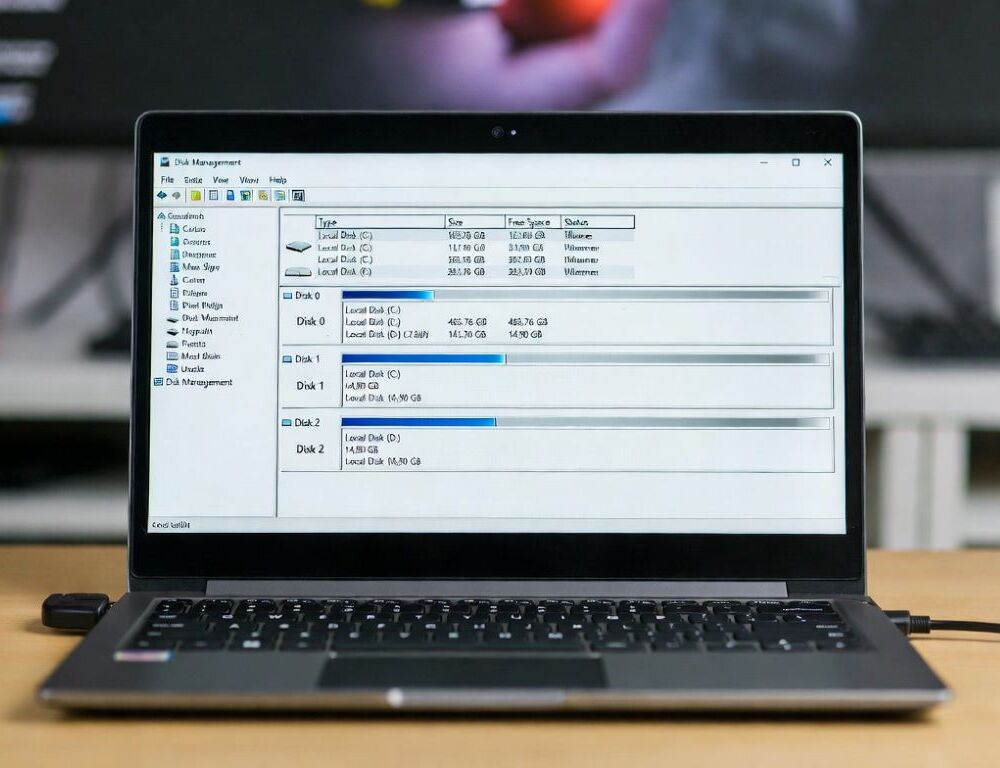
Windows 10 disk management is the built-in console for checking partitions, drive letters, and unallocated space when a disk seems missing. Start with read-only checks, then move to irreversible actions only after a backup.
- Where is windows 10 disk management, and what is safe to do first?
- Why is a disk or partition missing, and which checks don’t touch data?
- How do you create a volume from unallocated space without formatting the wrong thing?
- When should you choose GPT vs MBR, and when does MBR2GPT help?
- Why doesn’t formatting securely erase a drive before you hand it off?
- What mistakes cause the most trouble, and when is it smarter to stop?
Where is windows 10 disk management, and what is safe to do first?
Windows 10 disk management opens from Win+X or the Run command diskmgmt.msc and shows every disk, partition, and status. Safe first steps are viewing disk properties, confirming MBR/GPT style, and changing a drive letter when no apps are using that volume.
Risk starts with Delete volume, Format, and anything touching EFI/Recovery partitions. If you were aiming for the look of Windows rather than storage layout, start with personalization, including changing the background image in Windows 10 and official Windows 10 themes with fixes for “broken” looks.
Why is a disk or partition missing, and which checks don’t touch data?
Non-destructive checks start by confirming the disk is detected in BIOS/UEFI and appears in Disk Management. If the device is missing in BIOS/UEFI, treat it as a hardware or connection issue first.
Does “Not initialized” or “Unallocated” mean the drive failed?
“Not initialized” and “Unallocated” usually describe missing partition metadata or unused space, not a dead drive. Expected result of initializing is an MBR or GPT label and the ability to create a new volume. Rollback: there is no undo, so pause on a disk with valuable data and confirm the recovery plan.
The volume is “Healthy” but not in File Explorer, what fixes that?
A “Healthy” volume is often hidden by a missing letter or a letter conflict. Expected result after Change drive letter and paths is that the volume appears in File Explorer and opens. Rollback: switch back to the previous letter if apps or shortcuts break.
How do you create a volume from unallocated space without formatting the wrong thing?
Creating a volume is safe only when the space is truly free, so verify disk number, size, and model in Properties first. Then follow three short steps.
- Right-click Unallocated → New simple volume. Expected result: the wizard offers size. Rollback: close the wizard before the format step.
- Pick size and a letter. Expected result: the letter becomes reserved for that volume. Rollback: change the letter later.
- Choose a file system and label. Expected result: the volume becomes Healthy. Rollback: deleting the volume returns space to Unallocated, but data will be lost.
| Action | Expected result | If it didn’t work |
| Assign a letter | Volume appears in Explorer | Try a different letter |
| Create a simple volume | New Healthy volume shows | Re-check the selected disk |
| Extend a volume | Size increases | Confirm unallocated space is to the right |
Validation: open the volume, create a test folder, and stop if you see I/O errors.
When should you choose GPT vs MBR, and when does MBR2GPT help?
Choosing GPT vs MBR depends on boot mode and compatibility, so check System Information for BIOS mode and the disk Properties for partition style. Converting MBR→GPT without reinstalling is possible with MBR2GPT when prerequisites are met and a backup exists.
Microsoft documentation notes that MBR2GPT converts the system disk to GPT without modifying or deleting data, but power loss can still break boot. Intel’s MBR2GPT guidance highlights requirements such as Windows 10 x64 version 1703+ and UEFI boot support. Expected result is GPT partition style and a successful boot. Rollback is restoring from an image.
Why doesn’t formatting securely erase a drive before you hand it off?
Formatting rebuilds file-system structures, but it doesn’t guarantee old data is unrecoverable. NIST SP 800-88 describes sanitization as making data retrieval impractical, which typically requires dedicated clearing or purging methods rather than a quick format.
Expected result of proper wiping is no readable data and no remaining encryption keys if BitLocker was used. There is no rollback, so pause if you are unsure.
What mistakes cause the most trouble, and when is it smarter to stop?
The most common mistakes are selecting the wrong disk and running an irreversible action on the wrong partition. Stopping is the right move if you don’t understand EFI/Recovery roles, the disk disappears intermittently, SMART warnings appear, or repeated I/O errors show up.
A low-risk rhythm helps: confirm status, make one change, validate in Explorer, and keep a backup as your return point. That sequence avoids turning a small issue into data loss.
Sources: