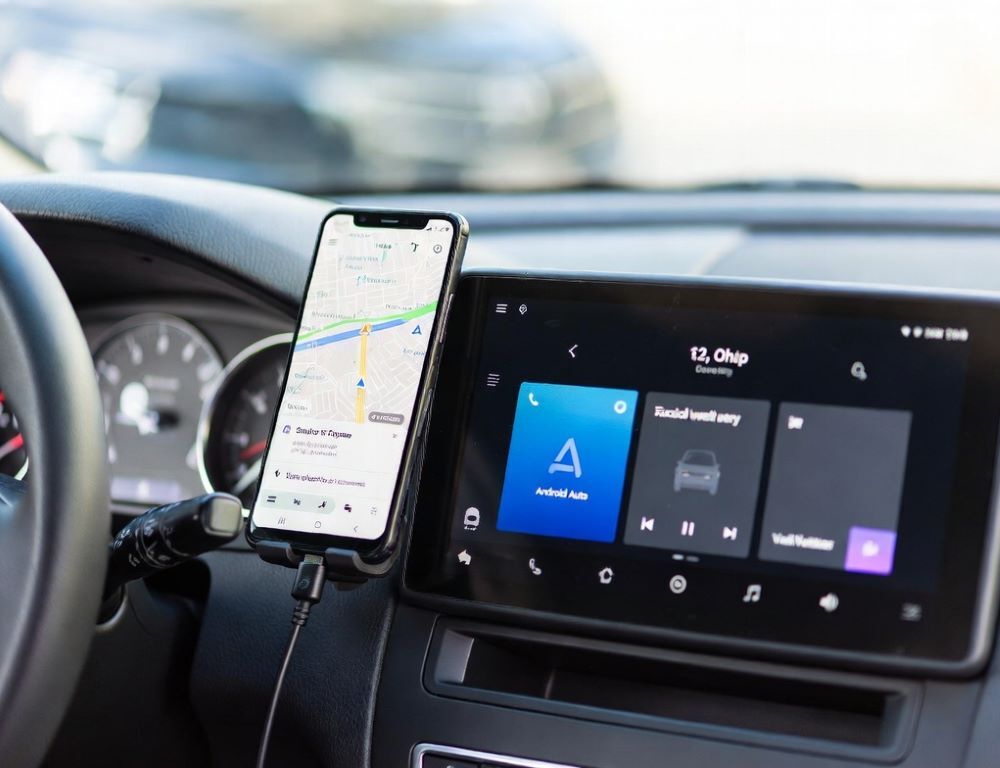
Smartphone integration with a car via Android Auto stays more stable when permissions match real use, not guesses. Start with a clean connection, then enable only what you need for calls, notifications, and navigation. If you recently did a transfer data from iPhone to Android, confirm Google services are active because Android Auto commonly relies on them.
- Which quick checks prevent wasted time before changing Android Auto settings?
- Which permissions does Android Auto actually need for calls, messages, and maps?
- Where do call settings live, and how can you confirm audio routing is correct?
- How can you enable messages in Android Auto without exposing more than necessary?
- Which navigation settings most often break live location in Android Auto?
- Which privacy toggles give a practical balance for Android Auto?
- Which Android Auto settings are easiest to manage as a single checklist?
- Which mistakes commonly make Android Auto unreliable?
- Which symptoms suggest it is time to stop tweaking and get help?
- What setup habit keeps Android Auto stable and private long term?
Which quick checks prevent wasted time before changing Android Auto settings?
Quick checks for Android Auto remove “permission-like” symptoms caused by hardware or pairing issues. Make sure the phone is unlocked during the first connection, the USB cable supports data transfer, and the car’s head unit is set to Android Auto/phone projection. If your menus differ, use the head unit’s settings search and look for “Projection” or “Android Auto”.
Validation: Android Auto appears on the car screen and at least one supported app launches reliably.
Which permissions does Android Auto actually need for calls, messages, and maps?
Android Auto permissions can stay minimal when each permission is tied to a feature. Calls typically need Phone and sometimes Contacts, messages depend on Notification access, and maps need Location set to “While in use”. Avoid granting broad file access or microphone access unless you use voice dictation or specific apps that require it.
Validation: Add one permission, test one feature, then move to the next permission only if needed.
Where do call settings live, and how can you confirm audio routing is correct?
Call behavior in Android Auto depends on Bluetooth profiles, call audio routing, and the Phone app’s permissions. On the phone, open Settings > Connected devices > Bluetooth (or “Connections”) and confirm the car is allowed for Calls, and Contacts only if you want caller names and hands-free dialing. Then open Settings > Apps > Android Auto > Permissions and enable Phone, keeping Contacts optional.
Validation: Place a test call and switch audio output between phone speaker and car audio to locate the failure point.
How can you enable messages in Android Auto without exposing more than necessary?
Messages in Android Auto usually work through notifications rather than full message database access. Enable Settings > Special access > Notification access (wording varies) for Android Auto, then review Android Auto’s notification preferences and hide message content if privacy matters. If your screen looks different, use Settings search for “notification access”.
Validation: Send yourself a message and confirm it appears once on the car screen and reads out only when enabled.
Navigation glitches in Android Auto often come from battery restrictions and background limits, not the map app itself. Set Location permission for your map app to “While in use”, keep location accuracy on, and remove battery optimization for maps: Settings > Battery > Battery optimization (or “Power saving”) and exclude your map app.
Validation: Start a short route and verify the position updates while the car moves.
Which privacy toggles give a practical balance for Android Auto?
Privacy in Android Auto is mainly about notification visibility, voice features, and contact access. Keep notifications on but hide content if others can see your screen, and enable voice features only if you actually use dictation. Contact access is optional for basic navigation, but helpful for calling by name.
Validation: Trigger a notification and confirm the screen shows only what you are comfortable sharing.
Which Android Auto settings are easiest to manage as a single checklist?
A compact checklist helps you avoid changing three things at once and losing track of the cause.
| Task | Where to change it | Suggested setting | How to validate |
| Calls in the car | Car Bluetooth profiles | Calls on, contacts optional | Test call, switch audio output |
| Messages on screen | Notification access | On, hide content if needed | One incoming message, no duplicates |
| Navigation | Location permission | While in use, accuracy on | Live position updates while moving |
| Stability | Battery optimization | Exclude maps from optimization | Route does not freeze |
| Voice features | Assistant settings | Enable only if used | Voice command works consistently |
Re-run the same validation after each single change to pinpoint what fixed or broke the flow.
Which mistakes commonly make Android Auto unreliable?
Android Auto reliability is often harmed by small setup choices: charge-only cables, disabled notification access, aggressive battery saving, or Bluetooth turned off during call attempts. If your phone runs without a Google account, Android Auto features may be limited because core services can be missing or restricted.
Validation: Revert the last change and repeat the same test to confirm a real cause-effect link.
Which symptoms suggest it is time to stop tweaking and get help?
A support visit makes sense when the issue looks hardware-level or head-unit related. Stop DIY attempts if the head unit drops USB connections with multiple phones, restarts on connection, or shows projection errors regardless of cable and settings.
Safer next step: test a different phone and a different data cable to separate car-side issues from phone-side issues.
What setup habit keeps Android Auto stable and private long term?
A stable Android Auto setup comes from minimal permissions, one change at a time, and a clear validation loop. Lock in calls first, then notifications, then navigation, and add voice features only when they bring real value.