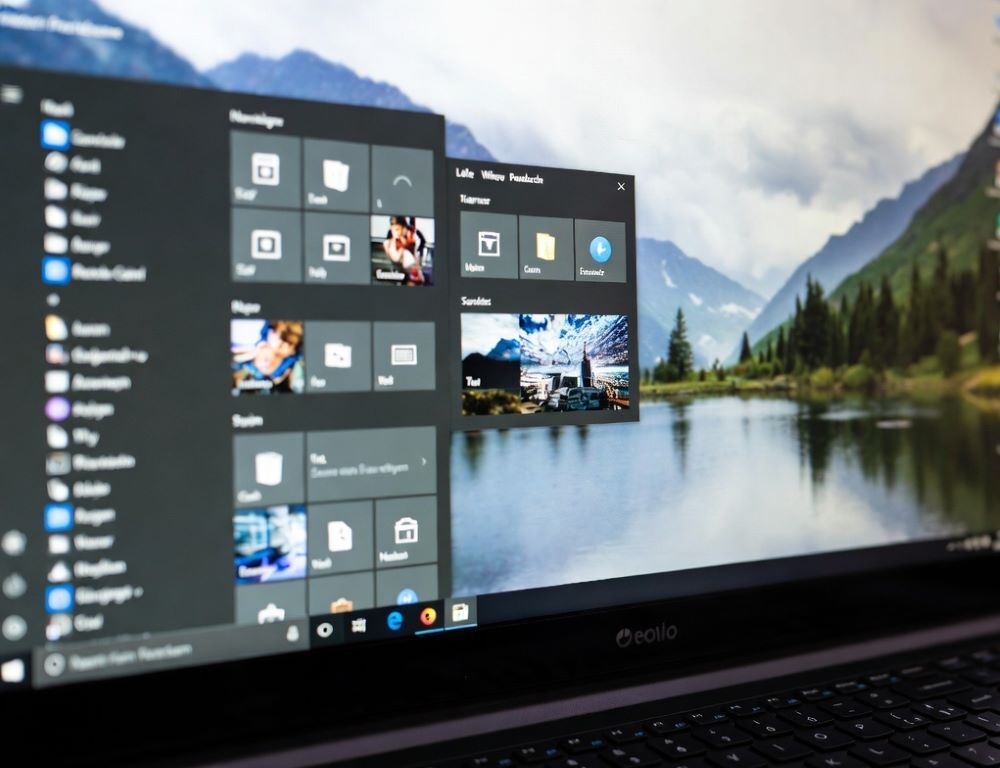
Change background image Windows 10 settings are handled in Personalization, with separate controls for desktop and lock screen. A quick check for policies, themes, and file access prevents most “it won’t apply” cases.
- What quick checks prevent Windows 10 background changes from failing?
- How do you change the desktop wallpaper using Settings in Windows 10?
- Which background option matches your goal without trial and error?
- How do you set a wallpaper slideshow, and what if it never rotates?
- How do you change the lock screen background and keep it on the sign-in screen?
- How can you change the desktop background color in Windows 10 without using an image?
- Why does the wallpaper revert or Personalization become unavailable?
- What mistakes most often break wallpaper changes in Windows 10?
- What symptoms mean it is safer to stop and escalate to IT or support?
- What is the most reliable way to keep a Windows 10 background setting stable?
What quick checks prevent Windows 10 background changes from failing?
Change background image Windows 10 issues usually come from restrictions, syncing, or a theme overriding your choice. Confirm the image file is local, readable, and not blocked by your organization.
Common signs of a restriction:
- Personalization options are greyed out.
- The wallpaper reverts after restart or sign-in.
- High contrast mode or a forced theme is active.
Validation: the chosen wallpaper stays after restart and after signing out and back in.
How do you change the desktop wallpaper using Settings in Windows 10?
Change background image Windows 10 desktop steps stay stable across most builds, even if labels vary by language. Using Settings is the most reliable path compared to third-party tools.
Steps:
- Open
Settings > Personalization > Background, or use Settings search for “Background”. - Set “Background” to
Picture. - Select
Browseand pick an image file. - Choose a “Fit” option to avoid stretching or cropping.
Validation: sign out and sign in again, the desktop wallpaper should remain the same.
Which background option matches your goal without trial and error?
Choosing the right mode reduces pixelation and prevents awkward cropping on wide monitors. A quick mapping helps decide between picture, slideshow, and solid color.
| Goal | Where to change it | What to validate |
| Full-screen photo | Settings > Personalization > Background | Fit set to Fill, No blur |
| No cropping | Settings > Personalization > Background | Fit set to Fit, Edges visible |
| Rotating wallpapers | Settings > Personalization > Background | Interval works, Folder accessible |
| Plain color | Settings > Personalization > Colors | Color persists after restart |
Validation: lock the PC (Win+L), then return to the desktop and confirm the look did not reset.
How do you set a wallpaper slideshow, and what if it never rotates?
Wallpaper slideshow rotation depends on folder access and power settings, especially on laptops. Battery saver can pause background rotation in some configurations.
Steps:
Settings > Personalization > Background.- Switch “Background” to
Slideshow. - Choose the photo folder and set the change interval.
- Check any battery-related toggle for slideshow behavior if it appears in your build.
Validation: wait one full interval, then confirm the wallpaper changes. If it does not, test with a different local folder such as Pictures.
How do you change the lock screen background and keep it on the sign-in screen?
Lock screen background uses a separate menu and can optionally show the same image on the sign-in screen. Menu labels vary, so rely on the stable path and Settings search when needed.
Steps:
- Open
Settings > Personalization > Lock screen. - Set “Background” to
PictureorSlideshow. - Select the image or folder.
- Enable the option to show the lock screen background on the sign-in screen, if the toggle exists.
Validation: press Win+L to view the lock screen, then sign in and confirm the background choice did not revert.
How can you change the desktop background color in Windows 10 without using an image?
Windows 10 desktop color is controlled in Colors, not in the Background page. Accent and theme settings can also affect how color appears across windows.
Steps:
- Go to
Settings > Personalization > Colors. - Pick a color or set a custom one.
- Disable automatic accent-from-background if the color keeps changing.
- Review any toggles for showing color on Start, taskbar, and title bars, if available.
Validation: restart the PC, then confirm the chosen color still applies.
Wallpaper reverts when a theme, sync, or an organization policy overrides your settings, or when the user profile is damaged. Installed Windows 10 themes can also reapply their own wallpaper and colors at sign-in.
Try this order:
- Switch to a default theme, then set the wallpaper again.
- Turn off syncing for personalization-related settings if it is enabled.
- Check activation status if personalization options appear limited.
- Test with a new local user account to isolate a profile issue.
Validation: if a new account works, the issue is typically profile-specific or tied to settings that load at sign-in.
What mistakes most often break wallpaper changes in Windows 10?
Wallpaper changes fail most often due to file location, permissions, or third-party tools forcing settings. Keeping the image local and using Settings avoids most recurring resets.
Common mistakes:
- Using cloud-only images without offline availability.
- Picking files from protected folders without read access.
- Leaving high contrast mode enabled when normal colors are needed.
- Using “tweaker” apps that lock wallpaper behavior.
Validation: after removing the cause, changing wallpaper through Settings should apply immediately.
What symptoms mean it is safer to stop and escalate to IT or support?
Escalation is appropriate when policies block personalization or resets persist across a fresh user profile. Risky registry edits can create wider sign-in and stability problems.
Stop and escalate if:
- The PC is managed by an organization and Personalization is locked.
- The wallpaper resets even in a new local user account.
- System behavior degraded after registry or “debloat” changes.
A safer alternative to manual registry editing is policy review, theme reset, and user-profile isolation testing.
What is the most reliable way to keep a Windows 10 background setting stable?
Change background image Windows 10 results stay stable when applied through Settings and verified across restart and sign-in. If resets keep happening, themes, sync, and policies are the first suspects.