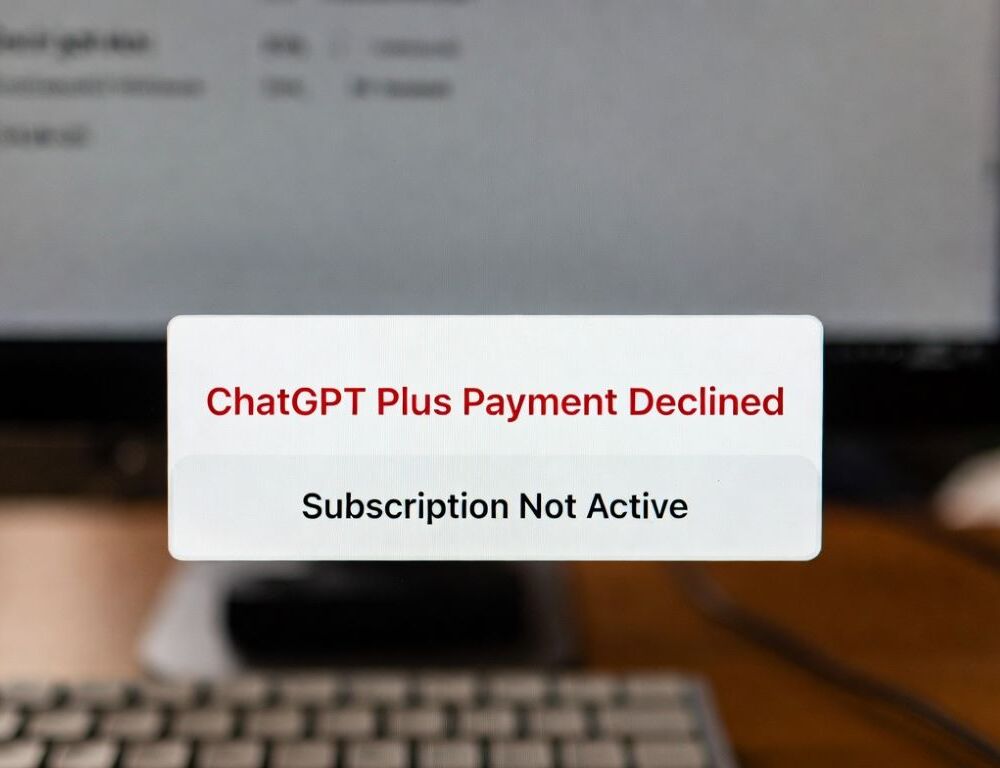
ChatGPT Plus payment declined errors usually come from issuer blocks, verification steps that did not complete, or a purchase that succeeded but has not synced to your account yet.
- ChatGPT Plus payment declined: what should you check first to avoid rework?
- ChatGPT Plus payment declined: why does a card get rejected even when it works elsewhere?
- Subscription not active after payment: what usually causes it?
- Why do VPNs, blockers, and network issues cause ChatGPT Plus payment declined loops?
- What mistakes make ChatGPT Plus payment declined problems worse?
ChatGPT Plus payment declined: what should you check first to avoid rework?
ChatGPT Plus payment declined troubleshooting starts by confirming where you tried to subscribe: on the web, in the iPhone app via the App Store, or on Android via Google Play.
- Confirm what your bank shows.
- An authorization hold is not the same as a completed charge.
- Validation: check whether the charge fully posts, then compare with your ChatGPT plan status.
- Confirm you are signed into the right ChatGPT account.
- Validation: open account settings and verify the email on the subscription screen.
- Retry once with the same setup.
- Validation: if the error changes, you learned which step failed.
- If nothing changes, move to the cause-based checks below.
ChatGPT Plus payment declined: why does a card get rejected even when it works elsewhere?
ChatGPT Plus payment declined cases often happen when the issuer blocks the authorization, fraud rules trigger, or an extra authentication step is required.
Try in this order:
- Check online and international purchase controls with your bank.
Validation: retry a single time after you change the setting. - Re-check card details and billing address (if requested).
Validation: input errors usually fail consistently and fix immediately. - Try a different card or payment method.
Validation: if a second card works, the issue is likely issuer-specific.
A PCI Security Standards Council FAQ explains that 3-D Secure (3DS) is a protocol that enables consumers to authenticate with their card issuer for card-not-present purchases, and that extra step can affect whether a transaction completes.
If you see a bank prompt, complete it fully, then check your plan status again.
Subscription not active after payment: what usually causes it?
Subscription not active after payment scenarios usually come from account mismatch, delayed entitlement sync, or a purchase managed by an app store that has not been restored in the app.
Web purchase
Subscription not active after payment on the web is commonly tied to being signed into the wrong account or a stuck session.
- Sign out and sign back in.
Validation: your plan page should show the active subscription. - Try an incognito window with extensions disabled.
Validation: if an extension interfered, the checkout flow should complete normally.
iPhone purchase via App Store
Subscription not active after payment on iPhone often means the App Store subscription is on a different Apple ID, or the app has not refreshed purchases.
- Check:
Settings→ your name →Subscriptions.
Validation: ChatGPT Plus should appear as active if the purchase was made there. - Restart the ChatGPT app and confirm the ChatGPT account email matches your intended account.
Next step: if the app offers a restore option, use it and re-check the plan status.
A UK government publication includes Apple describing StoreKit integration work and the setup and testing of subscription offers, which is a practical reminder that App Store subscriptions are managed through Apple’s in-app purchase system.
That is why your most reliable validation on iPhone is the subscription status under your Apple ID.
Android purchase via Google Play
Subscription not active after payment on Android often comes down to the active Google account and the Play Store subscription status.
- Validate the subscription in Google Play and confirm the correct Google account is selected.
Next step: restart the app after you confirm the subscription is active.
Why do VPNs, blockers, and network issues cause ChatGPT Plus payment declined loops?
ChatGPT Plus payment declined issues can also be triggered by blocked scripts, VPN routing, or unstable connections during verification.
- Temporarily disable VPN and blockers for the checkout attempt.
Validation: the payment step should complete without reloads. - Switch networks (mobile data vs Wi-Fi).
Validation: if network was the problem, the checkout completes and the subscription syncs shortly after.
What mistakes make ChatGPT Plus payment declined problems worse?
ChatGPT Plus payment declined loops get worse when you run many attempts back-to-back and change multiple variables at once.
- Do not spam retries if the issuer is declining.
- Do not create new accounts before you confirm where the purchase landed.
- If you contact support, keep shared details minimal; a practical baseline is this: AI safety checklist.
If you also see access errors or outages, separate billing from availability checks using a clear path: ChatGPT troubleshooting steps.
Once you confirm where the purchase was made and validate the subscription status in the matching system, the fix usually becomes straightforward: complete issuer authentication, verify the correct store account, or switch payment method.
Sources: