
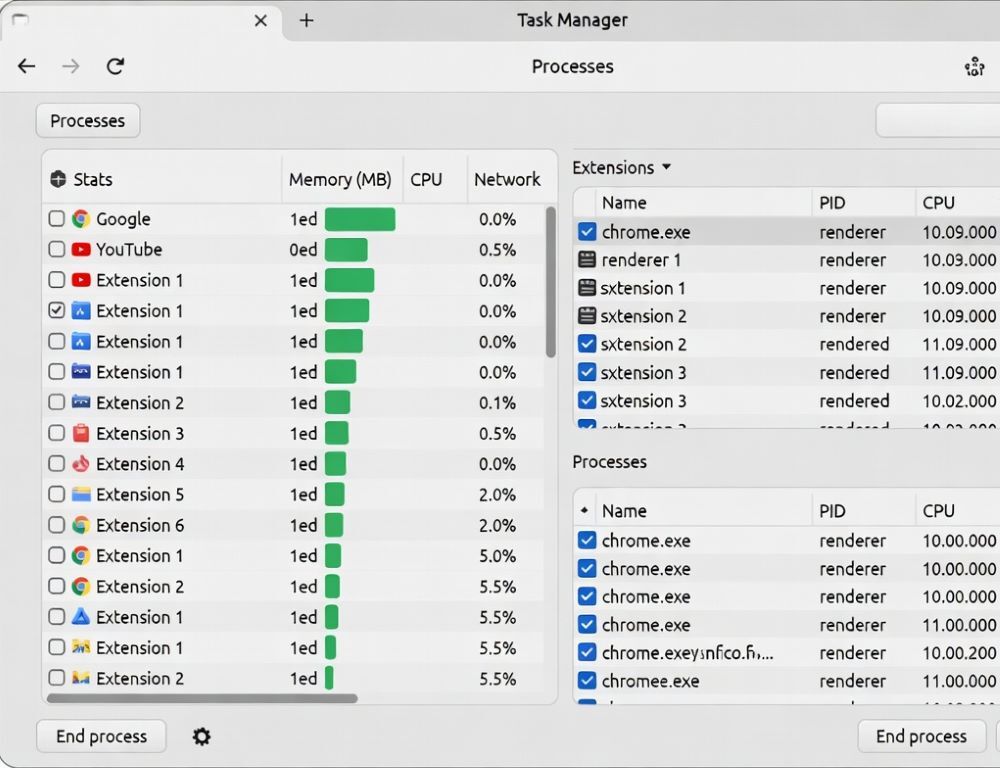
Chrome Task Manager shows which tab or extension is eating resources and lets you stop a problem process without restarting the whole browser.
- How to open Chrome Task Manager when a tab freezes or Chrome slows down?
- Chrome Task Manager shortcut: what should you use when the mouse is laggy?
- How to end a process in Chrome Task Manager without losing more than you need?
- Why does Task Manager show multiple Chrome processes even with few tabs?
- Chrome is freezing: how do you find the guilty tab via Chrome Task Manager?
- What mistakes should you avoid when using Chrome Task Manager?
- What should you try if Chrome Task Manager doesn’t fix the issue?
How to open Chrome Task Manager when a tab freezes or Chrome slows down?
The simplest way to open Chrome Task Manager is either through the menu or with a keyboard shortcut, depending on your system.
- Menu path: three dots ⋮ →
More tools→Task manager. - Shortcut: Google Chrome Cheatsheet (2021) lists
Shift+Escas “Open Chrome Task Manager”.
If the menu labels look different, use the browser’s menu and look for the tools section, then the task manager entry.
| Symptom | What to look for in Chrome Task Manager | Next step to try |
| One tab is frozen | That tab spikes CPU or memory | End the process, then reload the tab |
| Chrome feels “heavy” | An extension grows in memory | Disable that extension and retest |
| Pages load oddly slow | Background tasks stay high | Close unnecessary tasks and repeat the same test |
After each change, repeat one specific action you can measure, like opening the same site, so you know what actually improved.
Chrome Task Manager shortcut: what should you use when the mouse is laggy?
A Chrome task manager shortcut matters most when the UI is slow and accurate clicks are hard.
These are the shortcuts that pair well with troubleshooting:
Ctrl+Wcloses the current tab.Ctrl+Shift+Trestores the last closed tab.Escstops the current page from loading if it is stuck.Shift+Escopens Chrome Task Manager on systems where this shortcut is supported.
They help you regain control of Chrome first, then decide whether ending a process is necessary.
How to end a process in Chrome Task Manager without losing more than you need?
The safest way to end a process in Chrome Task Manager is to target one offender, then verify the result immediately.
- Open
Task managerinside Chrome. - Sort by CPU or memory to surface the biggest resource user.
- Select the tab or extension that is spiking.
- Click
End process, then reopen or reload the affected tab.
KAK – 11 полезных функций Google Chrome (n.d.) recommends sorting processes by memory usage and ending unnecessary ones, which is a practical way to reduce slowdown without restarting the browser.
If ending the process closes the tab, reopen it and check whether the same spike comes back under the same workload.
Why does Task Manager show multiple Chrome processes even with few tabs?
The reason Task Manager shows multiple Chrome processes is that Chrome separates work into different process types, so “more processes” is not automatically a problem.
Exploiting Reversing (2025) describes Chrome’s architecture as multiple components and processes, including a browser process, renderer processes for tabs, plugin/extension processes, a GPU process, and utility processes. That design helps isolate tasks, but it also means you will often see many entries.
The practical takeaway is to focus on the outlier process that is spiking, not the raw count.
Chrome is freezing: how do you find the guilty tab via Chrome Task Manager?
When Chrome is freezing, Chrome Task Manager helps most if you identify the exact tab or extension, instead of closing everything.
- Find the row that matches the tab’s title or site.
- Check whether CPU or memory rises sharply for that row.
- End only that process, then reload the tab.
- If the row points to an extension, disable that extension and rerun the same test.
This keeps the rest of your session intact and turns a vague freeze into a clear cause.
What mistakes should you avoid when using Chrome Task Manager?
Mistakes with Task Manager usually come from making multiple changes without a clean test.
- Do not end processes at random, start with the single biggest spike.
- Do not change several things at once, you will not know what fixed it.
- Do not remove multiple extensions in one go if you cannot reproduce the slowdown and retest.
One change, one repeatable check, one conclusion is the most reliable pattern.
What should you try if Chrome Task Manager doesn’t fix the issue?
What to try if Chrome Task Manager doesn’t help depends on whether the problem persists with extensions disabled and after a full restart.
Update Chrome, temporarily disable extensions, restart the browser, then check system-level resource usage if you suspect low RAM or background activity outside Chrome. If the slowdown reproduces on a clean profile, the root cause is often outside a single tab, such as drivers or system processes.
Sources: