
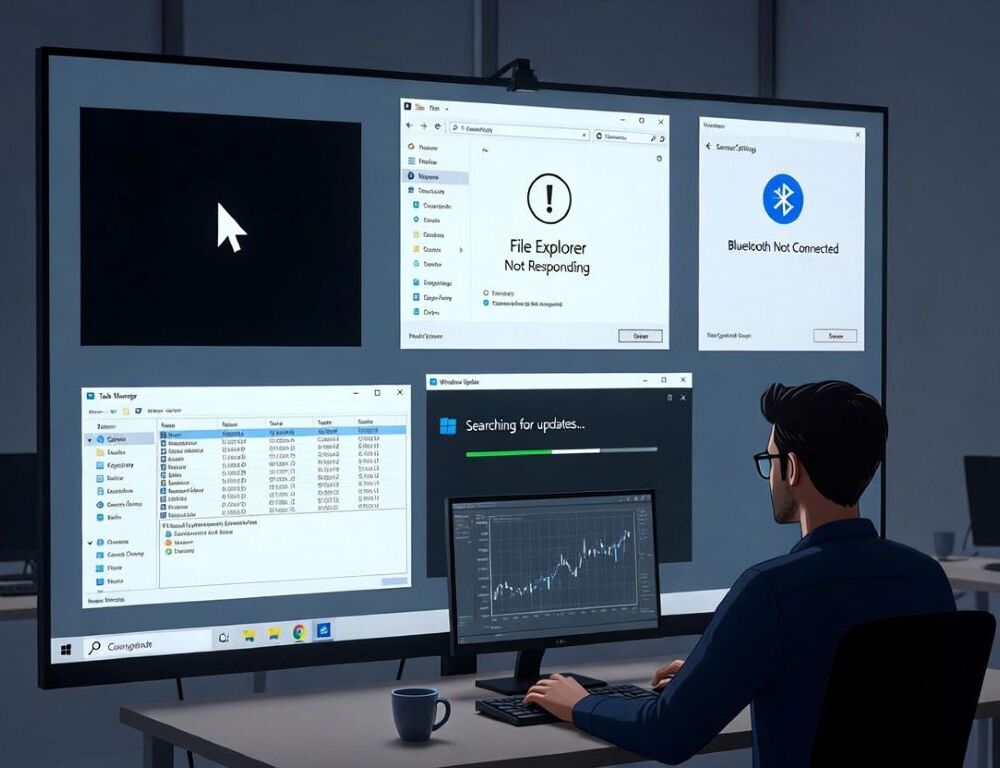
Windows 11 in 2026 faces several typical issues related to updates, performance, and connectivity. These glitches often occur after patch installations or due to driver incompatibilities. The article covers diagnostics, quick fixes, and when to seek professional help.
- What are the most common problems with Windows 11 in 2026
- How to fix black screen in Windows 11 after update
- Why does File Explorer freeze in Windows 11 and how to fix it
- How to resolve Bluetooth problems in Windows 11
- What to do if Win 11 does not shut down properly
- How to fix slow performance in Windows 11
- What mistakes to avoid when fixing Win 11 problems
- When to contact service for Windows 11 problems
What are the most common problems with Windows 11 in 2026
The most common problems with Windows 11 in 2026 include black screens after updates, File Explorer freezes, Bluetooth issues, and slow performance.
First check if the latest update is installed via Settings > Windows Update. If the issue appeared after a patch, use the recovery tool. Review the event log in Event Viewer for errors tied to system components.
Here is a table with typical symptoms, causes, and first steps:
| Symptom | Likely cause | First step |
| Black screen | Graphics driver issues | Boot in safe mode |
| File Explorer freeze | Conflicts with OneDrive | Clear temp files |
| Bluetooth problems | Outdated drivers | Update in Device Manager |
| Slow performance | Background load | Close unnecessary programs |
| Improper shutdown | Fast startup | Disable in power settings |
This table helps quickly assess the situation before detailed fixes.
How to fix black screen in Windows 11 after update
Black screen in Windows 11 after update is often caused by graphics driver issues or corrupted update files.
- Boot into safe mode by holding Shift + Restart at the login screen.
- Update drivers via Device Manager.
- If that fails, use a restore point through rstrui.exe in command prompt.
Check system stability after these steps.
Why does File Explorer freeze in Windows 11 and how to fix it
File Explorer freezes in Win 11 due to conflicts with cloud storage like OneDrive or accumulated temp files.
- Clear cache via Settings > System > Storage > Temporary files.
- Restart the explorer.exe process in Task Manager.
- If it persists, scan for viruses using Windows Security.
These actions usually restore normal operation.
How to resolve Bluetooth problems in Windows 11
Bluetooth problems in Windows 11 arise from outdated drivers or update conflicts.
- Update Bluetooth drivers in Device Manager with automatic search.
- Restart the Bluetooth Support Service via services.msc.
- If the device is not detected, reset network settings in Settings > Network & internet > Advanced network settings.
Verify connectivity after each step.
What to do if Win 11 does not shut down properly
Windows 11 does not shut down properly due to issues with System Guard or fast startup.
- Disable fast startup in Settings > System > Power & sleep > Additional power settings.
- Update BIOS if on new Intel processors.
- If it reboots instead, check for errors in the event log.
These changes stabilize the shutdown process.
How to fix slow performance in Windows 11
Slow performance in Win 11 is often linked to background load or insufficient memory.
- Close unnecessary programs in Task Manager.
- Update the system and drivers.
- If graphics lag, check settings in Settings > System > Display > Graphics.
Regular updates prevent recurrence.
What mistakes to avoid when fixing Win 11 problems
Mistakes when fixing Windows 11 problems include skipping backups before changes.
- Always create a restore point before driver updates.
- Do not delete system files manually without verification.
- Avoid third-party cleanup tools that may damage the registry.
Following these rules reduces risks.
When to contact service for Windows 11 problems
Contact service for Win 11 problems if basic fixes fail and hardware symptoms appear, like overheating.
If the system won’t boot after multiple recovery attempts, professional diagnostics will identify equipment issues. For software glitches, first try the SFC /scannow tool.
Win 11 issues in 2026 are often resolved with updates and basic diagnostics, but persistent failures require a systematic approach.