
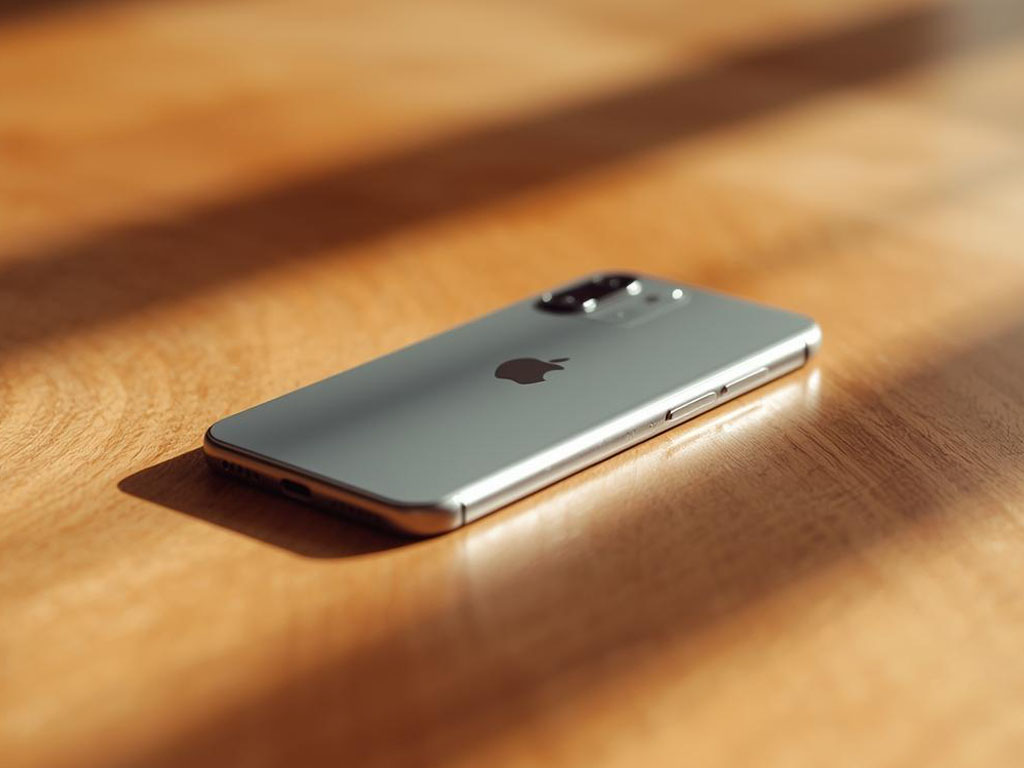
The Find My feature helps you locate a lost iPhone, iPad, or other Apple devices, play a sound, enable Lost Mode, and protect your data.
- What should you do first if your iPhone is lost or stolen?
- What is Find My, and what can it do?
- How does iPhone search work, and what do the map statuses mean?
- How to find an iPhone via iCloud
- How to find an iPhone using the Find My app
- How to find another iPhone in a family setup
- Can you find an iPhone if it is turned off or Find My is disabled?
- How to find other Apple devices with Find My
- Which mistakes should you avoid when searching for an iPhone?
- Conclusion
What should you do first if your iPhone is lost or stolen?
The best first move is to open Find My on another device or sign in at icloud.com to check the device status and turn on protection fast.
- Check whether the device is online, offline, or showing a last known status.
- Play a sound if the iPhone could be nearby.
- Enable
Lost Modeif the device is not in your control or theft is possible. - Prepare for remote erase if recovery looks unlikely.
After these basics are done, the next steps depend on whether the device is online and whether Find My was enabled.
What is Find My, and what can it do?
Find My is Apple’s service for locating devices and managing them if they are lost.
- It can show a device location on a map when location data is available.
- It can trigger protective actions such as Lost Mode and other controls.
- It can also work offline through the
Find Mynetwork when nearby Apple devices detect the missing device.
Apple Platform Security describes offline locating as relying on short-range Bluetooth signals and reports relayed by nearby devices, with the flow designed to protect user privacy.
How does iPhone search work, and what do the map statuses mean?
iPhone search works by selecting a device in Find My or at icloud.com, then viewing its location on the map or its most recent status.
- A map pin means the service has coordinates, sometimes with normal accuracy limits.
- Offline usually means the device is powered off, out of battery, or without internet.
- Last known status shows where it was when it last had connectivity.
Apple Platform Security notes that when an offline device is detected, Find My can show an approximate address and how long ago it was detected, and the information can update as new reports arrive.
How to find an iPhone via iCloud
You can find an iPhone via icloud.com from a computer or another phone if you can sign in with the correct Apple ID.
- Sign in at
icloud.comwith your Apple ID. - Open
Find iPhoneorFind My. - Select the device from the list.
Verification: you should see a map, available actions, and an online or offline status for that device.
What if iCloud does not show the device?
If the device does not appear, you are usually signed in with a different Apple ID or Find My was not enabled on that iPhone.
Verify the Apple ID matches the one used on the missing device and make sure the account is not restricted.
How to find an iPhone using the Find My app
You can find an iPhone using the Find My app on another iPhone or iPad if the missing device is linked to your Apple ID.
- Open
Find Myand go toDevices. - Select the missing iPhone.
- Review the map and the last update status.
- Use sound, directions, or
Lost Modeas needed.
Verification: if the sound triggers but you cannot hear it, rely on the map and the last update time, because the device may be far away or offline.
How to find another iPhone in a family setup
You can track other devices when they are linked to your Apple ID or configured through Family Sharing.
- Children’s or relatives’ iPhones that are part of your family group.
- Devices included in
Family Sharing. - AirTags attached to keys or bags if they are tied to your account.
Verification: devices appear under Devices, while people appear under People when location sharing is enabled.
Can you find an iPhone if it is turned off or Find My is disabled?
Finding an iPhone is harder when it is offline, and what you can do depends on why it is offline and whether Find My was enabled beforehand.
If the battery is dead or the phone has no internet
If the phone is out of battery, the service typically shows the last place it was online.
Enable Lost Mode and note the last update time so your next steps match the timeline.
If the iPhone is powered off
Personal Safety User Guide states that a device may be findable through the Find My network for up to 24 hours after it has been powered off or disconnected from the internet, depending on settings and device support.
Verification: if you only see an old location that does not refresh, the service is not receiving new location reports.
If Find My is disabled in settings
If Find My or the Find My network is disabled, locating options drop sharply. Apple Platform Security also notes that you cannot play a sound on an offline device or erase it remotely, but you can use any available location information to retrace steps and attempt recovery.
In this case, focus on account protection and treat the device as potentially unrecoverable.
How to find other Apple devices with Find My
Find My works with iPad, MacBook, Apple Watch, and AirPods when they are linked to your Apple ID.
- Select the device under
Devices. - Review its status and last update.
- Use the available actions supported for that device.
Verification: if AirPods or a watch does not show a current location, it often means the item has been offline for a while or out of range.
Which mistakes should you avoid when searching for an iPhone?
The most common mistakes are delaying protection steps, using the wrong account, and mixing up search scenarios.
- Do not delay
Lost Modeif the device is missing. - Do not sign in on untrusted computers if you can avoid it.
- Do not confuse
Peopletracking withDevicestracking. - Do not ignore an offline status, capture the last update and enable alerts if available.
- Do not disable
Find Myor theFind Mynetwork casually, because Personal Safety User Guide cautions that doing so can prevent locating, locking, or erasing a lost device.
When you follow a clear sequence, you either recover the device or protect your data more reliably.
Conclusion
Find My is a practical way to locate a lost iPhone and protect personal information at the same time. Check the device status on the map, enable Lost Mode when appropriate, and follow the path that matches online versus offline behavior.
Sources: