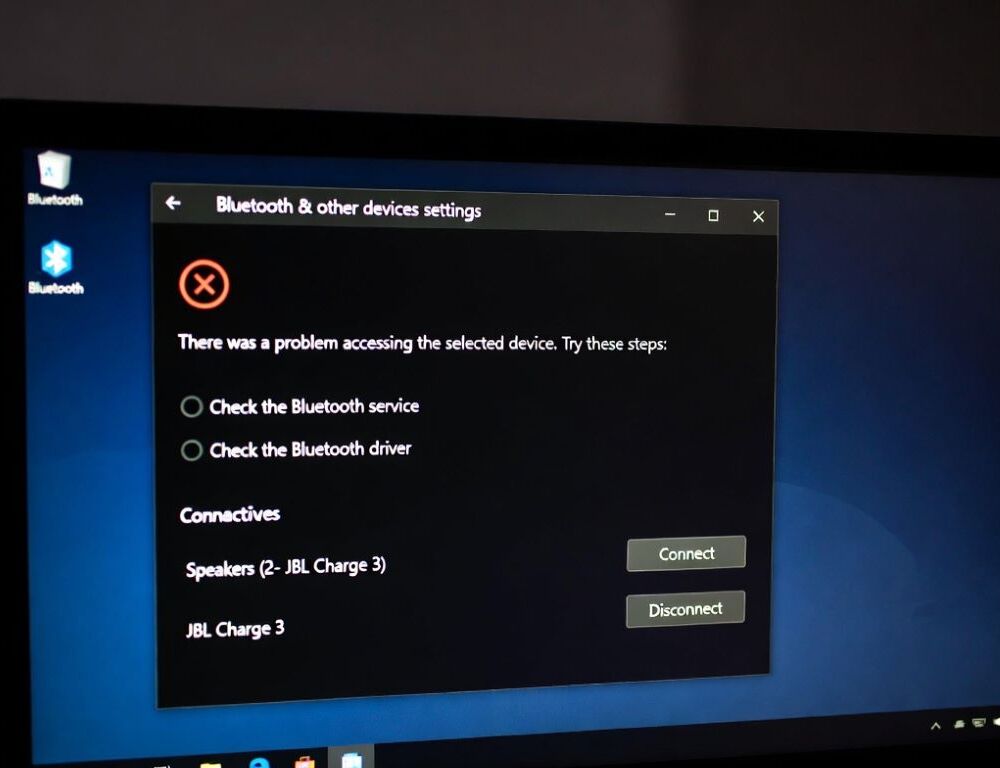
Fix Bluetooth connections on Windows 10 by starting with fast checks, then re-pairing, then validating the adapter and power settings. The common failure patterns are consistent: the device never appears, it connects and drops, or audio stutters after sleep.
A clean workflow reduces guesswork: confirm Bluetooth and airplane mode, remove and re-add the device, verify the adapter in Device Manager, then turn off power-saving for the Bluetooth radio. If you are doing other system maintenance at the same time, keep it separate, for example with Windows 10 disk management without risky mistakes.
- Which Bluetooth symptoms on Windows 10 tell you what to try first?
- Which 2-minute checks restore Bluetooth on Windows 10 surprisingly often?
- Why does a Bluetooth device not appear, and how do you make it discoverable again?
- What if Bluetooth connects but drops immediately on Windows 10?
- How do you check the Bluetooth driver in Device Manager without making things worse?
- Which power settings silently break Bluetooth on Windows 10 after sleep?
- Which mistakes waste the most time when fixing Bluetooth on Windows 10?
- Which quick answers solve the most common Bluetooth questions on Windows 10?
- Can pairing fail because of airplane mode even when Wi-Fi works?
- Is removing the device worth it for headphones that keep dropping?
- Why does the Bluetooth toggle disappear from Settings?
- Can a phone connection interfere with a Windows 10 Bluetooth connection?
- When should you prepare system recovery before deeper driver work?
Which Bluetooth symptoms on Windows 10 tell you what to try first?
Bluetooth symptoms on Windows 10 usually point to one of three buckets: discoverability, pairing records, or adapter stability. Lock onto one symptom and test only that symptom after each change.
| Symptom | Likely cause | Safe check |
| Device never shows up | Not discoverable | Enable pairing mode and scan again |
| Code/PIN prompt fails | Bad pairing record | Remove device and pair again |
| Connects then drops | Power or services | Disable adapter power saving, restart services |
| Audio stutters | Profile or interference | Switch profile, reduce distance |
Use the same validation every time, such as “connect and stay stable for 60 seconds”, so the result is measurable.
Which 2-minute checks restore Bluetooth on Windows 10 surprisingly often?
Quick Bluetooth checks on Windows 10 work because airplane mode and disabled radios look like deeper problems. These steps do not risk your system state.
- Turn Bluetooth on in Settings > Devices > Bluetooth & other devices (or search Bluetooth inside Settings).
- Turn airplane mode off. The ASUS Notebook PC E-Manual (First Edition / May 2022) explicitly notes that airplane mode disables Bluetooth.
- Reboot the PC and reboot the device, then retry the connection.
- Check battery level and distance, especially for earbuds and trackers.
If the device still does not show up, treat it as a discoverability or pairing-record issue.
Why does a Bluetooth device not appear, and how do you make it discoverable again?
A “device not found” case usually means the device is not in pairing mode or Windows is holding a stale pairing record. The clean fix is remove and re-add.
- Settings > Devices > Bluetooth & other devices → select the device → Remove device.
- Put the device into pairing mode (often a long press on the power button).
- Choose Add Bluetooth or other device → Bluetooth and scan again.
The TP-Link Archer TXE72E User Guide (Issue 1, 24/02/23) stresses a simple rule: make the device discoverable first, then add it in Windows. Validation is straightforward: the device appears in the list and shows “Connected” after pairing. If it never appears, verify the adapter next.
What if Bluetooth connects but drops immediately on Windows 10?
Bluetooth dropouts right after connecting often come from power saving, profile switching, or a second device connection. Start with reversible steps.
- Toggle Bluetooth off and on, then pair again after Remove device.
- For headphones, check the audio profile, because hands-free mode can be unstable for some setups.
- Make sure the device is not simultaneously connected to a phone or another laptop.
Validate with a timed test, such as one minute of clean audio or steady mouse movement. If the dropouts happen after sleep, prioritize power settings for the adapter.
How do you check the Bluetooth driver in Device Manager without making things worse?
A safe Device Manager check confirms whether Windows considers the adapter healthy before you touch driver packages. The aim is to avoid random installs and start with simple enable/disable actions.
- Open Device Manager → Bluetooth (or Network adapters).
- Open the adapter properties → General tab.
- Confirm the device status and any error codes.
The TP-Link Archer TXE72E User Guide (Issue 1, 24/02/23) uses a baseline status like “This device is working properly” as a health check. If you see errors, try Disable device → Enable device, then Update driver. Validation is that the Bluetooth toggle stays available in Settings and pairing stays stable.
Which power settings silently break Bluetooth on Windows 10 after sleep?
Power settings can turn off the Bluetooth radio to save energy, then leave you with flaky reconnects. The most common fix is disabling adapter power-down.
- Device Manager → Bluetooth adapter → Properties.
- Power Management tab → clear “Allow the computer to turn off this device to save power”.
Validate by repeating the same scenario: sleep, wake, connect, and stay connected for a minute. If results change only after reboot, check Bluetooth services next.
Which mistakes waste the most time when fixing Bluetooth on Windows 10?
Bluetooth troubleshooting fails most often when multiple causes are mixed together. The biggest time-wasters are predictable.
- Re-pairing without Remove device, while Windows keeps a broken record.
- Updating drivers from multiple places at once.
- Ignoring airplane mode and power saving, then repeating the same failing test.
A single change plus a single validation test keeps the diagnosis clean.
Which quick answers solve the most common Bluetooth questions on Windows 10?
Can pairing fail because of airplane mode even when Wi-Fi works?
Pairing can fail because airplane mode disables Bluetooth even if you later toggle other radios. The ASUS Notebook PC E-Manual (First Edition / May 2022) calls out airplane mode as a blocker for Bluetooth. Turning airplane mode off and retrying pairing is a fast validation.
Is removing the device worth it for headphones that keep dropping?
Removing the device is worth it when the pairing record is corrupt or the profile keeps flipping. After re-pairing, validate with one minute of stable playback.
Why does the Bluetooth toggle disappear from Settings?
A missing Bluetooth toggle usually points to the adapter not being detected or a driver issue. Device Manager status and a reboot are the quickest checks.
Can a phone connection interfere with a Windows 10 Bluetooth connection?
Interference can happen when earbuds or speakers auto-connect to a phone first. Temporarily turning Bluetooth off on the phone can validate the conflict.
When should you prepare system recovery before deeper driver work?
System recovery preparation is reasonable if you plan to test driver rollbacks or multiple configuration changes. A simple option is set up a Windows 10 recovery drive and restore point.
The core takeaway is consistent: stable Bluetooth on Windows 10 usually returns after proper re-pairing, adapter validation, and disabling power-saving on the Bluetooth device.
Sources: