
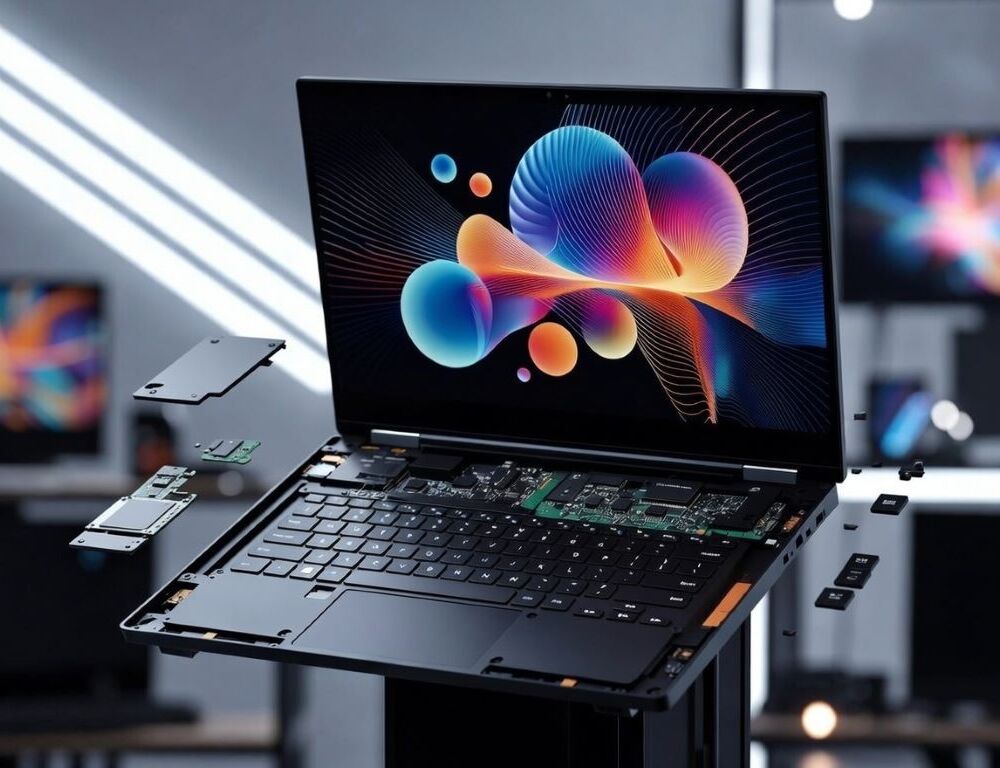
A Framework Laptop feels “right” or “wrong” mostly because of the display, the typing feel, and the ports you actually use. Those choices decide daily comfort more than chasing the biggest CPU spec.
- What should you decide first to avoid a bad configuration?
- Which Framework Laptop display works best for writing, coding, and spreadsheets?
- Do you need a color-focused screen for photo and video work?
- What keyboard and touchpad details matter for long typing sessions?
- Which ports are actually worth adding: USB-C, USB-A, HDMI, microSD, or Ethernet?
- How do you build a configuration that stays flexible without overspending?
- What mistakes make people regret a Framework Laptop setup?
- When is it smarter to stop and ask an expert?
What should you decide first to avoid a bad configuration?
The first decisions for a Framework Laptop should be the screen, input comfort, and your real connection list. Start with zero-risk checks: pick a screen size you can work on for hours, confirm the keyboard layout you need, and list every device you plug in weekly.
Safe to do immediately: define your main workload, note your typical lighting, and write down your monitor, charger, and accessories. Risky early moves: buying extra expansion cards “just in case” or assuming any dock will behave the same. Stop and ask for help if you must run two external displays plus charging plus multiple peripherals and reliability matters for work.
A quick sanity check against laptop rankings for 2026 can be useful when it compares use cases instead of raw benchmarks.
Which Framework Laptop display works best for writing, coding, and spreadsheets?
A Framework Laptop display for text-heavy work should prioritize sharp readability and low eye strain over flashy specs. Look for a comfortable pixel density, enough brightness for daytime rooms, and a finish that manages reflections.
Validation is practical: read black text on a white background for 10 minutes, then switch to a mid-gray window and watch for flicker sensitivity or immediate fatigue. If you keep changing scaling because menus look tiny or fuzzy, the resolution choice may be mismatched to your workflow.
Do you need a color-focused screen for photo and video work?
A color-focused Framework Laptop screen matters when color decisions are part of the job, not an occasional tweak. Consistent backlight and predictable color behavior are more valuable than marketing numbers if edits must match what others see.
Skip the premium screen if video is mostly for social posts, color grading is not a requirement, or an external monitor is already the real workspace. In that case, a balanced laptop panel plus a stable cable/dock setup often produces a better result.
What keyboard and touchpad details matter for long typing sessions?
Framework Laptop input comfort depends on stable key feel, a layout that fits your habits, and a touchpad that tracks reliably. For 4–6 hours of typing, arrow keys, Backspace placement, and consistent modifier shortcuts matter as much as travel depth.
A quick test that reveals problems early:
- Type for 10 minutes with autocorrect off and count repeated errors.
- Use your real shortcuts and confirm your hands do not “hunt” for keys.
- Enable two-finger scroll and back gestures and check precision.
After the test, spend two minutes in your normal apps and notice whether your wrists or fingers tense up.
Which ports are actually worth adding: USB-C, USB-A, HDMI, microSD, or Ethernet?
Framework Laptop ports should match your weekly connections, otherwise expansion cards become expensive duplicates. Most setups revolve around USB-C charging, one external display, a receiver or mouse, and occasional removable storage.
Use scenario logic:
- One monitor plus charging: prioritize USB-C with video support, or pair HDMI with USB-C for power.
- Camera workflow: microSD is useful only if cards are part of your routine.
- Unreliable office Wi-Fi: Ethernet can remove an entire class of connectivity issues.
After the essentials, add one “future” port at most, then stop.
How do you build a configuration that stays flexible without overspending?
A Framework Laptop configuration stays sensible when you lock in screen, input, and ports first, then decide performance. That order prevents paying for upgrades that do not fix the real pain points.
This small table keeps choices aligned with a workload:
| Scenario | Display priority | Input priority | Port priority |
| Docs, code, study | Readability, reflections | Layout comfort, accuracy | USB-C, 1× USB-A, optional HDMI |
| Photo, design | Consistent backlight, color | Precise touchpad | USB-C, microSD, HDMI or USB-C video |
| Travel-heavy work | Daylight brightness | Low error rate typing | Fewer cards, focus on USB-C |
| Weak Wi-Fi office | Any comfortable | Standard | Ethernet, HDMI, USB-A |
After choosing, verify you already have the right cables and that your dock plan matches your monitor inputs.
What mistakes make people regret a Framework Laptop setup?
Framework Laptop regret usually comes from “future-proofing” without a real scenario. That turns into extra cost and sometimes worse usability.
Common mistakes:
- Picking an overly high resolution, then fighting scaling and app quirks.
- Collecting ports instead of solving the workflow with one solid hub.
- Treating the keyboard as an afterthought even though typing is constant.
- Choosing a screen based on reviews, not on your eye comfort.
If uncertainty remains, simplify the configuration and keep budget for the accessory that actually removes friction.
When is it smarter to stop and ask an expert?
An expert is worth it when you need guaranteed dock compatibility, multi-monitor stability, or strict corporate hardware requirements. It is also sensible when your setup involves charging plus two displays plus multiple peripherals and downtime is costly.
A Framework Laptop works best when display comfort, input feel, and ports match real daily use. When those are right, everything else becomes easier to choose.