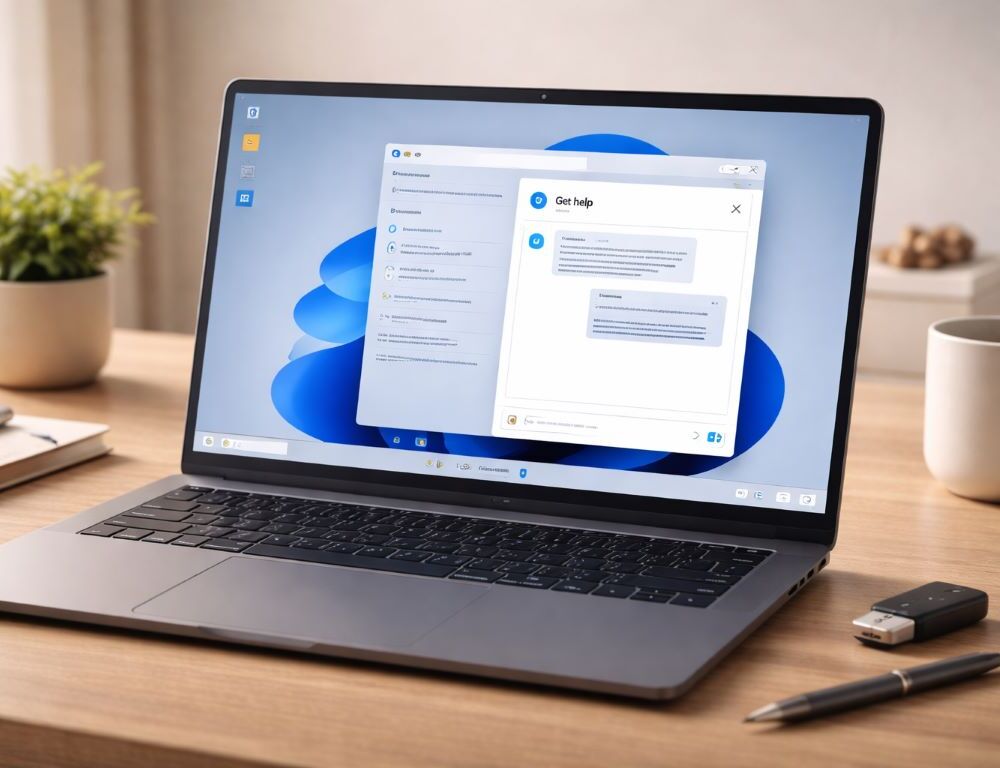
Get help in Windows 11 is most reliable through the Get Help app or Start search. Many Windows 11 builds route help content online, so network and Store components matter more than classic offline help. If menus look different, Settings search is the fastest fallback.
- What quick checks fix cases where Get help in Windows 11 won’t open?
- How can you open Get help in Windows 11 from Start search and get actionable results?
- Where does Windows help live inside Settings, and how do troubleshooters fit?
- How does getting help from File Explorer work in Windows 11, and why does F1 open a browser?
- Which steps fix Get Help when it crashes, freezes, or never loads results?
- Which mistakes cause the most wasted time when trying to get help in Windows 11?
- When should you stop DIY fixes and contact support for Windows help issues?
- What is the fastest first move to keep Get help in Windows 11 working reliably?
What quick checks fix cases where Get help in Windows 11 won’t open?
Get help in Windows 11 usually fails because the network path is blocked or Microsoft Store components are not working. A short triage prevents wasting time on the wrong layer.
- Internet access works without Proxy/VPN rules that block Microsoft services.
- Date and time are correct, because certificate errors can stop help pages from loading.
- Microsoft Store opens and apps can update, with sign-in completed if required.
- Windows Update services are not stuck, because several support components depend on them.
After each change, open Get Help again and confirm the search box and results actually load.
How can you open Get help in Windows 11 from Start search and get actionable results?
Get help in Windows 11 opens fastest from Start search and can offer troubleshooting flows tied to the exact symptom. The app name may appear as “Get Help” or a localized equivalent, so searching is more stable than browsing menus.
- Open Start and search for “Get Help”.
- Launch the app and type the component plus symptom, not only “not working”.
- Run the suggested checks, then launch the troubleshooter or repair step if offered.
Validation is practical: the issue should change, or Get Help should provide a specific status and next action.
Which query wording improves Get Help accuracy?
Query wording improves accuracy when it includes the feature name and the failure mode, such as “File Explorer search not finding files” or “Windows Update error”. A generic query like “get help in windows” often returns broad articles without diagnostics.
Confirm quality by checking whether the first results match the exact component you typed.
Where does Windows help live inside Settings, and how do troubleshooters fit?
Windows help inside Settings is often delivered through built-in troubleshooters rather than a single help page. A common Windows 11 path is Settings > System > Troubleshoot > Other troubleshooters, and Settings search can find it even when labels differ.
If symptoms match a known pattern, reviewing common Windows 11 problems can save time before deeper system changes. Validation should be immediate: repeat the action that failed and check whether the error still reproduces.
How does getting help from File Explorer work in Windows 11, and why does F1 open a browser?
Getting help from File Explorer in Windows 11 often opens web-based support, so pressing F1 may launch the default browser. Some builds handle F1 inconsistently in File Explorer, which can look like a failure even when the system is fine.
Practical options:
- Press F1 in File Explorer and confirm whether a support page opens in the default browser.
- Use Start search for the symptom with “File Explorer” to trigger a Get Help workflow.
- Use Settings search for “Help” to reach system-level support entry points.
Validation should be tied to the original problem, such as re-testing Explorer search, navigation, or folder access.
What should you do if File Explorer help does not open or shows a blank page?
File Explorer help issues are commonly caused by default browser associations, security policies, or blocked network access. Check Settings > Apps > Default apps and set a standard browser temporarily to rule out broken associations.
Validation is simple: pressing F1 should open a real page, not a blank tab with no load activity.
Which steps fix Get Help when it crashes, freezes, or never loads results?
Get Help issues in Windows 11 are often resolved by repairing the app, clearing Store cache, or restoring update components. Running steps one by one makes the fix measurable.
This table helps map the most common Get Help failures to the quickest fix.
| Symptom | Likely cause | Action |
|---|---|---|
| App won’t open | App package issue | Open Settings > Apps > Installed apps > Get Help > Advanced options > Repair |
| Blank screen | Store cache issue | Run Wsreset, Then restart the PC |
| No results load | Network blocking | Disable Proxy/Vpn, Then test again |
| Troubleshooters won’t run | Update services issue | Check Windows Update services, Then retry Get Help |
After applying one action, reopen Get Help and confirm the search results load and a troubleshooter can start.
A safe path is Settings > Apps > Installed apps > Get Help > Advanced options > Repair, then Reset if Repair does not help. If troubleshooters fail to download or run, checking Windows 11 won’t update is a strong next move because Update services affect multiple support features.
Safety note: network resets and some troubleshooters can remove saved Wi-Fi networks, so keep credentials available before applying disruptive fixes.
Which mistakes cause the most wasted time when trying to get help in Windows 11?
Mistakes happen when “the window opened” is treated as success without verifying the symptom. A reliable workflow always checks whether the original failure changes after each step.
- Avoid stacking multiple changes at once, because the working fix becomes unclear.
- Avoid third-party “optimizers”, because they often break Store and update services.
- Avoid relying on a single metric like “help opens”, because the real test is the affected feature.
After each attempt, reproduce the exact issue and confirm whether it improved, stayed the same, or changed form.
When should you stop DIY fixes and contact support for Windows help issues?
Contacting support makes sense when Get help in Windows 11 fails after network checks, app repair/reset, and basic Store and update validation. A stronger escalation signal is when Microsoft Store, Windows Update, and support apps all fail together.
Stop and escalate if system file integrity errors persist, or if the device shows suspicious behavior such as unknown proxy settings or repeated redirects. Back up important files before any deeper recovery step that can change system state.
What is the fastest first move to keep Get help in Windows 11 working reliably?
Get help in Windows 11 stays most reliable when Get Help is updated, the network path is clean, and Windows Update services are healthy. Confirm success by running a Get Help query for a specific symptom and completing the recommended troubleshooter end to end.