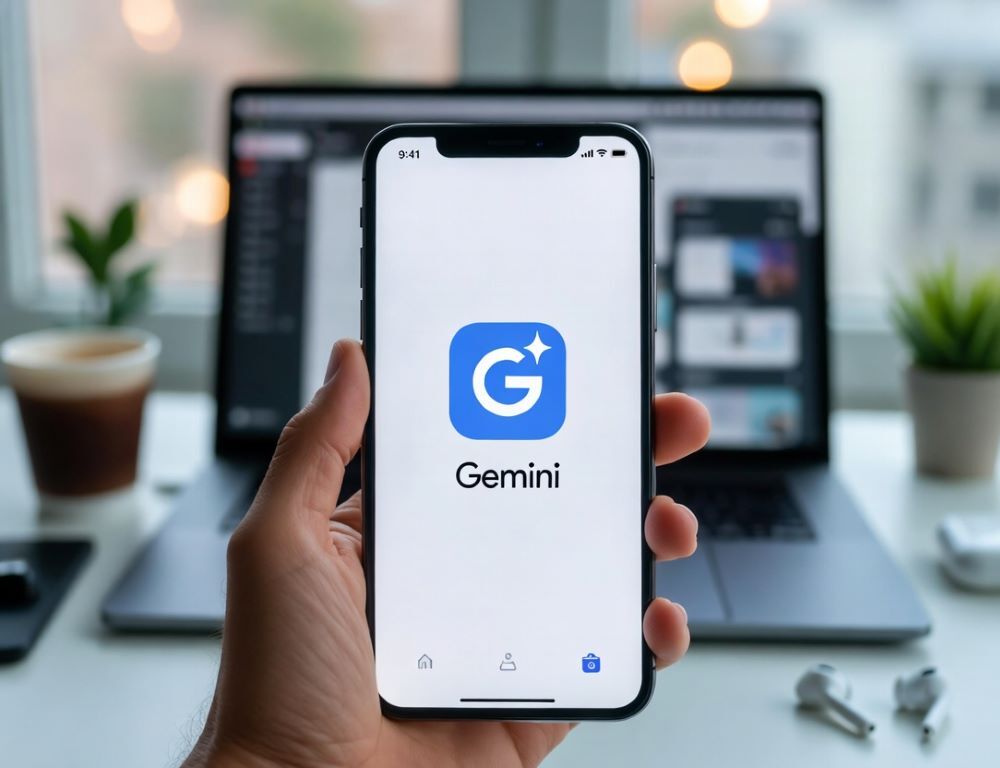
Google Gemini on iPhone becomes much easier to rely on when you check access requirements first, then set up sign-in, permissions, and a clear workflow. In many cases, the problem is not the app itself. It is the system language, the account type, or the habit of mixing several unrelated tasks in one chat.
- Who can use Gemini on iPhone
- How to install Gemini and sign in without account confusion
- What the iPhone app can actually do, and what depends on language, region, or account
- How to get more consistent results in text mode
- How to use voice, Gemini Live, photos, and image generation
- How to manage history, activity, and privacy
- What to do if Gemini on iPhone is not working
- Which mistakes are easiest to avoid
Who can use Gemini on iPhone
Before you install the app, it helps to rule out the most common access issues. The Gemini app on iPhone does not behave the same way in every case. Your iOS version, country, system language, age, and account type can all affect what is available. For work or school accounts, access may also depend on the plan or license attached to that account.
It is also worth checking your iPhone language before you do anything else. If the app is missing from the App Store or a feature does not appear, start with language and region checks before you jump to reinstalling the app. That simple check often saves time right away.
How to install Gemini and sign in without account confusion
Installation starts in the App Store. Search for Gemini, make sure it is the official Google listing, install it, and open it from the Home Screen. If everything is working normally, you should land on the sign-in screen and the app should stay open instead of crashing right away. That is the quickest way to confirm you are not dealing with a basic compatibility or regional access issue.
When you sign in, the most important thing is choosing the right Google Account. If your iPhone already has multiple Google profiles connected, pick the one you actually want to use, complete any two-step verification prompts, and then check the profile area inside Gemini once you are in. That makes it obvious which account is active in the app.
What the iPhone app can actually do, and what depends on language, region, or account
On iPhone, Gemini supports text prompts, voice, Live conversations, image input, camera-based help, and some connected services. It helps to think in terms of the mode you need right now, text, voice, photos, camera, or connected services, instead of treating every task the same way.
At the same time, not every feature is available in exactly the same way for every user. Live, spoken options, and some feature sets may depend on system language, region, age, and account type. So if something is missing or behaving differently than expected, the first thing to check is not just permissions, but also whether the feature is actually available to your setup.
Connected Apps are another feature area that many users overlook. Gemini can connect to other apps and services, with your permission, to help with tasks that involve your information or content elsewhere. If you only need a basic chat workflow, you can keep this simple, but for more useful task-based work it is worth understanding.
How to get more consistent results in text mode
Text mode tends to work best when you keep to a simple pattern: one chat, one task, one output format. Instead of sending a long, crowded prompt, state the goal in one sentence, add only the context that actually changes the answer, and name the format you want, such as bullets, a short plan, a checklist, or a message draft.
When responses start drifting, the cause is often not the model but the chat history itself. If one conversation mixes writing help, product comparisons, and iPhone troubleshooting, Gemini starts carrying older assumptions into the next request. A quick baseline is How to Use Google Gemini. That gives you a cleaner reference point for how to phrase tasks when you want more predictable output.
If the result becomes less stable after several follow-ups, it is usually faster to start a new chat and restate the task clearly than to keep repairing a crowded thread. In practice, that saves time more often than it wastes it.
How to use voice, Gemini Live, photos, and image generation
For voice input, the basic requirement is simple: Gemini needs microphone permission in iOS, and your system language needs to line up with a supported setup. If microphone access was denied earlier, open iPhone Settings, find Gemini, and turn Microphone back on. If what you really want is Gemini Live, check three things as well: you are signed in, the feature is available for your profile, and your language and region do not limit access. Those conditions are often mistaken for app failures when they are really availability limits.
For photos, the most reliable approach is a narrow question. Attach an image from Photos or take one inside the chat, then ask Gemini to identify specific details, pull out text, compare two visual elements, or explain what is visible. A useful habit is asking for 3 to 5 details that you can verify quickly yourself. That makes it easier to spot whether the model understood the image well or needs a better follow-up.
Gemini on iPhone also supports image generation in the mobile app. If that is the workflow you want, rather than image analysis, a practical reference point for settings or modes is Google Gemini Image Generation Photo Prompts. That helps separate “analyze this image” from “create a new image” before the chat starts to blur the two.
How to manage history, activity, and privacy
On iPhone, Gemini privacy is mostly a combination of iOS permissions and activity settings inside the service. In system settings, it is usually best to keep only the permissions you actually need, such as Microphone, Camera, and Photos. That reduces confusion and avoids opening extra access paths for no reason.
Inside Gemini, you can change activity behavior, delete conversations, and control how history is saved. It is worth remembering that privacy settings can affect more than just saved chats. They may also change which connected features remain available to you. That is why it makes sense to review privacy changes carefully instead of treating them as a simple on-off switch.
For sensitive tasks, it is safer to describe the situation in general terms instead of pasting full names, documents, account numbers, or other unnecessary personal details. That is the simplest form of AI hygiene on iPhone.
What to do if Gemini on iPhone is not working
If the app will not sign in, stops responding, or behaves inconsistently, go through a short check sequence. Start with the network, test both Wi-Fi and cellular, then disable VPN temporarily if it is on. After that, update Gemini in the App Store, restart the iPhone, and only then try signing out and back in. That order helps you separate a network problem from an account problem.
If the issue is still there, reinstall the app and test again with one short neutral prompt in a fresh chat. That quickly shows whether the problem is system-wide or just tied to a messy older conversation. If you do not actually want Gemini as your main setup and your real goal is to get back to the older assistant behavior without extra friction, a short checklist of symptoms and fixes is Disable Google Gemini and Switch Back to Google Assistant. Sometimes that is more practical than forcing a workflow you do not want.
Which mistakes are easiest to avoid
The most common Gemini problems on iPhone usually come from repeated small mistakes rather than rare app bugs:
- turning off Microphone or Photos and then expecting voice or image features to work
- mixing unrelated tasks inside one chat
- writing broad, unfocused prompts with no clear outcome
- sharing more personal detail than the task actually requires
When you keep one task per chat, use only the permissions you need, and validate each change with a short test, Gemini on iPhone becomes much more predictable in day-to-day use.