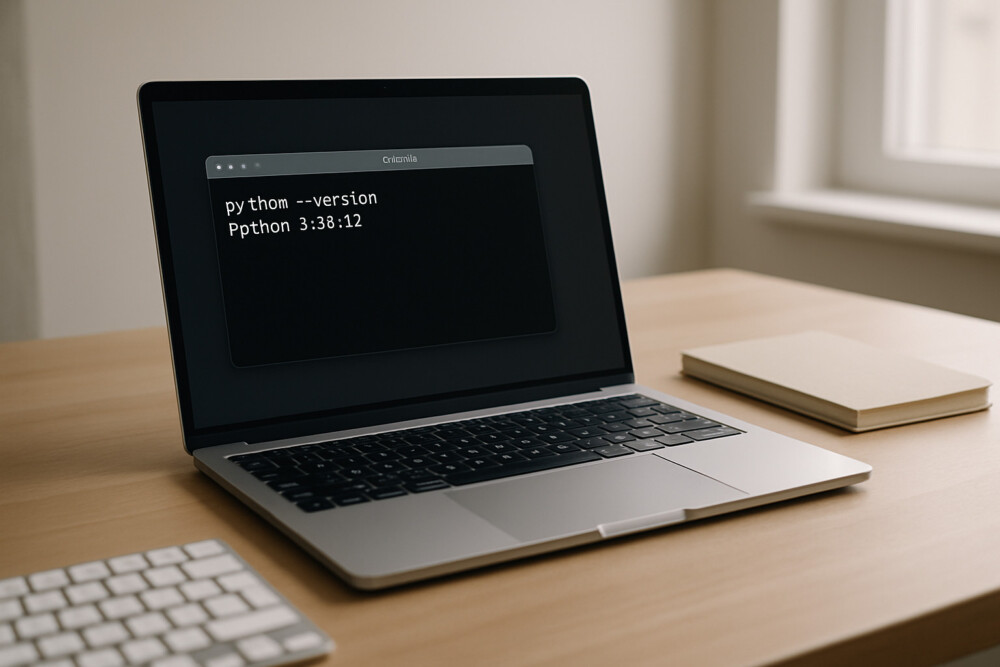
How to check Python version is one of the first things to confirm before running scripts, installing packages, or setting up a development environment. The easiest method depends on where you are working: a system terminal, a virtual environment, or a code editor.
Check the Python version in the terminal
Checking the Python version in the terminal usually takes only a few seconds and shows the version for the active environment. Open Command Prompt or Terminal and run one of these commands:
- python –version
- python3 –version
On some systems, python points to an older release or a different installation, while python3 points specifically to Python 3. If the command works, the output will look something like Python 3.12.2.
To confirm that the command is using the interpreter you expect, check the executable path as well:
- where python on Windows
- which python or which python3 on macOS and Linux
These commands show the full path to the Python executable. If the path is not the one you expected, the system likely has more than one Python installation.
How to check Python version in a virtual environment
How to check Python version in a virtual environment matters separately because an activated environment can use a different interpreter from the system one. Activate the environment first, then repeat python –version or python3 –version.
If the version changes after activation, the environment is configured correctly. If it does not, check whether the environment is actually active and whether the command is still calling the global Python installation.
A practical check is to install a package in that environment or run a short script and confirm that it works there. If the command shows an unexpected version, recreate the environment with the correct interpreter.
Check Python version in VS Code, PyCharm, and Jupyter
Checking the Python version in an editor is best done through the project’s selected interpreter. In VS Code, open the Python interpreter picker, and in PyCharm, check the project settings and interpreter path.
In Jupyter Notebook, you can check the version with a code cell:
- import sys
- sys.version
This method is useful when the notebook is running on a separate kernel rather than the system Python. If the output does not match what you expected, switch the kernel or project interpreter.
What to do if the command does not work
What to do if the command does not work depends on the error message. If the system says python is not found, try python3 –version or check whether Python is installed on the machine.
If the version is not the one you expected, the problem is usually PATH-related or caused by multiple Python installations. The safest first step is to check the executable path with where or which instead of reinstalling Python right away.
After making a change, check the result again with the same command. If the path and version now match what you need, the environment is set up correctly.
Quick check before starting a project
A quick check before starting a project helps avoid compatibility problems with libraries. Confirm three things: which Python version is active, which path points to the interpreter, and whether that matches your project.
A simple routine is enough: open the terminal, run python –version or python3 –version, and then check the path with where or which if needed. That is the most reliable way to see which Python is being used right now.