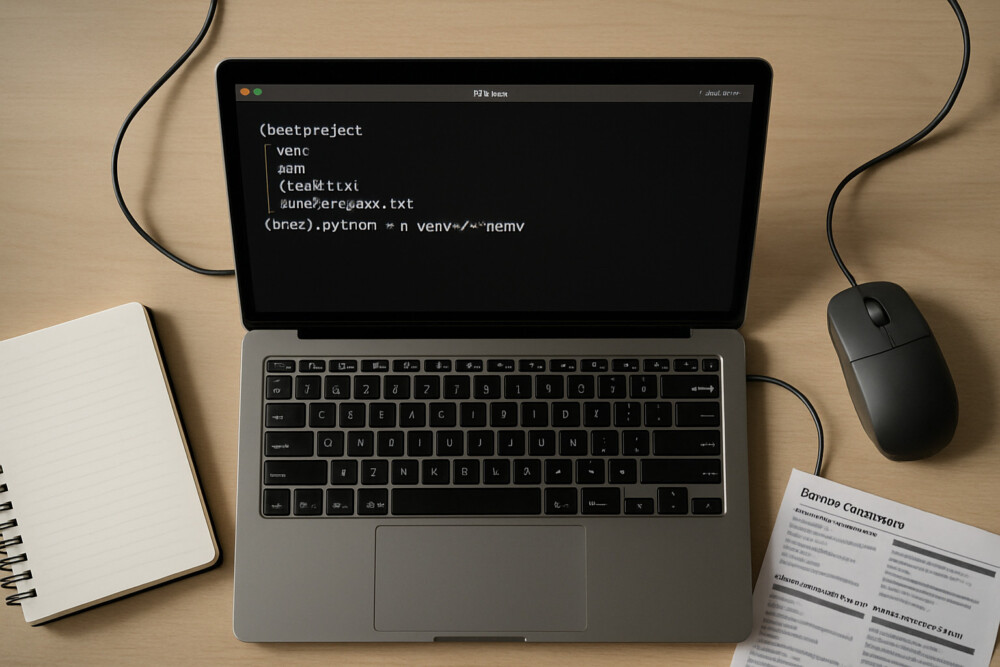
How to create a Python virtual environment is one of the first things to learn for any project that needs its own libraries without interfering with the system Python. It keeps dependencies separate for each project, makes package testing safer, and prevents one project from breaking another.
What a Python virtual environment does
A Python virtual environment creates an isolated copy of the interpreter and its packages for a single project. You can install the libraries you need without affecting the global system environment.
This approach is especially useful when:
- different projects need different versions of the same library;
- you want a reproducible setup for team work;
- you need to remove dependencies together with the project;
- there is a risk of damaging system packages with global installs.
How to create a Python virtual environment with venv
How to create a Python virtual environment is easiest with the built-in venv module, which is already included in modern Python versions. For most users, this is the simplest option because it does not require extra tools.
Go to the project folder and run:
python -m venv venv
A new venv folder will appear in the project directory with the isolated environment inside it. You can choose another name, but venv is the most practical choice for everyday work.
Activating the environment
Activating a Python virtual environment is necessary so that python and pip run inside this project only.
- Windows: venv\Scripts\activate
- macOS / Linux: source venv/bin/activate
After activation, the terminal usually shows the environment name in parentheses. That is a quick sign that you are no longer using the system Python.
Checking that it worked
Checking a Python virtual environment takes only a few seconds and helps you catch problems immediately.
- Run python –version and confirm that the expected version starts.
- Run pip list and see whether the package list is empty or minimal.
- Install a test package, such as pip install requests, and then run pip list again.
If the package installs without errors and appears in the list, the environment is working correctly. If a command is not found, check the Python path and activate the environment again.
How to install and remove packages inside the environment
Managing packages in a Python virtual environment happens through pip, but only after activation. That is what keeps installations inside the project boundary.
Common commands look like this:
- pip install package-name — install a package;
- pip uninstall package-name — remove a package;
- pip freeze > requirements.txt — save the dependency list;
- pip install -r requirements.txt — restore dependencies on another computer.
If you want to verify that everything was saved correctly, open requirements.txt or run pip freeze again and compare the list.
How to exit and delete the environment
Exiting a Python virtual environment is done with one command: deactivate. After that, the terminal returns to the system Python or to another active environment.
Deleting the environment is just as simple: remove the venv folder. This is safe for the project, but before deleting it, make sure the needed dependencies are saved in requirements.txt.
If the project stops working after deletion, create the environment again and reinstall the packages from the dependency file.
Common mistakes when creating a virtual environment
The most common Python virtual environment problems are usually not caused by venv itself, but by the wrong interpreter or a missed activation step.
- python command not found. Check whether Python is installed and added to PATH.
- venv is not created. Run the command from the correct project folder and make sure you have write permissions.
- Packages install in the wrong place. Activate the environment again before running pip install.
- Old Python version. venv works best with a modern Python 3 release.
If the error keeps coming back, the most useful first check is python –version and the path to the executable. Only after that should you consider reinstalling packages.