Dark mode on iPhone turns on from Settings, from Control Center, or by asking Siri, and the change should be obvious in Apple’s built-in apps right away.
A quick sanity check saves time when the screen “still looks the same”: brightness is very high, accessibility color changes are active, or the specific app uses its own theme setting and ignores the system appearance.
- Verify the background changes in
SettingsandNotes - Check accessibility display options that can override colors
- If menus look different, use the search field inside
Settings
- How to enable dark mode on iPhone in Settings?
- How to turn on dark mode from Control Center on iPhone?
- How to schedule dark mode on iPhone to turn on automatically?
- How to enable dark mode on iPhone with Siri?
- Why won’t dark mode on iPhone turn on or why does it look wrong?
- How to get dark mode in specific apps when iPhone is already in dark mode?
- What mistakes should you avoid when enabling dark mode on iPhone?
- Is dark mode on iPhone enabled correctly?
How to enable dark mode on iPhone in Settings?
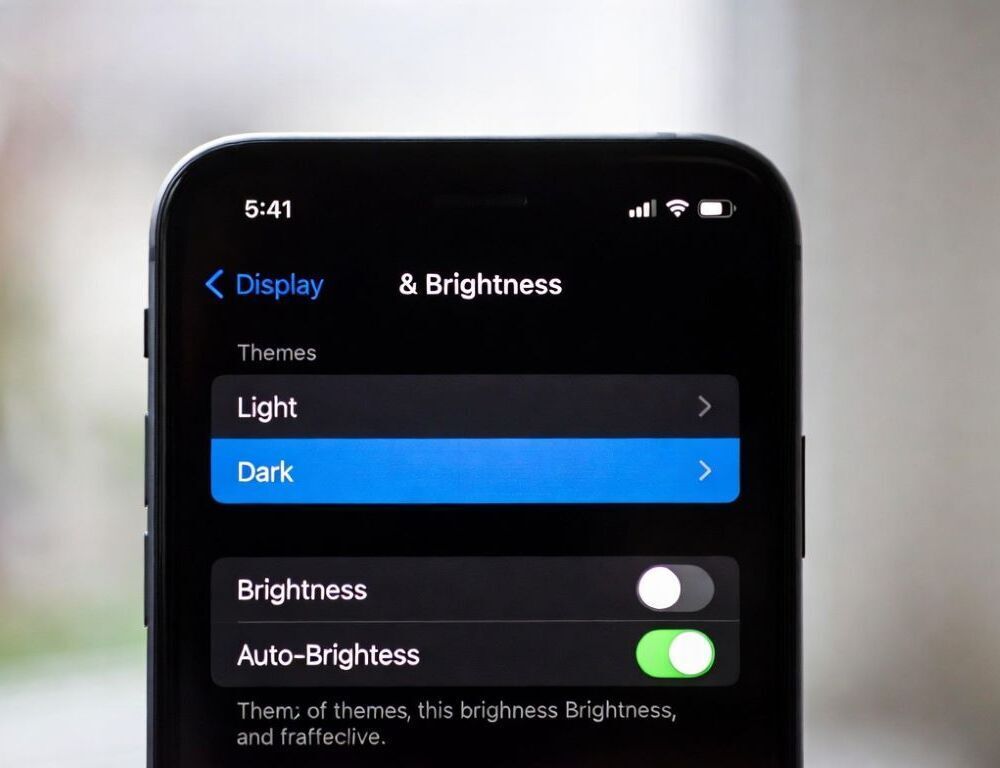
Dark mode on iPhone in Settings is enabled in Display & Brightness under Appearance.
- Open
Settings→Display & Brightness. - Under
Appearance, selectDark. - Validate the change by opening
Settingsagain and confirming the background is dark.
Search inside Settings finds Display & Brightness even when iOS reorganizes sections after updates. Typing display, brightness, dark, or appearance is usually enough to jump to the exact screen.
How to confirm the system dark mode is actually active?
System dark mode on iPhone is active when Apple apps like Notes and Calendar switch backgrounds and system dialogs follow the same look. If only one app changes, the fix is usually inside that app’s own theme menu.
How to turn on dark mode from Control Center on iPhone?
Dark mode from Control Center on iPhone is toggled by pressing and holding the brightness slider and using the dark mode control.
- Open
Control Center(most models: swipe down from the top-right). - Press and hold the brightness slider.
- Tap the Dark Mode control on the options panel.
If the control does not show up, the most common cause is a short tap instead of a press-and-hold on the brightness slider.
How to schedule dark mode on iPhone to turn on automatically?
Scheduling dark mode on iPhone is done from Display & Brightness using the Automatic switch and the schedule options.
- Open
Settings→Display & Brightness. - Turn on
Automatic. - Open the schedule options and choose sunset-to-sunrise or set custom times.
The PDF “How to enable Dark Mode in iOS 15…” states that the default behavior is dark at sunset and light at sunrise, and that custom times are set through Options and a custom schedule screen.
How to enable dark mode on iPhone with Siri?
Dark mode on iPhone with Siri is enabled with a simple voice command if Siri is enabled and not restricted.
Say: Hey Siri, turn on dark mode, then validate in Settings → Display & Brightness that Dark is selected. If Siri responds but nothing changes, restrictions in Screen Time are a typical blocker.
Why won’t dark mode on iPhone turn on or why does it look wrong?
Cases where dark mode on iPhone won’t turn on are often caused by accessibility color features, inversion, or app-level theming that overrides the system appearance.
- Review display overrides under accessibility, especially inversion and color filters
- If contrast looks harsh, temporarily disable contrast and transparency tweaks to compare
- If the issue started after an update, restart iPhone and re-check
Display & Brightness
Apple Style Guide notes that Dark Mode can also be called the dark appearance, with light appearance as the alternative, which matches the wording you may see in appearance-related menus.
How to get dark mode in specific apps when iPhone is already in dark mode?
Dark mode in specific apps can still require an in-app toggle, so app settings are worth checking when only one app refuses to follow the system.
A practical reference point for themes and AMOLED-friendly looks is telegram color themes for AMOLED and dark mode if you want Telegram to match the system consistently.
For WhatsApp, the system look usually applies automatically, but account migrations and updates are when people notice issues, so a short checklist of symptoms and fixes is whatsapp won’t restore a backup from Google Drive or iCloud.
Apple’s “All New Features iOS 26” PDF (Sept 2025) notes that some icon and widget looks can switch automatically based on whether Dark Mode is turned on or off, so enabling dark mode can affect more than just app backgrounds.
What mistakes should you avoid when enabling dark mode on iPhone?
Mistakes around enabling dark mode on iPhone usually come from confusing Dark Mode with inversion, judging by one app, or missing the press-and-hold step in Control Center.
- Inversion changes colors globally and can distort images, it is not the same as dark mode
- Validation should start with Apple apps like
SettingsandNotes - A schedule should be tested by setting it a few minutes ahead, not by waiting until night
Is dark mode on iPhone enabled correctly?
Dark mode on iPhone is enabled correctly when Display & Brightness shows Dark or Automatic is working as expected, and the interface stays consistently dark without inversion side effects.
Sources: