
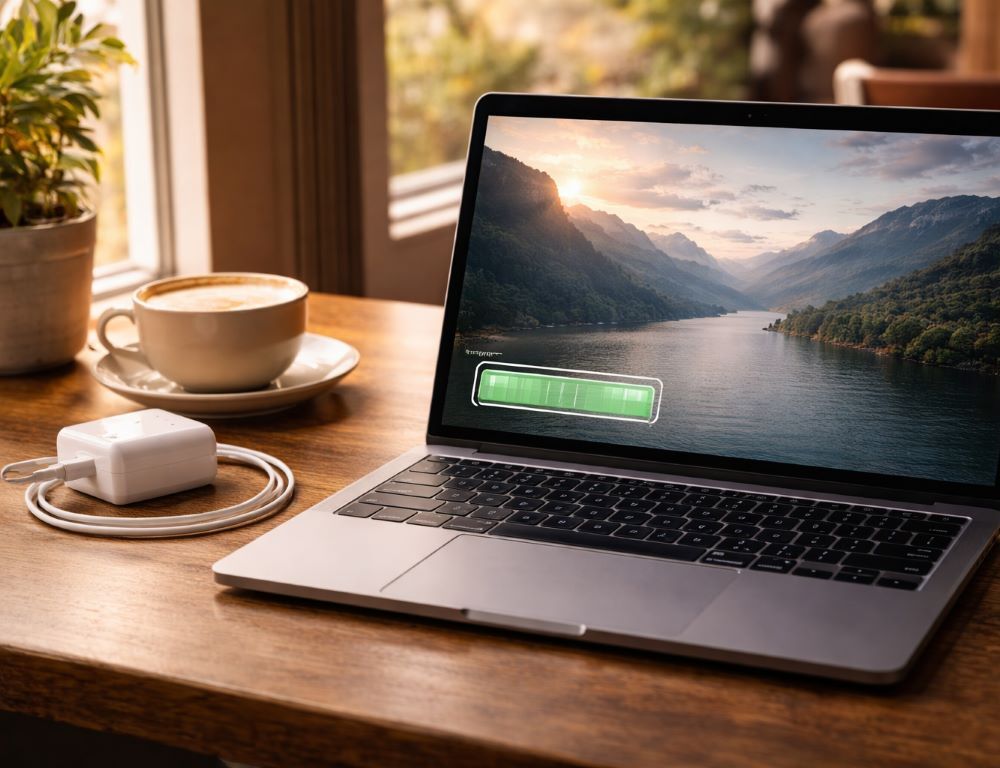
Extending laptop battery life comes down to three levers: lower heat, less time at 100%, and power settings that match how you actually use the device.
- What causes battery wear, and why does it accelerate?
- Which settings give the biggest return with the least effort?
- Which habits deliver results, and when should you use them?
- How should you charge if your laptop supports USB-C PD charging?
- Why does a battery suddenly drain faster, and what should you check first?
- Which mistakes shorten battery life the fastest?
- Quick answers that prevent common battery mistakes
What causes battery wear, and why does it accelerate?
Battery wear is the result of normal operation, and it accelerates most under heat, sustained high voltage at full charge, and heavy use while charging.
Why do charge cycles matter more than cable connections?
Charge cycles matter more than cable connections because they are based on total energy moved in and out of the battery, not how many times you plug in a cable. Small top-ups are usually fine; the bigger problems are heat and keeping a battery at full charge while the laptop runs hot.
How does temperature speed up aging?
Temperature speeds up aging by increasing chemical stress inside the battery during charging and heavy workloads. Charge on a hard surface, keep vents clear, and avoid trapping heat on soft materials or in hot rooms.
When should you think about battery habits before you buy?
Battery habits should be part of your buying decision if you plan to keep the laptop for years and use it away from outlets. A practical reference point is a laptop buying guide by budget to connect specs, charging type, and expected runtime to daily use.
Which settings give the biggest return with the least effort?
The biggest return usually comes from an upper charge limit, lower display brightness, and using power saving mode when you need it.
Why is an 80% charge limit often better than charging to 100%?
An 80% charge limit is often better than charging to 100% because it reduces the time the battery spends at high voltage. This matters most when your laptop stays plugged in for long stretches.
A quick validation is simple: enable the limit in the vendor utility or BIOS/UEFI if available, then confirm the charge stops near the target percentage during normal use.
When does power saving mode actually help?
Power saving mode helps when you need more runtime immediately, because it reduces background activity, lowers brightness, and may limit CPU boost. It often works well for office work and classes, and it can feel restrictive for heavy creative workloads.
A quick validation is to toggle it for 10–15 minutes and compare discharge speed and responsiveness in the task you care about.
How much does the display affect battery life?
The display affects battery life heavily, because brightness and panel type are major power draws. If you are comparing screens, a useful baseline is IPS vs OLED for laptops so you can balance visual quality and daily runtime.
A quick check is to drop brightness by 20–30% and see whether discharge speed changes during the same workload.
Which habits deliver results, and when should you use them?
These habits work best when you apply them to the situation instead of keeping everything enabled all the time.
| Habit | Benefit | Best time to use |
| 80% charge limit | Less high-voltage stress | Long plug-in sessions |
| Keep temperatures down | Slower degradation | Gaming, editing, hot days |
| Power saving mode | More runtime now | Travel, meetings, classes |
| Moderate brightness | Easy energy savings | Text-heavy work |
| Good airflow | Cooler charging and stability | Docked setups, long charges |
If you start with two changes, an upper charge limit and lower heat are usually the highest-impact pair.
How should you charge if your laptop supports USB-C PD charging?
USB-C PD charging is reliable when the adapter wattage, the cable, and the laptop’s charging behavior match the requirements under load.
Why is USB-C PD charging convenient?
USB-C PD charging is convenient because one charger can power multiple devices. The practical constraint is wattage: an underpowered adapter may maintain charge at idle but fall behind under load.
A quick validation is to check the required wattage on the OEM adapter label or the laptop specs, then confirm your USB-C PD adapter advertises that wattage.
When is the original charger the smarter choice?
The original charger is often the smarter choice for heavy workloads and fast charging, because it tends to deliver stable performance at the required wattage. Third-party chargers can be fine if they are reputable and match the required wattage and protocol.
A quick validation is to run a heavy task for 5–10 minutes while plugged in and confirm the battery percentage does not drop.
Is it safe to keep a laptop plugged in all the time?
Keeping a laptop plugged in is often safe if you use an 80% limit and keep temperatures under control. If the laptop runs hot while plugged in, focus on airflow and workload behavior during charging.
A practical threshold is simple: if you consistently feel strong heat near the battery area while charging, solve the heat source first.
Why does a battery suddenly drain faster, and what should you check first?
Sudden battery drain is often caused by workload changes, brightness, and background activity after updates or new apps, not by the battery hardware itself.
What signs suggest the problem is software, not the battery?
Software-driven drain is likely when battery life drops after an update, new apps, or changed settings, and the laptop stays warm or busy even at idle. Common causes include background sync, many browser tabs, high brightness, and constant notifications.
A quick validation is to open Task Manager and check what is consistently using CPU, disk, or network for 3–5 minutes.
How can you tell the battery is physically worn?
Physical wear is more likely when you see rapid capacity loss, unexpected shutdowns around 20–30%, or unusual heat under light use. System battery reports can help confirm the trend.
A practical validation is to compare reported full-charge capacity over time against the original design capacity when available.
What if you are buying a used laptop?
Used laptops are risky because battery condition is not always obvious from the exterior. A short checklist like how to buy a used laptop safely helps you focus on battery health and hidden issues beyond a clean-looking case.
Ask to see real battery behavior in a normal workload, not just a desktop screenshot.
Which mistakes shorten battery life the fastest?
The mistakes that shorten battery life the fastest are usually about heat, long periods at full charge, and charging under heavy load with the wrong adapter.
- Avoid keeping the laptop at 100% while it stays hot, especially on soft surfaces.
- Avoid using an underpowered USB-C PD charger for heavy workloads if the battery percentage drops.
- Avoid running maximum brightness continuously on battery power.
- Avoid ignoring a sharp runtime drop after updates; check background activity first.
- Avoid treating regular 0% drain cycles as a required habit for modern batteries.
If you follow one rule, prioritize lower heat and less time at full charge, then tune the rest to your routine.
Quick answers that prevent common battery mistakes
Quick answers help when you need a direct decision without extra theory.
Should you drain the battery to 0% once a month?
Draining the battery to 0% once a month is usually unnecessary for modern batteries, and controlling heat and time at full charge matters much more. Calibration is only worth doing occasionally if the percentage reporting is clearly inaccurate.
Are frequent small charges bad?
Frequent small charges are usually fine if temperatures stay reasonable and the laptop is not spending long periods hot at full charge. Short top-ups are not a problem by themselves.
What delivers the biggest battery-life boost in daily use?
The biggest daily boost usually comes from lower brightness, using power saving mode when appropriate, and trimming background activity. These changes tend to produce faster gains than any “secret” tricks.
Battery longevity is built by consistent behavior: lower heat, less time at full charge, and power settings that match your workload.