
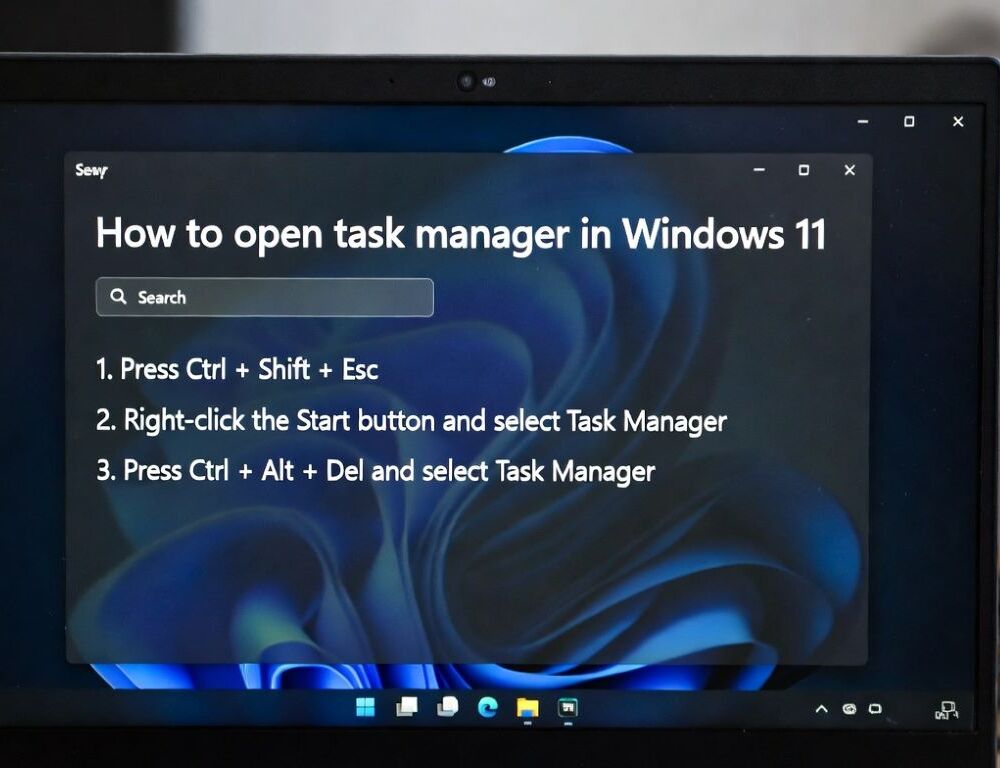
Open task manager in Windows 11 and Windows 10 using a shortcut, a menu path, or a command, then confirm it’s responsive by checking that the process list updates.
- Task manager shortcut: which keys open it on Windows 11 and Windows 10?
- Open task manager from Start or the taskbar when shortcuts aren’t convenient
- Task manager command: how to launch it with Run or cmd
- Open task manager as admin: when it matters and how to do it
- Task manager not opening or task manager not responding: what to check first
- Task manager has been disabled by your administrator: what it usually means
- How to end all tasks in task manager without making things worse
- What mistakes keep people stuck when opening task manager?
Task manager shortcut: which keys open it on Windows 11 and Windows 10?
Task manager shortcut methods are the most reliable when the mouse, taskbar, or Start menu is lagging.
Try these in order:
Ctrl+Shift+EscCtrl+Alt+Del→ select Task ManagerWin+X→ Task Manager (availability can vary by build)
A keyboard shortcuts PDF lists Ctrl+Shift+Esc as the direct way to open Task Manager, which is why it’s a good first test when you need it immediately.
Once it opens, look for live changes in CPU or memory numbers, that’s a simple confirmation the window isn’t stuck.
Open task manager from Start or the taskbar when shortcuts aren’t convenient
Open task manager from Start in Windows 11 by using the Start button context menu or Search, which helps if you prefer clicks over key combos.
Common options:
- Right-click Start → Task Manager
- Press
Win+S, type “Task Manager”, open the result - Press
Ctrl+Alt+Del, then choose Task Manager
Windows 10 usually offers the same paths, with small UI differences depending on updates.
If one path doesn’t respond, switch to the next and retest immediately, repeating the same action keeps the diagnosis clean.
Task manager command: how to launch it with Run or cmd
Task manager command options are useful when parts of the UI are unresponsive.
Do this:
Win+R→ typetaskmgr→Enter- Open
cmdand runtaskmgr→Enter
A Run commands cheatsheet PDF lists taskmgr as the command that opens Task Manager, so this is a solid fallback when menus misbehave.
If nothing appears, check for a hidden window behind a full-screen app, then retry with Ctrl+Shift+Esc.
Open task manager as admin: when it matters and how to do it
Open task manager as admin when you can see processes but actions like ending a process are restricted.
A practical method:
Win+R→ typetaskmgr- Press
Ctrl+Shift+Enter - Approve the UAC prompt
A Run box PDF notes that Ctrl+Shift+Enter runs the entered command with administrative privileges after you confirm UAC.
After it opens, try the same blocked action again to confirm whether elevation changed anything.
Task manager not opening or task manager not responding: what to check first
Task manager not opening often points to an unresponsive shell or a policy restriction, and task manager not responding can happen during heavy system load.
Use this quick matrix for the first pass:
| Symptom | What to try | What “worked” looks like |
| Start menu won’t open | Ctrl+Shift+Esc | process list shows up |
| UI feels frozen | Win+R → taskmgr | window opens on top |
| Task Manager opens but won’t update | wait 10–20 seconds, then restart | opens normally after restart |
Then go one step at a time:
- Restart Windows normally if you still have control.
- Try opening Task Manager immediately after sign-in, before launching heavy apps.
- If the issue repeats, look for tools that block or hook system utilities.
Re-running the same open method after each step is the fastest way to see what actually changed.
Task manager has been disabled by your administrator: what it usually means
Task manager has been disabled by your administrator typically means a policy or a registry setting is blocking access.
A short PDF about disabling Task Manager shows an example registry value named DisableTaskMgr, and it also references Group Policy as a way the setting can be applied.
Safer next steps:
- On a work device, contact your IT admin and explain why you need access.
- On a personal PC, check whether a work profile, parental controls, or security software is enforcing restrictions.
- Avoid registry edits on managed devices, settings can be restored automatically.
If your goal is simply closing a stuck app, Alt+F4 or a restart can help, but it’s not a substitute for proper access.
How to end all tasks in task manager without making things worse
How to end all tasks in task manager comes down to ending the right app or process, not wiping out everything.
A safer routine:
- In
Processes, select the frozen app → End task. - If it restarts instantly, look for a related background process and end that one too.
- Confirm the app closes and system responsiveness returns.
How to change priority in task manager safely
How to change priority in task manager is best treated as a temporary tweak, not a permanent fix.
- Use
Details→ right-click the process → Set priority. - Avoid “Realtime” for normal apps.
- Test the original problem again and revert if the system feels less stable.
This keeps the change controlled and reduces side effects.
What mistakes keep people stuck when opening task manager?
Task manager keyboard shortcut troubleshooting fails most often because people change too many things at once.
- Don’t end system processes unless you know what they are.
- Don’t disable every startup item, do it one at a time with a retest.
- Don’t chase “optimizer” apps to solve a simple stuck process.
- Don’t treat priority changes as a cure for underlying performance issues.
A small change plus a clear retest beats a big cleanup that you can’t undo.
Sources: