
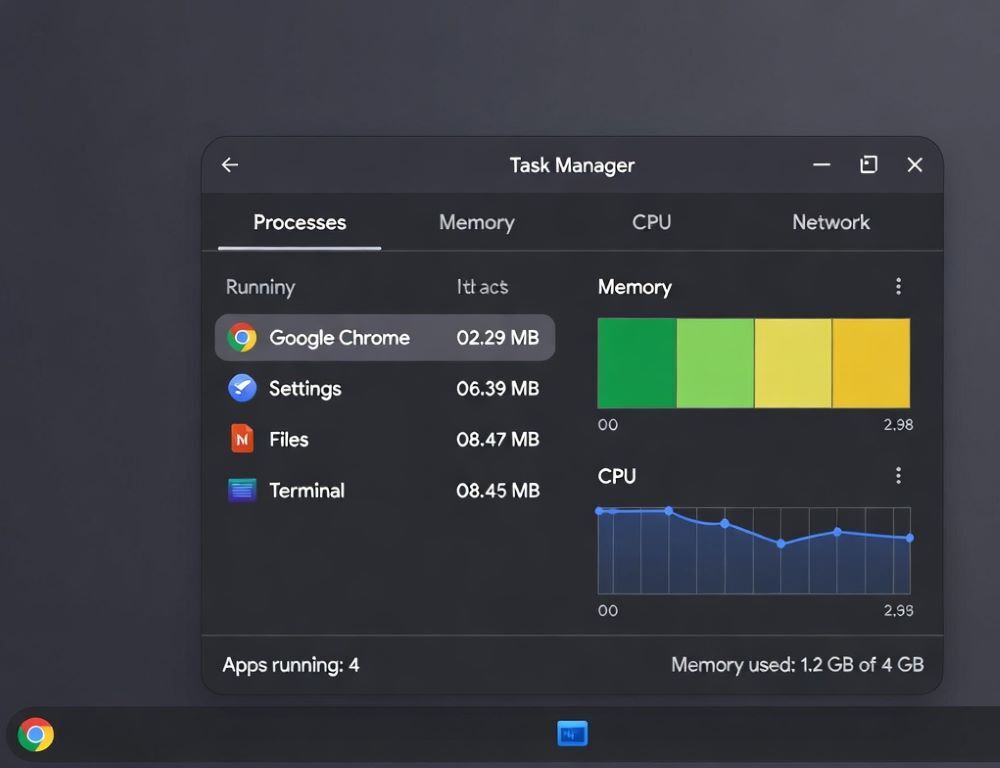
Opening Task Manager on Chromebook is the most direct way to see which tab, extension, or app is eating resources, and then stop it safely.
- What should you check first before you open Task Manager Chromebook?
- How to open task manager on Chromebook with a keyboard shortcut?
- How to pull up task manager on Chromebook from the Chrome menu?
- How to close a frozen tab on Chromebook when clicks do nothing?
- How to end a process on Chromebook without breaking other work?
- Why is Task Manager not opening and what is a task manager for Chromebook alternative?
- Which mistakes make Chromebook Task Manager troubleshooting harder?
- When should you ask an admin or service for help?
What should you check first before you open Task Manager Chromebook?
A fast first check before you open Task Manager Chromebook is to confirm whether the issue is one tab, one site, or the whole system.
If only one page is stuck, closing that tab is usually enough. If everything is sluggish, Task Manager will give you the cleanest signal.
Use this quick triage:
- One tab misbehaves while others are fine → suspect that site or an extension tied to it.
- Multiple tabs stutter at once → suspect memory pressure or too many extensions.
- The whole device lags, even in Settings → suspect background updates, storage pressure, or a system-level problem.
After the triage, open Task Manager and verify the suspected item by matching it to the process list.
How to open task manager on Chromebook with a keyboard shortcut?
The most common answer to how to open task manager on Chromebook is the Search + Esc shortcut.
In IT Readiness Guide Student Edition (Rev. 08/2023), the recommended method to access the Task Manager is pressing Search + Esc.
To make the shortcut reliable:
- Press both keys at the same time, not one after another.
- If your keyboard label differs, treat
Searchas the key with the magnifying glass / launcher icon. - Confirm it worked by checking that a process list appears and you can select an item to end.
If it still does not open, use the menu method in the next section and confirm the result the same way.
The menu path is a practical fallback when the keyboard shortcut is awkward or the device is partially frozen.
Open the three-dot menu in Chrome, then look for More tools, and choose Task Manager (wording can vary slightly by version and language).
Once it opens:
- Sort mentally by what matches your symptom: the tab you are using, or an extension you installed recently.
- End one process at a time and retest the exact action that was lagging.
- If the issue disappears, you have a confirmed cause, not a guess.
If the menu will not respond because the page is frozen, start with the frozen-tab steps below.
How to close a frozen tab on Chromebook when clicks do nothing?
Closing a frozen tab on Chromebook is often easiest by reloading the page or ending the tab process rather than fighting the UI.
In the IPS 1:1 Chromebook Quick Reference Guide, a suggested response to a crash/freeze is Ctrl + Shift + R, and if there is no response, open Task Manager from the three-dot menu and click end process on the tab causing the problem.
A safe sequence that keeps your other work intact:
- Try a normal reload:
Ctrl+R. - Try a reload that bypasses cached content:
Ctrl+Shift+R. - If the tab still hangs, open Task Manager and end the process for that tab only.
- Validate by reopening the same site and watching whether the freeze returns.
If the same site freezes repeatedly, test once with extensions disabled for that site or in an incognito window, then compare.
How to end a process on Chromebook without breaking other work?
Ending a process on Chromebook works best when you treat it like a precise cut, not a full reset.
You typically want to end only the specific tab, extension, or background page that matches the lag spike.
Practical rules that reduce collateral damage:
- End the exact tab process when one page is stuck.
- End an extension process when lag appears across many sites and the extension is the common factor.
- Retest immediately after each change with the same workload, so you know what actually helped.
If ending the process does not change anything, you are likely dealing with a broader system issue rather than a single tab.
Why is Task Manager not opening and what is a task manager for Chromebook alternative?
A task manager for Chromebook alternative is often just another shortcut that opens the same window in a different context.
In Chromebook Keyboard Shortcuts Guide, Shift + Esc is listed as a way to open Task Manager.
Try this without making risky changes:
- Switch to an active Chrome window and press
Shift+Esc. - If you have multiple windows, try the shortcut in the window where the freeze is happening.
- If neither shortcut works, restart the Chromebook and try again before changing settings.
If the device is managed by a school or company and restrictions are in place, you may need an admin to adjust policies.
Which mistakes make Chromebook Task Manager troubleshooting harder?
Chromebook Task Manager troubleshooting gets harder when you change too many things at once and lose the cause-and-effect trail.
Keeping a tight loop of one change, one test, one conclusion is what prevents wasted time.
Avoid these common mistakes:
- Ending a bunch of processes at random, then not knowing which change mattered.
- Installing “speed” extensions while debugging performance, which adds variables.
- Resetting the whole device when the issue is clearly one tab or one extension.
A calmer approach, with one controlled change at a time, usually fixes the problem sooner.
When should you ask an admin or service for help?
Asking an admin or service makes sense when freezes persist after you have confirmed it is not one specific tab, and Task Manager cannot be opened consistently.
If the Chromebook is managed and you suspect policy limits, admin support may be the only path to policy-level fixes.
Before you reach out, note what was frozen, which shortcut you tried, and whether ending a process ever helped. That context makes the diagnosis much faster.
Sources: