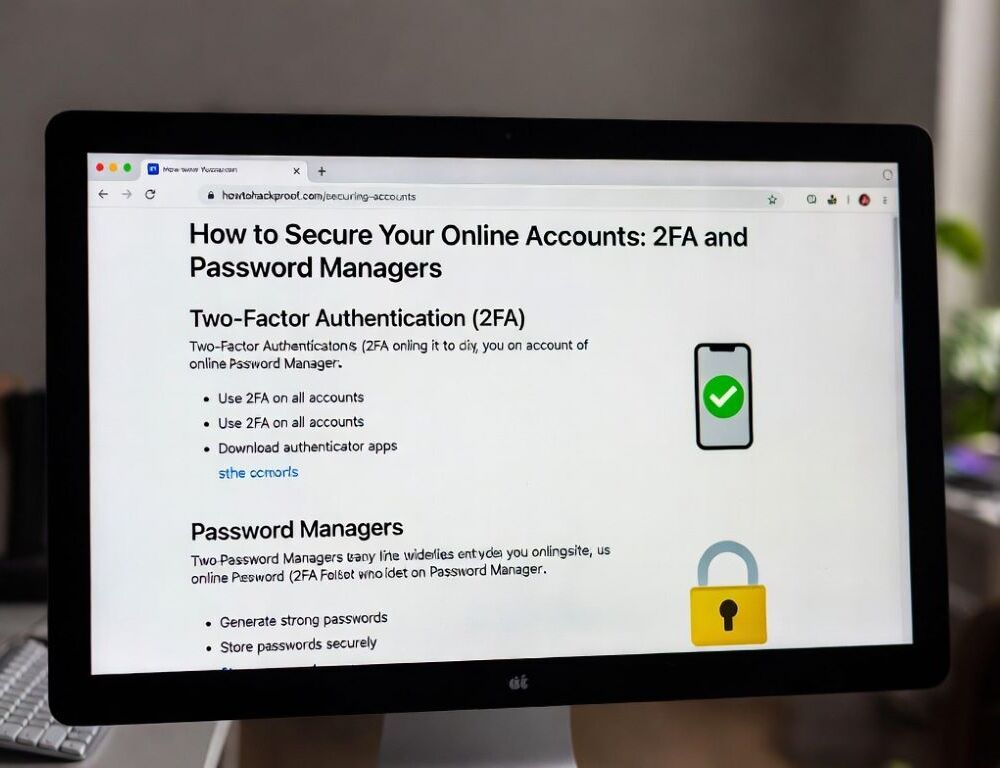
Protecting accounts with 2FA and password managers works best when you combine unique passwords, strong recovery options, and a simple routine for checking suspicious activity.
- How can you protect accounts and start with the right priorities?
- How do you use a password manager safely without creating new risks?
- Which 2FA method should you enable for accounts, and which option is safer?
- What signs of account compromise should you check right away?
- What mistakes should you avoid when protecting accounts with 2FA and password managers?
How can you protect accounts and start with the right priorities?
Protecting accounts starts with your highest-impact accounts, not a full reset of every login you own.
- Pick your top five accounts: email, banking, Apple ID/Google account, messaging apps, and your main social platform.
- Check for password reuse across those accounts.
- Enable 2FA on email and banking first.
- Save recovery codes offline.
- Review active sessions and unknown devices.
This order matters because email is often the reset path for many other accounts.
Which accounts should you secure first?
The accounts you should secure first are the ones that can unlock other services or move money.
Start with:
- your primary email account;
- banking and payment services;
- Apple ID or your Google account;
- messaging apps with personal conversations;
- work tools and cloud storage.
Validation: if an account can reset another password, it belongs in the first tier. If your list is too long, secure the top five today and continue tomorrow.
How can you tell when passwords need to be changed immediately?
Passwords need to be changed immediately when they are reused, weak, or exposed in a risky place.
Urgent reset signs:
- the same password used in multiple services;
- short or guessable passwords;
- old patterns like name+year;
- passwords sent in chats or stored in unprotected notes.
Validation: if one critical account reuses a password, change that one first. If you cannot remember where you reused it, move into a password manager and replace passwords in stages.
How do you use a password manager safely without creating new risks?
Using a password manager safely means treating it as your system for unique credentials and recovery data, not as a shortcut that replaces every other security habit.
NIST SP 800-63B-4 explicitly says verifiers should permit password managers and autofill functionality, so autofill is not inherently unsafe when you use your own locked device and pay attention to where credentials are being filled.
What should your password manager master password look like?
Your password manager master password should be long, unique, and used nowhere else.
A practical setup is:
- a long passphrase with 4-6 words;
- no reuse from older passwords;
- no personal details that are easy to discover;
- stored only in memory or an offline backup kept safely.
NIST SP 800-63B-4 also sets a 15-character minimum for single-factor passwords, which supports the idea that a long passphrase is often stronger and more usable than a short complex-looking string. That rule is a good benchmark for a master password.
Validation: close the manager, wait a few minutes, and sign in again without hints. If you keep failing, simplify the phrase structure, not the security level.
Where should you store recovery codes and backup access details?
Recovery codes and backup access details should be stored separately from your phone so one lost device does not break both login and recovery.
Use this approach:
- save recovery codes offline, on paper or in a secure physical location;
- avoid keeping the only copy in your phone gallery;
- do not message the codes to yourself.
The risk is straightforward: a stolen unlocked phone can expose screenshots and open a recovery path into your accounts. A safer alternative is an offline backup stored at home with controlled access.
Validation: try to locate one recovery code in under a minute without using your phone. If you cannot, your backup path is not ready yet.
Which 2FA method should you enable for accounts, and which option is safer?
The best 2FA method for accounts is usually an authenticator app or a security key, while SMS should be a fallback where stronger options are unavailable.
NIST SP 800-63B-4 also notes that passwords are not phishing-resistant, which is exactly why 2FA adds protection that a password alone cannot provide.
Which 2FA method is better: SMS, authenticator app, or security key?
The better 2FA method depends on account value, threat level, and how well you can support recovery.
A practical ranking is:
- SMS: better than no 2FA, but weaker;
- authenticator app: strong balance of convenience and security;
- security key: best option for email, financial, and work accounts.
NIST SP 800-63Bsup1 describes syncable authenticators, including modern passkey-style approaches, as a way to improve phishing resistance without tying access to a single device. That makes them a strong next step after basic 2FA.
Validation: sign out completely and sign back in after enabling 2FA. If no second factor is requested, the setup may be incomplete or enabled only for limited sign-in paths.
What should you do if 2FA fails or your phone is lost?
If 2FA fails or your phone is lost, the safest path is backup codes, a secondary factor, and an immediate session review after access is restored.
Follow this order:
- Try a recovery code.
- Use your secondary 2FA method, if configured.
- Log in and review active devices immediately.
- Rotate recovery codes.
- Contact official support if recovery still fails.
A practical reference point for settings or modes is changing your iPhone password for Apple ID access safely when you suspect your Apple account password changed without your action. That helps you restore control from a trusted path.
Validation: after recovery, confirm old sessions are signed out and the new password is unique. If suspicious activity returns, stop using shared/public devices and reset credentials again from a trusted device.
What signs of account compromise should you check right away?
The signs of account compromise you should check right away are usually visible in security alerts, account details, and active-session lists.
Check for:
- sign-in alerts you do not recognize;
- changed password, recovery email, or phone number;
- unfamiliar devices or sessions;
- messages sent from your account that you did not send;
- 2FA disabled without your action.
For account security, this minimum checklist helps: Telegram Web and Telegram Online (Features, Limits, Safety) so you can compare session lists, permissions, and normal login behavior. That quick comparison often tells you whether the issue is the account or the device.
Validation: if you find an unknown session, terminate it, change the password, and regenerate recovery codes. If unknown logins continue, inspect your email account next because it may be the reset path being abused.
What mistakes should you avoid when protecting accounts with 2FA and password managers?
The mistakes to avoid when protecting accounts with 2FA and password managers are mostly routine errors that quietly undo good settings.
Common mistakes:
- reusing one password across multiple services;
- enabling 2FA only on low-value accounts;
- storing recovery codes only on the same phone;
- disabling 2FA “temporarily” and forgetting to turn it back on;
- forcing periodic password changes without a reason, which often creates weaker patterns.
NIST SP 800-63B-4 does not recommend periodic password changes without evidence of compromise, so targeted resets after reuse, exposure, or suspicious activity are usually the better practice.
Validation: if you can name the backup sign-in path for each critical account, your baseline protection is working. If you cannot, improve recovery coverage before adding more tools.
Protecting accounts works best as a calm system: unique passwords in a manager, 2FA on critical services, and a tested recovery path. That combination sharply reduces the most common everyday risks.
Sources: