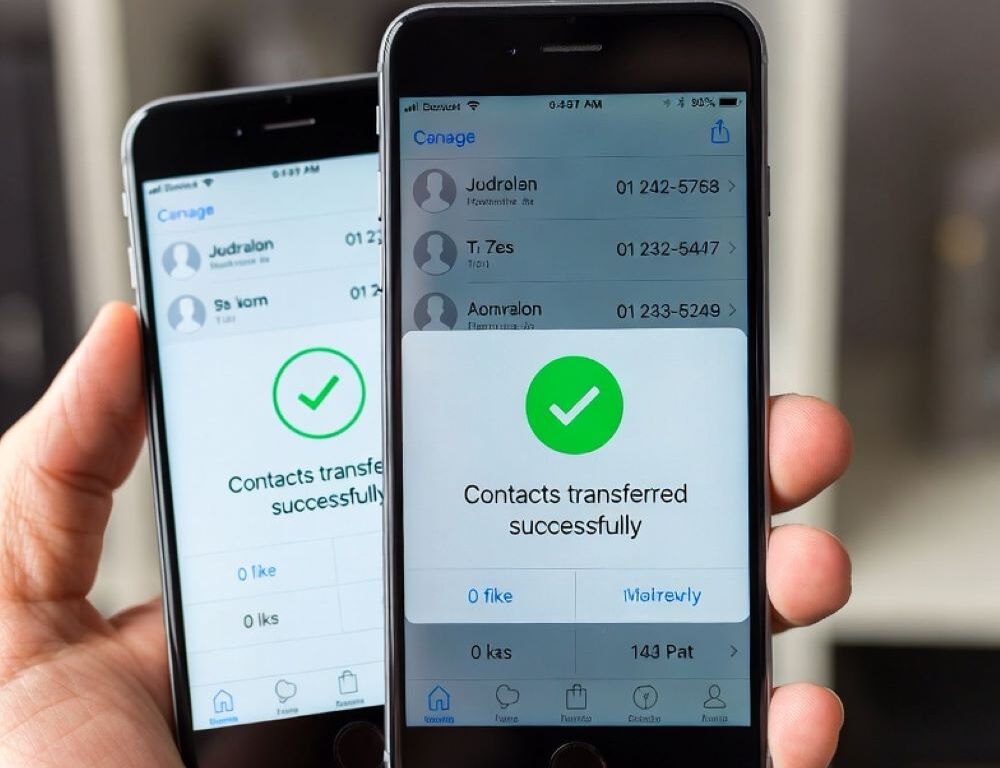
Transferring contacts from phone to phone without duplicates comes down to using one source and validating the result. The query “how to transfer contacts from phone to phone” usually fails when the same contacts get imported twice or two sync sources run at the same time.
A clean workflow is consistent: pick a primary store, transfer once, confirm the list is stable, then enable any extras.
- What to check before transferring contacts so entries don’t duplicate
- Which contact transfer method produces the fewest duplicates
- How to transfer contacts Android to Android via Google without duplicates
- How to transfer contacts iPhone to iPhone via iCloud without duplicates
- How to transfer contacts Android to iPhone without creating copies
- How to use SIM or VCF transfer without duplicates
- How to merge duplicates after the transfer
- What mistakes cause duplicate contacts after moving to a new phone
- When support is safer than manual merging
What to check before transferring contacts so entries don’t duplicate
Duplicates are unlikely when only one contact source is active during the transfer. A practical primary source is a Google account (Android), iCloud (iPhone), or a single VCF file for an offline, one-time import.
Pre-checks that prevent doubling:
- one primary contact source is selected,
- contact sync is enabled only where it’s needed,
- obvious duplicates are merged on the old phone first,
- account access is confirmed (Google sign-in or Apple ID).
This setup removes most causes of repeated imports.
Which contact transfer method produces the fewest duplicates
Account-based sync is the lowest-risk option because it avoids repeated manual imports. Manual import is useful when cloud access is limited, but it needs tighter control.
| Method | Best for | Duplicate risk | Validation |
| Google sync | Android → Android | low | contact count stabilizes after sync |
| iCloud sync | iPhone → iPhone | low | contacts appear after Apple ID sign-in |
| Move to iOS | Android → iPhone (first setup) | low | duplicates don’t grow after transfer |
| VCF import | mixed devices | medium | import happens once, then merge if needed |
Using one method at a time is the main duplicate-prevention rule.
How to transfer contacts Android to Android via Google without duplicates
Contacts move Android to Android cleanly when both phones use the same Google account and contact sync finishes. Open Settings and look for “Accounts,” “Passwords & accounts,” or use Settings search for “Google” or “Sync” because labels vary by device and Android build.
Core steps:
- Settings > Accounts/Google > your account.
- Enable Contacts sync (sometimes listed as “Contacts”).
- Sign into the same account on the new phone and enable Contacts sync.
Validation: the contact list stops changing after refresh and remains consistent a few minutes later. If duplicates appear, a second source (SIM import or a VCF import) is usually active.
How to transfer contacts iPhone to iPhone via iCloud without duplicates
iPhone to iPhone transfer stays duplicate-free when contacts are stored in iCloud and both devices use the same Apple ID. On the old iPhone, open Settings > Apple ID > iCloud and confirm Contacts is enabled (the label can vary slightly).
If Apple ID access is blocked, restore access first, for example by using change your iPhone password in Settings for Apple ID sign-in, then enable iCloud Contacts on the new iPhone. Allow time on Wi-Fi for sync to complete.
Validation: reopening Contacts does not add new copies. If the list keeps expanding, another account is syncing contacts in parallel.
How to transfer contacts Android to iPhone without creating copies
Android to iPhone transfer is cleanest through Move to iOS during the initial iPhone setup. If the iPhone is already set up, pick one path: either Google account sync or a single VCF import, not both.
Validation: avoid a second import “just in case” after Move to iOS. If ongoing Google syncing is needed, enable it only after confirming the first transfer looks correct.
How to use SIM or VCF transfer without duplicates
SIM or VCF transfers create duplicates when the same file or SIM list is imported more than once. Temporarily disable other contact sync sources during the import, import once, then turn on one chosen primary sync source.
Risk note: bulk “merge duplicates” tools can merge the wrong people when names match, so a backup before large merges is the safer move.
How to merge duplicates after the transfer
Duplicate merging works best after identifying the source for each contact. Android often offers a “Merge duplicates” option in the Contacts app, and iOS may show duplicate-detection depending on iOS version.
Validation: the contact count drops once and then remains stable. If duplicates return, a second sync source is re-adding copies.
What mistakes cause duplicate contacts after moving to a new phone
Duplicates usually come from mixing methods in the same session, like enabling iCloud and importing a VCF, or syncing Google and importing from SIM. One transfer method and one primary source keeps the list consistent.
A simple operating rule helps: transfer once, validate once, then enable extras.
When support is safer than manual merging
Support is the safer option when contacts are repeatedly corrupted or reappear after deletion. Red flags include thousands of duplicates in minutes, missing phone numbers after merges, corporate Exchange/MDM policies, or constant overwriting during sync.
Stopping bulk actions, backing up, and then fixing account sync sources prevents deeper data loss.