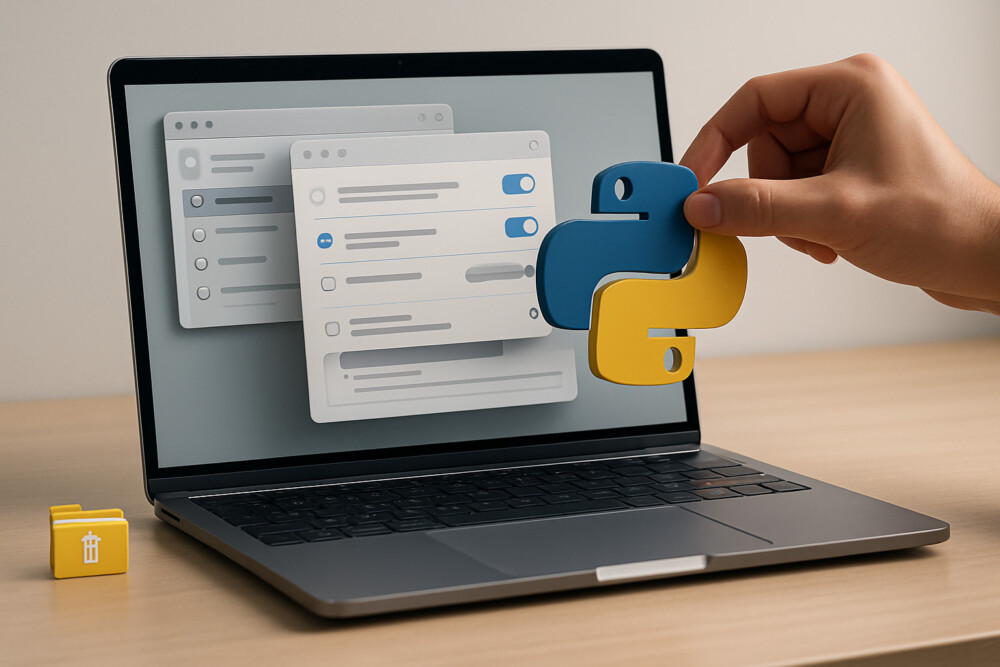
How to uninstall Python depends on the operating system and how it was installed. On one computer, Python may have come from an official installer, a package manager, or a development tool, so it helps to identify the exact installation before removing anything.
Check whether Python is still needed by other apps
Python is often used for more than learning or development. It can power utilities, scripts, package managers, and local tools, so removing it completely may break software that depends on a specific interpreter version.
- Check whether any projects still launch through Python.
- Look for pip packages, virtual environments, or development tools installed alongside it.
- If you only need to remove one version, it is safer to uninstall that version instead of clearing everything at once.
After that, open a terminal or command prompt and run python –version or python3 –version. If the command returns a version number, the interpreter is still active; if the system shows an error, Python is no longer available through the current launch path.
How to uninstall Python on Windows
On Windows, Python is usually removed through the installed apps list. This is the simplest and safest method if it was installed with the official .exe installer or from Microsoft Store.
- Open Settings → Apps → Installed apps.
- Find entries such as Python 3.x, Python Launcher, or related components.
- Select Uninstall and confirm the action.
- If needed, repeat the process for other Python versions installed separately.
After uninstalling, check the result in a new Command Prompt window. The command python –version should either fail to find the interpreter or open a different version if one is still installed. If Python still launches, check the PATH variable and any shortcuts that may have remained after removal.
What to do if Python does not disappear on Windows
If Python is still available after uninstalling, the usual cause is multiple installations or leftover PATH entries. The safest next step is to check which executable is actually being launched with where python.
- If the path points to another folder, a separate copy of Python is still installed there.
- If the path points to the Store version, disable or remove it through the app store.
- Do not remove system components at random if other software depends on Python.
How to uninstall Python on macOS
On macOS, Python may have been installed through the official installer, Homebrew, or another developer tool. Removal depends on the source, so the first useful check is the file path returned by which python3.
If Python was installed with the official package, you usually need to remove the framework itself, related files in /Applications, and directories under /Library. If it came from Homebrew, it is safer to uninstall it through the package manager instead of deleting files manually.
- For Homebrew, check the installed packages to confirm which version is present.
- For a manual installation, remove only the files that belong to that specific Python version.
- After removal, open a new terminal and check python3 –version.
If the command still works, another interpreter or another path to Python is still present on the system. In that case, check whether Python was installed through other development tools.
How to uninstall Python on Linux
On Linux, Python is often part of the operating system, so full removal can be risky. In many distributions, Python is required by services, the package manager, or system scripts.
The safest approach is to remove only a user-installed version rather than the system package. To do that, check where Python came from: apt, dnf, pacman, snap, flatpak, or source code.
- First identify which package provides the version you want to remove.
- Remove only extra versions if the system depends on the base Python package.
- After uninstalling, check whether system commands and the package manager still work normally.
You can verify the result with python3 –version and by launching any related utilities. If system tools start failing after removal, restore the package from your distribution repository.
Common mistakes during removal
The most common mistakes when uninstalling Python come from removing too much or confusing one version with another. People often remove the wrong interpreter and then wonder why the command still works.
- PATH entries remain, so the system still sees an old location.
- Multiple Python versions are installed, and only one of them was removed.
- Virtual environments needed for projects are deleted along with Python.
- On Linux, a system package is removed even though other components depend on it.
The best check after any removal method is to open a new terminal, run the version command, and confirm that the interpreter you meant to remove no longer starts. If it still appears, trace the launch path to the executable instead of repeating the uninstall process blindly.