
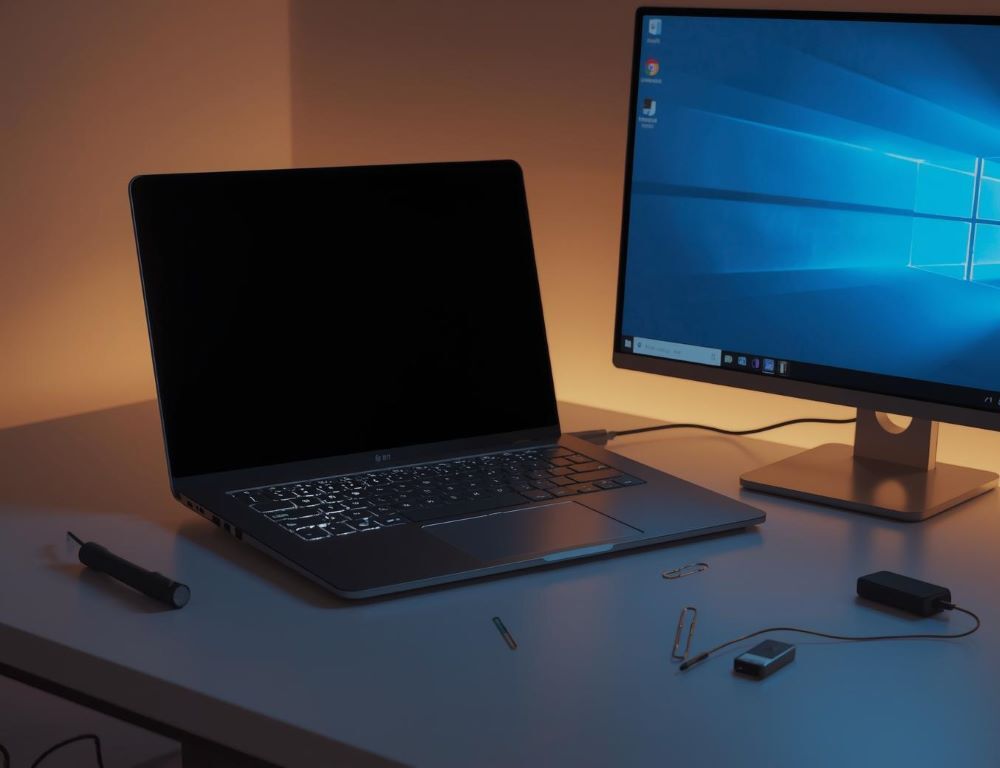
When your HP laptop is clearly running but the screen stays blank, a few quick checks can tell you whether you’re dealing with Windows, graphics, or the display itself.
- This issue happens when the laptop powers on (lights, fan, sometimes sound), but the built-in screen shows no image or is extremely dim.
- Common causes include a graphics driver crash, a Windows hang after sleep or updates, backlight/display hardware problems, or a power state glitch.
- The fastest first steps are a power reset, a graphics reset shortcut, and an external monitor test.
- If an external monitor works while the built-in screen stays black, the problem is often the panel, backlight, or display cable.
- If nothing shows anywhere, suspect boot/startup, power, or graphics hardware and move to deeper diagnostics.
- What to do first
- Why does an HP laptop get a black screen?
- What can you check in 2 minutes?
- How do you tell if it’s the screen or Windows?
- Does an external monitor show an image over HDMI?
- Quick diagnostic table
- Which keyboard shortcut can bring the screen back?
- How do you do a proper HP power reset?
- How do you open the HP startup menu if the screen is black?
- What if the black screen started after an update?
- Decision mini-tree
- When is it time for service?
- Checklist before you contact support or a repair shop
- Questions and answers
- Sources
What to do first
Do a power reset, then press Win + Ctrl + Shift + B to reset the graphics driver, and finally test with an external display over HDMI. If the external display works but the laptop screen stays black, focus on the built-in display path rather than Windows.
Why does an HP laptop get a black screen?
Most black screen cases fall into three buckets: Windows, graphics, or the display.
Typical patterns:
- Windows is up, but the graphics driver is stuck (you may hear the login sound or see keyboard LEDs respond).
- The backlight is off (the image can sometimes be faintly visible under strong light).
- The system is hung after sleep, hibernation, or an update and needs a clean power reset.
What can you check in 2 minutes?
Start with the safest steps.
- Confirm power
Plug in the charger, try another outlet, and look for steady charge indicators. - Remove external devices
Unplug USB drives, docks, and peripherals. - Force a full shutdown
Hold the power button for about 10 seconds, then power on again. - Check brightness and display mode
Try increasing brightness. If you use an external monitor or dock often, also try switching display mode with Windows + P.
How do you tell if it’s the screen or Windows?
The fastest answer comes from an external monitor test and a couple of “is it alive” signals.
Does an external monitor show an image over HDMI?
Connect a monitor or TV via HDMI and reboot.
How to interpret the result:
- External display works → the built-in screen path is the likely culprit (panel, backlight, cable).
- External display is also blank → focus on boot, graphics, or power state issues.
Quick diagnostic table
| Symptom | Likely cause | First move |
| Laptop runs, external monitor shows image | built-in display/backlight/cable | jump to “when it’s time for service” |
| Black screen but Windows seems to load | graphics driver issue | Win + Ctrl + Shift + B |
| Black screen after sleep or updates | hang or driver conflict | power reset + recovery |
| No display anywhere | boot/power/graphics | power reset + startup menu attempt |
Which keyboard shortcut can bring the screen back?
Win + Ctrl + Shift + B resets the graphics driver and can bring the display back without a full reinstall.
Try this:
- Press Win + Ctrl + Shift + B.
- Wait 5–10 seconds.
- If the screen flickers and returns, save your work and reboot.
How do you do a proper HP power reset?
A power reset clears stuck power states and is a top fix for “powers on, no display”.
Steps:
- Power off completely (hold power for 10 seconds).
- Unplug the charger.
- Remove external devices.
- Hold the power button for 15–20 seconds.
- Plug the charger back in and power on.
If the machine is booting but you can’t see Windows, try the startup menu early in the boot.
Common approach:
- Power off.
- Power on and immediately start tapping Esc about once per second.
- If the menu appears, you can access diagnostics or BIOS settings.
If nothing shows, repeat after a power reset.
What if the black screen started after an update?
Start with fast fixes, then move to recovery and Safe Mode.
A clean sequence:
- Win + Ctrl + Shift + B.
- Power reset.
- If you can reach recovery, boot into Safe Mode and roll back or reinstall the display driver.
Decision mini-tree
- If external display works → suspect panel/backlight/cable, plan hardware diagnostics.
- If Windows sounds are present → try the graphics reset shortcut first.
- If it began after sleep/update → power reset, then recovery and driver rollback.
- If nothing shows anywhere → treat it as boot/power/graphics and escalate.
When is it time for service?
If the external monitor works reliably but the built-in screen never shows an image, this is often hardware.
Strong signals to stop guessing:
- image only appears on external display;
- the laptop screen image is faint under a flashlight (backlight issue);
- the problem started after a drop, liquid, or visible screen damage;
- repeated reboot loops or immediate shutdowns.
Checklist before you contact support or a repair shop
- exact HP model and series;
- when it started (sleep, update, overheating, impact);
- whether Caps Lock/Num Lock respond;
- external monitor test result;
- what you already tried (power reset, Win+Ctrl+Shift+B, startup menu).
Questions and answers
Why does my HP laptop turn on but show a black screen?
Most often it’s a graphics driver hang, a stuck power state after sleep, or a backlight/display hardware issue.
What’s the fastest Windows fix to try?
Win + Ctrl + Shift + B, then a reboot if the screen returns.
How do I know it’s a screen hardware problem?
If HDMI output works but the built-in display stays black, the display path is the likely cause.
Does a power reset delete data?
No, it resets power state. It doesn’t wipe files.
What should I do if this happened right after an update?
Use recovery and Safe Mode to roll back or reinstall the display driver.
Sources
- Microsoft Support: Troubleshooting blank screens in Windows
- HP Support: Computer starts but the screen remains blank
- HP Support: How to power reset your computer