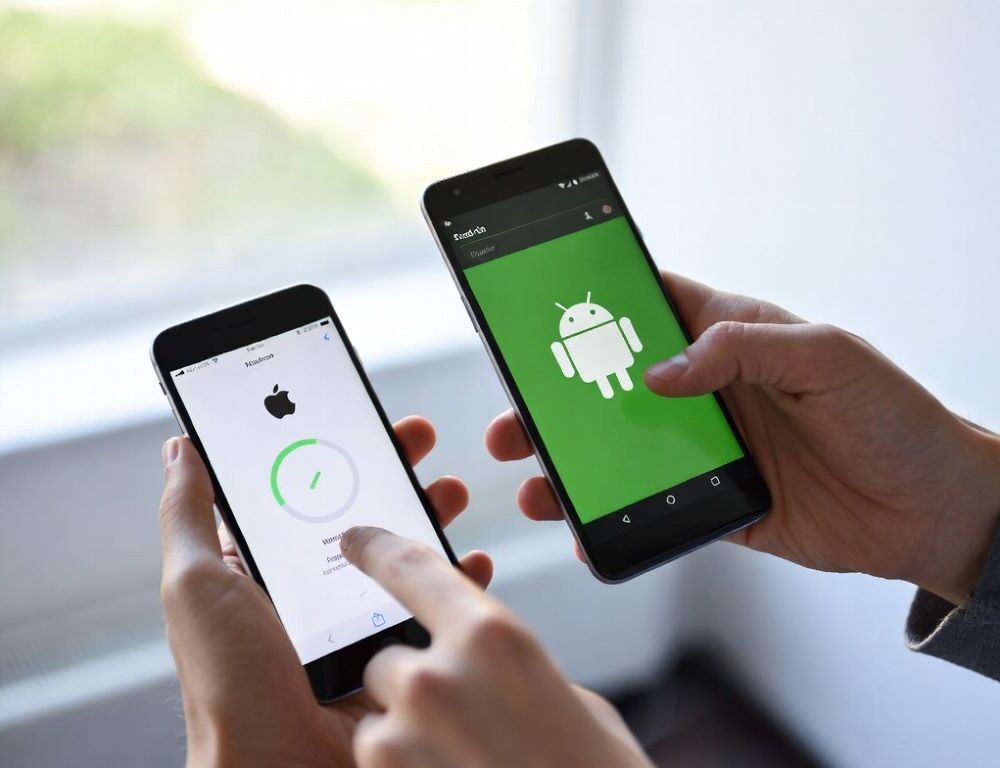
Tired of struggling to move your data from an iPhone to an Android device? This approach keeps things quick, simple, and low-stress, so your important information goes across fast. Say goodbye to the worry of losing valuable data during the switch.
Technology moves fast, so staying current and adapting to new tools matters. Whether you are switching for personal reasons or work, there is a practical path. Clear step-by-step actions help you transfer smoothly with minimal risk of data loss. Get set to move over easily and start using your new Android device with confidence.
Understanding the data transfer process
The iPhone-to-Android transfer process works best when you start with a reliable backup. Next, use dedicated tools to move contacts, photos, messages, and apps where possible. It also helps to set up both devices to sync through a Google account, so core data stays consistent. The workflow is usually fast, but careful execution reduces the chance of missing items.
Overview of transfer methods
How do you transfer data from iPhone to Android? Several options can get the job done efficiently. One method uses built-in cloud services such as iCloud or Google Drive. Another option is a data transfer app like MobileTrans or SHAREit. Bluetooth can also move individual files, though it is slower and less complete for a full migration. Pick the method that matches your data type and time constraints.
Checking compatibility between iPhone and Android
Compatibility checks prevent surprises during a platform switch. Start by confirming both devices have internet access. Use trusted transfer options such as Google Drive or iCloud to move data safely and consistently. Focus on core items first, including contacts, photos, and messages. Confirm the transfer worked by opening those items on the Android device and verifying counts and recent entries.
Preparing your iPhone for data transfer
A few prep steps make the transfer smoother. First, create a full backup in iCloud or iTunes. Next, connect your iPhone to Wi-Fi and ensure it has enough battery for the whole process. Then turn off “Find My iPhone” and sign out of iCloud on the device if your chosen method requires it. These steps reduce authentication issues and sync conflicts.
Backing up your iPhone data
Backing up iPhone data is a core safety step that protects your information if anything goes wrong. Back up to iCloud or a computer, choose what needs to be included, and let the backup complete without interruptions. A current backup helps you recover data if the phone is lost, damaged, or the transfer fails. When switching to Android, having that backup makes the migration less risky.
Turning off iMessage and FaceTime
Disabling iMessage and FaceTime helps prevent message delivery problems after moving to Android. To turn off iMessage, go to Settings > Messages and switch off iMessage. To turn off FaceTime, go to Settings > FaceTime and switch it off. After that, continue with the data transfer steps on your new Android device.
Starting the data transfer
If you want a fast, clean move from iPhone to Android, start the transfer method you picked and keep both devices stable. Contacts, photos, videos, and other files can move in one session or in stages. Breaking the work into small checks makes it easier to spot gaps early. Begin the transfer and verify results as you go.
Using Google Drive or iCloud to move data
Google Drive and iCloud can simplify device-to-device migration when both phones have internet access. With Google Drive, create a backup on the iPhone using the app’s backup features, then sign in on Android with the same Google account and restore what is available. With iCloud, enable backups on the iPhone and then sync or export data to services that your Android device can import. Availability depends on the data type and the apps you use.
Wireless transfer options
Wireless transfers are popular because they do not require cables. One path is cloud sync through services such as Google Drive or iCloud. Another is a wireless transfer app installed from the App Store and Google Play. Bluetooth can work for single files, but it is not ideal for large photo libraries or full migrations. Choose a wireless method that matches the size and type of data you need to move.
Transferring specific types of data
Switching platforms often means handling each data type a bit differently. Contacts, photos, videos, messages, and calendars can be transferred through cloud services, dedicated migration apps, or a USB cable when supported. Plan for data that comes from multiple sources, such as email accounts and messaging apps, so nothing gets left behind. Sync settings matter, so confirm which account is the “source of truth” before importing.
Contacts and calendars
Contacts and calendars are essential for daily use, so moving them first is usually the safest approach. You can sync through cloud services, use a dedicated transfer app, or export and import files depending on your setup. The best option depends on which accounts and apps you already rely on. Create a backup before you start, so you can restore quickly if something is missing.
Final post-transfer checklist
After moving from iPhone to Android, a quick verification run helps catch missing items early.
- Check contacts: total count, recent entries, duplicates
- Open Photos/Videos: confirm recent albums and the latest items appear
- Review Calendar: upcoming events, time zone, sync status
- Confirm texts arrive on Android and iMessage is turned off
- Sign in to critical apps: banking, messengers, email, 2FA tools
- Enable Android backups (Google One/Photos)
If something is missing, re-transfer only that data type and confirm which account stores it.