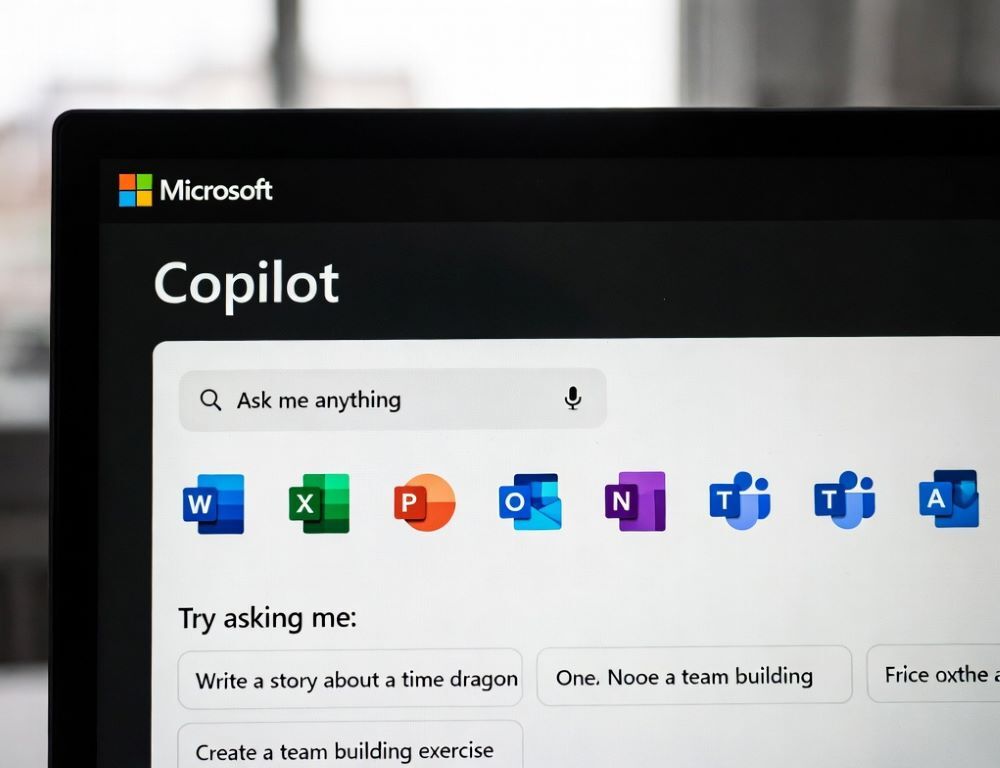
Microsoft Copilot is an AI assistant in Microsoft experiences that can draft text, create summaries, and respond to prompts. The Copilot name can point to different entry points, so identifying where Copilot runs prevents wrong expectations.
Keeping one scenario and one surface helps you work without getting lost in overlapping options.
- What is Microsoft Copilot used for in everyday work
- Why Copilot in Windows, the web, and Microsoft 365 feel different
- How to identify which Copilot version you are actually using
- What Microsoft Copilot can see and what depends on your account
- What mistakes cause Copilot confusion and lower-quality results
- Which signs mean it is time to contact IT or support
- What to remember about Microsoft Copilot before using it
What is Microsoft Copilot used for in everyday work
Microsoft Copilot is used for drafting, rephrasing, summarizing, and turning notes into structured output within the Microsoft ecosystem. Prompts work best when they state role, format, and a length limit.
Common tasks:
- draft an email in a specific tone,
- summarize a document into key points.
Verify names, dates, and any figures before sharing the result.
Why Copilot in Windows, the web, and Microsoft 365 feel different
Differences between Copilot in Windows, the web, and Microsoft 365 come from the surface and what data Copilot is allowed to consider. Windows Copilot is system-oriented, web Copilot is general-purpose, and Microsoft 365 Copilot is tied to work apps and permission boundaries. The term “microsoft copilot” is used as a blanket name.
Why Microsoft 365 Copilot matters when you expect file-aware answers
Microsoft 365 Copilot can use work context only when your organization permits it. A quick validation is opening the relevant app, finding Copilot via an actions menu or command search, and requesting a short summary of the current file.
How to identify which Copilot version you are actually using
The Copilot version is easiest to identify by the start location and the active account. If labels differ on your device, use Settings search or an app’s command search for “Copilot” instead of relying on exact menu names.
| Signal | Most likely version | Validation |
| Started from a Windows surface | Copilot in Windows | confirm the signed-in account and Copilot controls in Settings |
| Started in a browser or web page | Copilot on the web | confirm which Microsoft account is signed in |
| Started inside Word/Excel/PowerPoint/Teams | Copilot for Microsoft 365 | confirm a work account and whether policy disables it |
Run the same test prompt twice and confirm the response stays consistent.
What Microsoft Copilot can see and what depends on your account
The data Microsoft Copilot can consider depends on the surface, your settings, and organizational policy. Work environments may restrict access to documents, mail, or chats.
Risk: pasting confidential data into prompts can violate policy. Use anonymized examples and confirm rules with your admin.
What mistakes cause Copilot confusion and lower-quality results
Copilot confusion usually shows up as missing features or generic answers that ignore context. A practical fix is to choose AI tool for the scenario and keep only one account active while testing.
Common mistakes:
- mixing personal and work accounts across apps,
- expecting file access from a web surface,
- writing prompts without format and success criteria.
Repeat the same prompt after changes and confirm the output improves.
Which signs mean it is time to contact IT or support
IT or support help is needed when Copilot is blocked by policy or requires permissions you cannot grant. Signs include organization-managed notices, Copilot missing in work apps, or repeated sign-in loops.
Escalation is safer when security policy, licensing, or data access controls are involved.
What to remember about Microsoft Copilot before using it
A dependable Microsoft Copilot experience starts with knowing the surface you have and what data it can use. A short test prompt and quick fact-check keep results accurate and policy-safe.