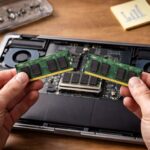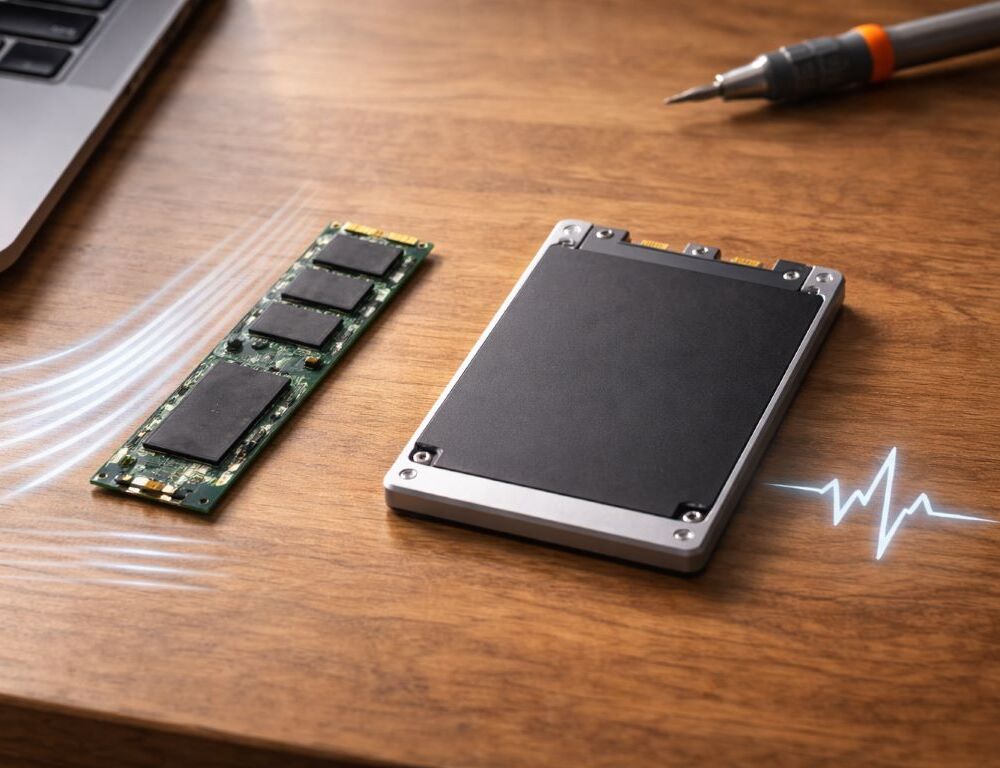
Two laptops can look identical on paper but feel totally different on day one—one boots fast, launches apps instantly, and moves files without drama, while the other hesitates in all the wrong moments. Storage is often the reason. With NVMe vs SATA, the key is understanding what “M.2” really means, where read write speeds matter, and when the upgrade is worth paying for.
Who should pick NVMe, and who’s fine with SATA?
When does NVMe make a noticeable difference?
If you regularly move large files, work with photo/video, install big apps, or keep heavy projects on your drive, NVMe usually feels faster. In these workloads, sustained read write speeds and stability under load matter more than marketing peaks.
When is SATA still a smart buy?
For everyday tasks—office work, school, email, and light browsing—SATA SSD can feel very fast, especially if you replace HDD with SSD. The biggest gap shows up in heavy transfers and project work, not basic typing.
Why should the decision be based on your workload?
Start with your use case and budget, then balance CPU, RAM, and storage. If you want a framework, it helps to revisit how to choose a laptop for your needs before deciding where NVMe is truly worth it.
What does “M.2 SSD” actually mean?
Is M.2 speed or just the shape?
M.2 SSD is a form factor. An M.2 drive can be SATA or NVMe. That’s why “M.2” on a spec sheet doesn’t automatically mean NVMe-level performance.
What’s the real interface difference between NVMe and SATA?
SATA is an older interface with a lower throughput ceiling. NVMe uses PCIe lanes and can move far more data per second. Still, what matters most is how your laptop behaves in your real tasks, not the highest benchmark number.
Why does free space and organization matter on any SSD?
When a drive is nearly full, performance can drop. Keeping a healthy free-space buffer often improves consistency no matter which SSD type you choose.
Table: NVMe vs SATA in real laptop use
| Use case | NVMe | SATA SSD |
| Boot and app launches | Often faster, especially for heavy apps | Fast vs HDD, but less headroom |
| Large file transfers | Noticeably quicker | Slower on big moves |
| Project-heavy multitasking | Smoother under load | Fine for moderate workloads |
| Price per GB | Usually higher | Often more affordable |
| Older laptop compatibility | Requires NVMe/PCIe support | Often easier to support |
Which SSD specs matter for longevity and consistency?
What is TBW endurance, and who should care?
TBW endurance is a write-lifespan rating. Most people won’t hit it, but heavy creators, frequent large transfers, and cache-heavy workflows may care more about TBW than about peak speeds.
Why shouldn’t read write speeds be your only metric?
Peak speeds often come from short tests. Real performance depends on sustained behavior, heat, and how the drive performs during long writes. In laptops, thermal limits can shape how “fast” an SSD feels over time.
How does RAM affect the storage upgrade you feel?
With low RAM, the system leans more on the drive for swapping, and even a fast SSD can feel bogged down. If you’re unsure whether storage is the bottleneck, a guide like 8GB vs 16GB RAM can help you spot the real limit.
Practical steps before you upgrade or buy
How do you confirm your laptop supports NVMe?
Check the exact model and configuration. Some laptop lines ship with different boards, and not every M.2 slot supports PCIe/NVMe. Verify the supported drive length and slot type.
Is NVMe worth it for an older laptop?
It can be, if the rest of the system is healthy. If you often try to find out common reasons laptops get slow, the root cause may be broader—heat, background apps, or RAM limits—not just the drive.
What should you check when buying used?
Storage condition is only part of the story. If you’re shopping secondhand, a used laptop checklist helps you look for signs of hidden issues beyond the SSD alone.
Quick questions people ask
Will NVMe make everything faster, or just file copies?
You’ll notice it most in disk-heavy moments: installs, large transfers, project files, and heavy app launches. For light browsing, the jump from SATA may feel smaller than expected.
Should you clone Windows to SSD if you already have an SSD?
If you’re moving from HDD, cloning Windows to SSD can be a huge upgrade. If you already use an SSD, cloning makes sense mainly when switching to a faster NVMe and your workload actually benefits.
Is capacity more important than interface?
For many users, yes—especially if you store lots of media and projects. A roomy SSD with consistent performance often beats a faster drive that’s constantly full. NVMe vs SATA becomes an easy choice when you focus on your real workload: where you lose time, how you store files, and whether your laptop supports the upgrade cleanly. Then the SSD is a practical boost, not just a spec-sheet trophy.