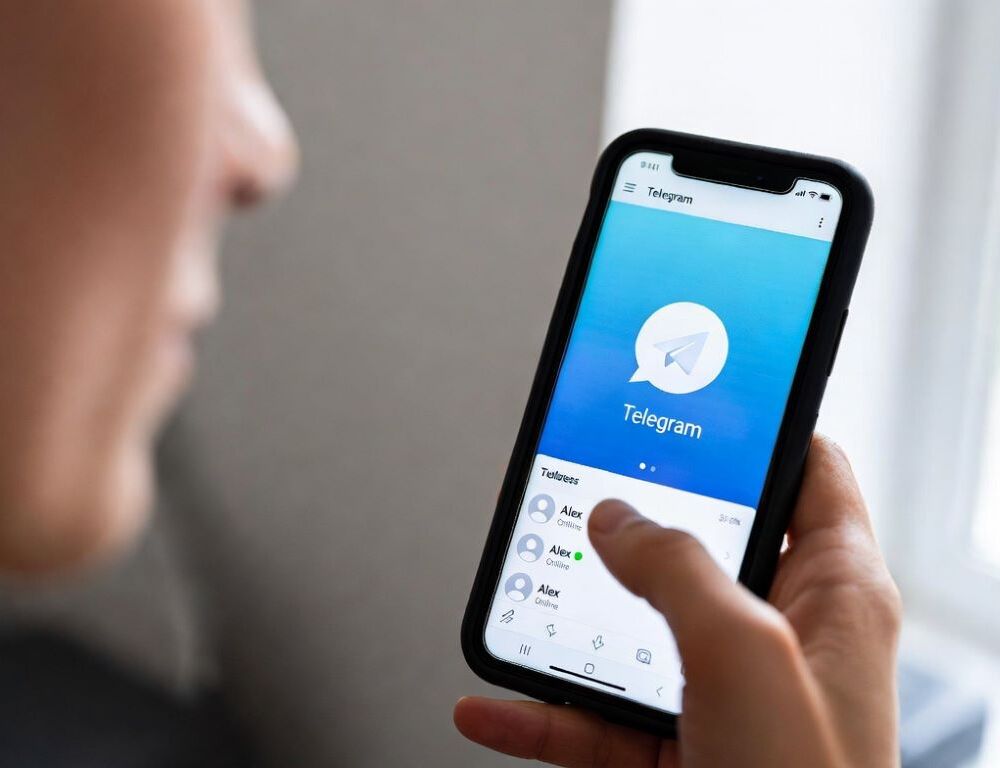
Telegram block bypass is safest when it starts with settings that do not require shady helper apps or account access. A disciplined flow of checks reduces scams, login loops, and accidental data exposure.
- What quick checks confirm Telegram is being blocked rather than a general connection failure?
- Which Telegram proxy settings tend to work during blocking?
- When can Private DNS or changing DNS restore Telegram connectivity?
- What should you do if Telegram works on mobile data but fails on Wi-Fi?
- Which mistakes during Telegram block bypass create the biggest account risk?
- Which warning signs mean it’s smarter to stop and ask for help?
- What conclusion supports Telegram block bypass without risking the account?
What quick checks confirm Telegram is being blocked rather than a general connection failure?
Quick Telegram access checks separate provider blocking from Wi-Fi, DNS, or device time issues. Run three short tests and record what changes.
- Test other apps: if web browsing works but Telegram does not, the issue is often Telegram-specific filtering.
- Switch between Wi-Fi and mobile data: if mobile data works, the restriction is likely on the Wi-Fi network or ISP path.
- Verify date and time: enable automatic time, then restart Telegram.
The checks are validated if you can state “only Telegram fails” or “the whole network fails” and it repeats after a reboot.
Which Telegram proxy settings tend to work during blocking?
Telegram proxy settings provide access without changing the operating system when a network filters connections or DNS. MTProto and SOCKS5 are common options, but the proxy source must be trusted.
A practical setup path:
- Open Telegram Settings > Data and Storage > Proxy Settings.
- Add a proxy (MTProto or SOCKS5) and save it.
- Enable the proxy and test connectivity.
A required validation loop: send a message to Saved Messages and confirm chats refresh without errors. If labels differ, using the in-app settings search for “proxy” usually finds the right screen.
When can Private DNS or changing DNS restore Telegram connectivity?
Private DNS or DNS changes often help when an ISP intercepts or breaks DNS resolution for Telegram endpoints. This step does not require account re-login and is a clean early test.
Baseline actions:
- Android: Settings > Network & Internet > Private DNS, try Automatic or a hostname mode, then test Telegram.
- iOS: Wi-Fi > (i) next to the network > Configure DNS, try Automatic or Manual, then reconnect.
The outcome is validated if “Connecting…” clears within 30–60 seconds on the same Wi-Fi after the DNS change.
What should you do if Telegram works on mobile data but fails on Wi-Fi?
The “works on LTE, fails on Wi-Fi” pattern usually points to router filtering, captive portals, or organization policies. Start with low-risk steps, then move to Telegram proxy settings if needed.
A fast symptom map helps pick the next action.
| Symptom | Likely cause | What to do |
| Works on mobile data, fails on Wi-Fi | Filtering or DNS on the router | Check DNS, try a proxy |
| “Connecting…” persists | Captive portal or unstable Wi-Fi | Open a website, reconnect Wi-Fi |
| Fails only on one network | Office or school policy | Ask the network admin |
| Worse after an update | Cache or network profile glitch | Restart, forget network, rejoin |
This table is useful when the same SIM works consistently and a specific Wi-Fi repeatedly breaks Telegram.
Once access is stable again, it can be worth tuning the interface, for example enabling Telegram color themes for AMOLED and dark mode.
Which mistakes during Telegram block bypass create the biggest account risk?
Telegram block bypass failures often come from scam patterns and unnecessary permissions rather than technical limits. Any method that asks you to log in through a third-party site or install a “service client” carries elevated risk.
- Sharing login codes, passwords, or recovery details with anyone claiming to “help”.
- Installing APKs from chats instead of an official store.
- Adding unknown proxies from random channels without knowing who runs the server.
- Installing certificates or profiles that promise guaranteed access.
The safety check passes if no step required sharing secrets and no untrusted software was installed.
Which warning signs mean it’s smarter to stop and ask for help?
Warning signs of account compromise or organization-level restrictions are a strong reason to stop and escalate. This applies when Telegram requests re-authorization unexpectedly, codes arrive without you requesting them, or unknown sessions appear.
A safer escalation path: pause proxy experiments, change passwords, enable Telegram’s cloud password, review Active Sessions, and terminate unknown sessions. On office or school networks, the correct route is to involve the network administrator and follow local policies.
What conclusion supports Telegram block bypass without risking the account?
Telegram block bypass stays safest when it starts with network checks, then tests DNS, and only then enables an in-app proxy. That sequence keeps the outcome controlled and reduces exposure to scams.