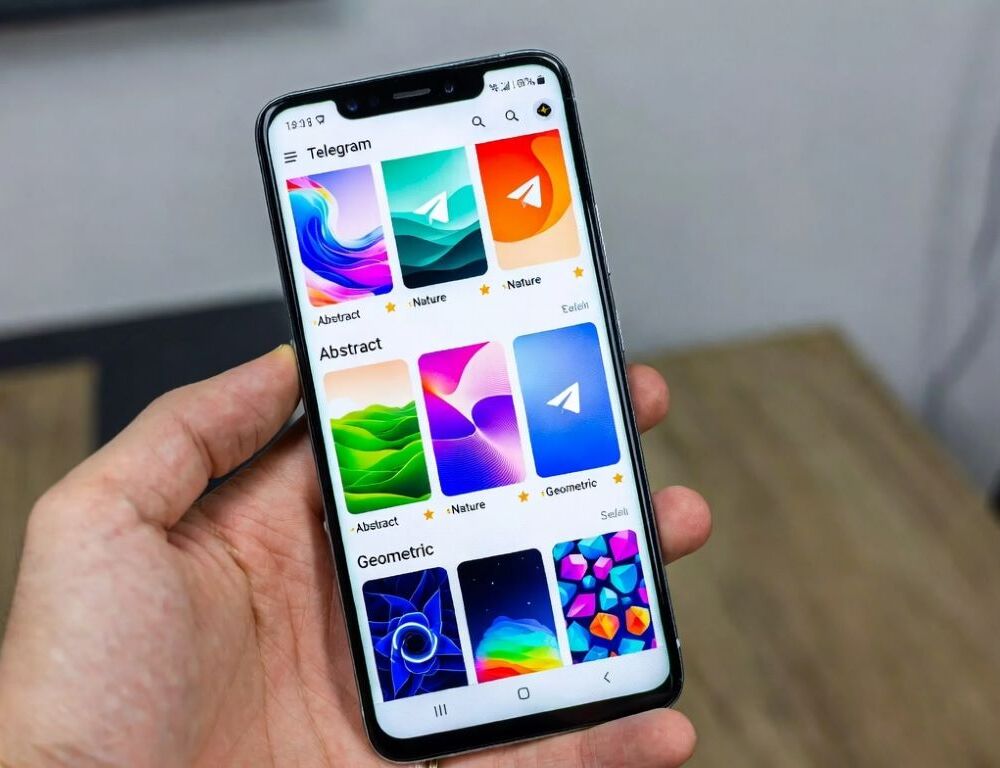
Telegram color themes for AMOLED work best when the background is very dark and text stays readable. AMOLED screens benefit from dark pixels, but extreme contrast and bright accents can cause faster eye fatigue.
A reliable approach is selecting a theme style, testing it in real chats, then locking the settings.
- Which Telegram color themes work best on AMOLED screens
- How to validate a dark theme quickly without guessing
- How to enable Telegram themes on Android or iPhone when menus look different
- Why pure black can feel worse than dark gray on AMOLED
- What mistakes make Telegram themes uncomfortable on AMOLED
- When resetting appearance or asking for help is the safer move
- Which Telegram color theme profile is the best first pick for AMOLED
Which Telegram color themes work best on AMOLED screens
Telegram color themes for AMOLED usually feel better with a dark background and a restrained accent color. Theme labels can vary by app version, so choosing a theme profile is more stable than chasing exact names.
Practical AMOLED-friendly profiles:
- near-black background for lower power use and minimal glow;
- dark gray background if white-on-black feels too harsh;
- muted accent color so links and buttons do not distract;
- readability-first contrast without neon tones;
- minimal wallpapers and patterns for long night reading.
A quick chat test typically confirms whether the profile is comfortable.
How to validate a dark theme quickly without guessing
A dark theme validation for Telegram on AMOLED comes down to readability and small UI visibility. Testing inside a chat with long messages gives a more realistic result than looking at an empty screen.
Fast validation steps:
- open a chat with mixed message lengths;
- scroll and check whether text looks stable and easy to focus on;
- check names, timestamps, icons, and counters for contrast;
- type a message and confirm the input field remains clear.
Validation result: the theme should feel comfortable for at least a minute without forcing you to squint. If it feels sharp, switching to dark gray often reduces strain.
Telegram themes are enabled in appearance or chat settings, but labels differ across builds and languages. A stable path is Telegram > Settings > Chat Settings/Appearance, and Settings search for “theme” often finds the right screen faster.
Typical steps:
- Open Telegram > Settings.
- Go to Chat Settings or Appearance.
- Choose a dark theme or adjust palette and accent if available.
- Open 2–3 chats and verify link and text visibility.
Validation result: the theme applies consistently in the chat list and inside chats. If changes look partial, a system dark mode setting or a second appearance option may be overriding it.
How to tune the accent color so links stay readable
Accent color tuning for AMOLED works best when the accent is less saturated on dark backgrounds. After changing the accent, open a chat with links and check whether they stand out without looking overly bright.
If the accent still feels too strong, changing the accent color usually helps more than lowering screen brightness.
Why pure black can feel worse than dark gray on AMOLED
Pure black on AMOLED can look impressive, but white text on true black creates very high contrast that some users find tiring. Dark gray softens contrast while keeping text clear.
Validation result: dark gray should preserve legibility while reducing the harshness of white-on-black.
What mistakes make Telegram themes uncomfortable on AMOLED
Telegram theme discomfort on AMOLED is often caused by wallpaper noise, over-saturated accents, or unsafe custom imports. Mixing a system theme with Telegram appearance settings can also lead to inconsistent results.
Common mistakes:
- bright wallpapers on a dark background that reduce readability;
- neon-like accents that make links and buttons feel intrusive;
- importing themes from unknown sources, especially if permissions look unusual;
- frequent system theme toggles that cause appearance resets.
Validation result: the theme should remain the same after restarting Telegram.
When resetting appearance or asking for help is the safer move
Resetting Telegram appearance helps when a theme fails to apply fully, keeps reverting, or makes UI elements hard to read. Start with low-risk checks: update Telegram, restart the device, disable aggressive battery saving, then set the theme again.
Validation result: the default theme applies immediately and stays stable. If the device is managed by an organization or the issue appears after syncing with another device, policy controls can be involved, and support or IT is the correct escalation.
Which Telegram color theme profile is the best first pick for AMOLED
A dark gray background with a muted accent and minimal wallpaper is often the best first pick for AMOLED. That baseline is easy to validate in real chats, and switching to near-black becomes a controlled upgrade rather than a guess.