
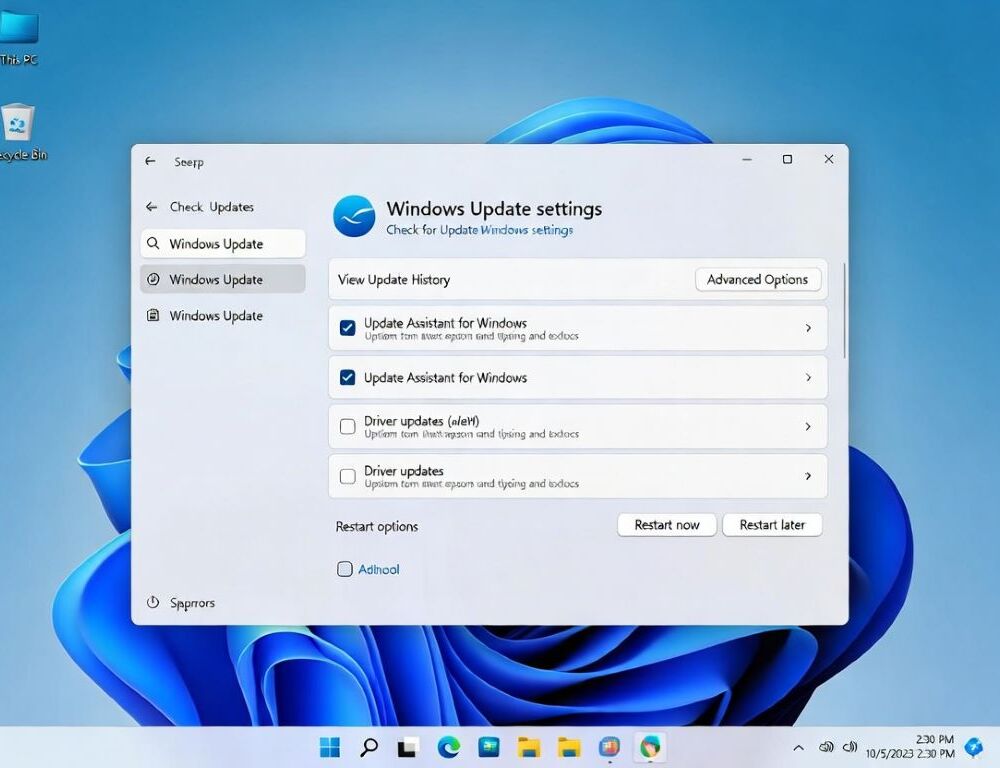
Windows 11 usually won’t update because Windows Update is stuck, storage or network conditions block it, or system files are damaged. The steps below start with fast triage and move into safe reset and repair actions that do not require reinstalling.
- What should you check first when Windows 11 won’t update?
- Where can you see which stage the Windows 11 update failed on?
- How do you run the Windows Update troubleshooter in Windows 11?
- How can you reset Windows 11 update cache without reinstalling?
- How can you repair Windows 11 system files when updates keep failing?
- Which edge cases commonly block Windows 11 updates?
- What mistakes make Windows 11 update problems worse?
- When should you stop and escalate a Windows 11 update failure?
What should you check first when Windows 11 won’t update?
The first checks when Windows 11 won’t update are restart state, free storage, network stability, time settings, and update options.
A quick triage pass looks like this:
| Check | Why it matters | Next step |
| Restart the PC | Clears stalled update processes | Try “Check for updates” again |
| Free space on C: | Updates need working space | Clean up storage, retry |
| Network, VPN, proxy | Tunnels and filters can block downloads | Disable VPN, try another network |
| Date/time and time zone | Bad time can break validation | Enable automatic time, retry |
| Metered connection | Windows may throttle large downloads | Turn metered off temporarily |
If the basics do not move the process forward, identify the exact failure stage before making deeper changes.
Where can you see which stage the Windows 11 update failed on?
The stage where a Windows 11 update failed is usually visible in Settings under Windows Update and Update history. Look for the last attempt and note whether it failed during downloading, installing, or after a restart prompt.
Error codes can help later, but a standard fix path (troubleshooter, cache reset, file repair) resolves most situations without chasing codes.
How do you run the Windows Update troubleshooter in Windows 11?
Running the Windows Update troubleshooter in Windows 11 often repairs common service and queue issues automatically. Use this path:
- Open Settings → System → Troubleshoot → Other troubleshooters.
- Run Windows Update.
- Restart the PC and try the update again.
If the troubleshooter reports no change and the issue repeats, a controlled reset of the update cache is the next practical step.
How can you reset Windows 11 update cache without reinstalling?
Resetting the Windows 11 update cache typically means stopping update services and renaming the SoftwareDistribution and Catroot2 folders. A safe sequence is:
- Open Windows Terminal or Command Prompt as Administrator.
- Stop Windows Update and BITS services (via Services, or admin commands).
- Rename
C:\Windows\SoftwareDistribution(for example add.old). - Rename
C:\Windows\System32\catroot2. - Start the services again and restart the PC.
After the reboot, Windows Update rebuilds fresh folders, which often clears “stuck at 0%” and repeated download loops.
How can you repair Windows 11 system files when updates keep failing?
Repairing Windows 11 system files with SFC and DISM fixes corruption that can break update installation. Run these as Administrator:
sfc /scannow- then
DISM /Online /Cleanup-Image /RestoreHealth - restart and retry the update
If DISM fails due to connectivity, remove VPN/proxy, confirm internet access, and run it again after a restart.
Which edge cases commonly block Windows 11 updates?
Edge cases that block Windows 11 updates often involve policies, security tools, or hardware conflicts rather than the update itself. Common examples include:
- A work-managed device where update policies restrict installs.
- Third-party antivirus or “tuning” utilities that interfere with update services.
- External devices (USB storage, docks) causing driver conflicts during install.
- Low free space in system-related partitions after a major feature update attempt.
In these scenarios, simplify the environment, detach nonessential devices, and avoid utilities that change system services.
What mistakes make Windows 11 update problems worse?
Mistakes that make Windows 11 update problems worse usually involve forceful interruptions and untrusted tools:
- Avoid repeated hard power-offs during “Preparing” or “Configuring updates.”
- Avoid random “repair” apps and driver packs from unknown sources.
- Avoid disabling Windows Update services permanently as a workaround.
A calmer approach works better: one change at a time, then verify whether the update behavior improves.
When should you stop and escalate a Windows 11 update failure?
Escalation for a Windows 11 update failure makes sense when cache reset and SFC/DISM do not help and you see reboot loops, frequent blue screens, disk errors, or the install fails at the same point every time. At that stage, prioritize data safety, then move to deeper diagnostics of storage health, drivers, and system stability.
The core takeaway is straightforward: most “Windows 11 won’t update” cases resolve through triage checks, the built-in troubleshooter, a cache reset, and system file repair.