
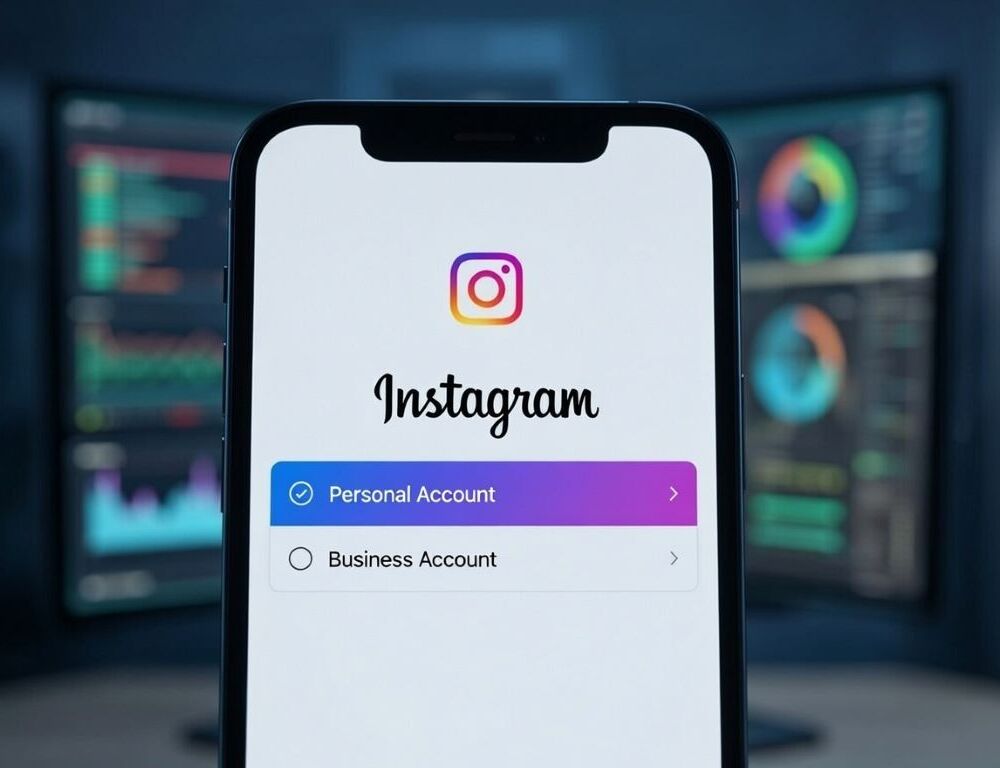
Switching to a personal Instagram account usually comes down to changing the account type in Instagram settings, and posts do not disappear. Most “missing button” cases are just renamed menus, an outdated app version, or being in the wrong account type (Creator vs Business). If the labels look different, use Settings search to find “account type”.
- What should you check first so you do not chase the wrong menu?
- How do you switch from Business or Creator back to a personal account?
- What changes after switching to a personal account?
- How can you confirm the account is personal after the switch?
- What should you do if the switch fails, errors out, or will not save?
- Which mistakes keep people stuck on a professional account?
- What signals mean you should stop tinkering and fix account access first?
- How do you keep the account personal and avoid accidental re-switching?
What you should check first so you do not chase the wrong menu is whether the profile is currently Business or Creator and whether the app is up to date. Instagram moves labels around, but the account-type switch stays tied to professional tools.
Quick triage:
- Confirm you are on the correct profile username.
- Look for professional cues like a category label or contact buttons.
- Update Instagram from the App Store or Google Play.
- Force-close the app and reopen it.
Validation: you can locate a settings area that contains “account type”, “professional account”, or “tools”.
How do you switch from Business or Creator back to a personal account?
How you switch from Business or Creator back to a personal account is by opening Instagram settings and choosing the option to switch account type. The exact wording can differ, but the stable path is Profile menu, then Settings, then account type.
Where is the “switch to personal account” option in the current interface?
Where the “switch to personal account” option in the current interface usually lives is under Settings and privacy, then an area like “Account type and tools” or “For professionals”. If you cannot see it, use the search field inside Settings and type “account type” or “switch”.
Validation: after switching, the profile loses business-only elements such as contact buttons or professional dashboards.
Rollback: you can switch back to Creator or Business from the same account-type area if you need those tools again.
Why does Instagram show professional options but not the personal switch?
Why Instagram shows professional options but not the personal switch is often because the account is already personal, or you opened a marketing-related screen instead of account type. Go back to Settings search and open the result that clearly references “account type”.
If it still does not appear:
- Sign out and sign back in, then re-check Settings search.
- Update the app and restart the phone.
- Try a different device if the UI is broken on one install.
Validation: the account type screen explicitly states the current mode.
What changes after switching to a personal account?
What changes after switching to a personal account is mostly about losing professional features, not losing content. Posts, followers, and messages stay, but analytics and business tools can be reduced or removed.
Common changes:
- Insights and performance analytics may disappear.
- Category labels and contact buttons can be removed or disabled.
- Some messaging tools and automation features may change.
- Promoted-post and business setup prompts may stop showing.
Validation: open Settings search for “Insights” or “professional”, and confirm those panels are gone or limited.
How can you confirm the account is personal after the switch?
How you can confirm the account is personal after the switch is by checking the account type screen and looking for visual cues on the profile. Instagram confirmations are not always persistent, so a manual check is safer.
Fast confirmation:
- Settings search for “account type” shows “Personal” as the current mode.
- The profile no longer shows business contact buttons.
- Professional dashboards or Insights are unavailable.
If the status looks inconsistent, force-close the app and check again, cached UI can lag behind.
What should you do if the switch fails, errors out, or will not save?
What you should do if the switch fails, errors out, or will not save is to stabilize the app and account state before retrying. Temporary limits, suspicious logins, or ongoing promotions can block account changes.
Try these in order:
- Switch to a stable network and restart the app.
Validation: the confirmation appears and the account type updates.
Rollback: nothing changes unless you confirm the switch. - Update Instagram and sign out, then sign back in.
Validation: the menu labels refresh and the switch becomes available.
Rollback: sign in again if the session expires. - Reinstall the app (especially on iPhone).
Risk: you must have the password and access to email or phone verification.
Validation: account type changes successfully after re-login.
Rollback: reinstalling does not remove your account, but missing login access can lock you out.
If the account was created across different devices and you are unsure how login is tied together, the flow from How to Create an Instagram Account Without Getting Stuck helps clarify the phone vs desktop setup decisions.
Which mistakes keep people stuck on a professional account?
Which mistakes keep people stuck on a professional account usually involve searching in the wrong place or making risky changes without confirming login access. A second common issue is confusing a “personal profile” look with an actual Personal account type.
Common mistakes:
- Looking only on the profile screen, not in Settings and privacy.
- Confusing Creator and Business and opening the wrong tools page.
- Reinstalling without verified access to email, phone, and password.
- Changing settings but never restarting the app to refresh UI.
Validation after fixing the mistake: Settings search for “account type” shows the current mode clearly.
What signals mean you should stop tinkering and fix account access first?
What signals mean you should stop tinkering and fix account access first include repeated “Try again later” errors and settings that refuse to save. In those cases, the priority is confirming email and phone access before attempting more changes.
Check these before retrying:
- Email and phone are verified in the account center.
- You can pass a login challenge without guessing codes.
- There is no active restriction notice or unusual-login alert.
If you cannot access a phone number, the setup patterns from How to create an Instagram account without a phone number? help avoid getting locked out during recovery steps.
How do you keep the account personal and avoid accidental re-switching?
How you keep the account personal and avoid accidental re-switching is by ignoring “go professional” prompts and periodically checking the account type. Instagram occasionally nudges users back toward professional tools.
Validation tomorrow: use Settings search for “account type” and confirm it still reads Personal. If it stays stable, the account is in the right mode and professional features will not keep reappearing.