
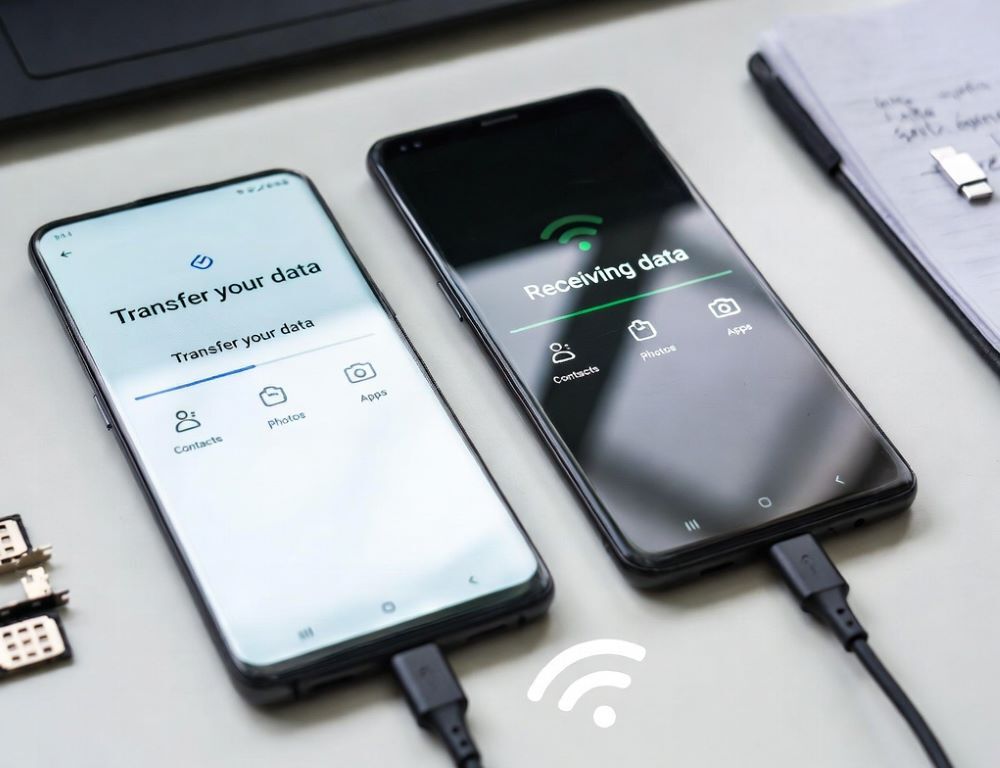
Transferring data from Android to Android without a Google account is possible via USB cable, Wi-Fi sharing, or a local copy to a PC or SD card. Fewer surprises happen when storage locations are checked first and each major category is validated after the move.
- What to check before transferring so photos, chats, and contacts do not go missing
- Which transfer method works best without a Google account
- How to transfer Android data by USB cable when both phones are available
- How to transfer data over Wi-Fi with Quick Share when settings names differ
- How to move photos and files offline without creating duplicates
- How to move WhatsApp and Telegram without Google backups
- Why some apps and data do not transfer and what to do next
- What mistakes cause failed transfers or messy duplicates
- Which signs mean you should stop trying and get help
- When it is safe to wipe the old phone
What to check before transferring so photos, chats, and contacts do not go missing
A clean transfer starts with confirming where your data actually lives and whether messaging apps keep local backups. Keep both phones charged, then verify free storage on the new device.
Quick pre-checks:
- the Photos/Gallery app shows the full library, not only recent items;
- WhatsApp has a current local backup inside the app, Telegram can sign in;
- contacts are not split unpredictably across SIM, phone storage, and multiple accounts;
- screen locks and battery saving will not interrupt transfer prompts.
Validation: open one important chat and locate older messages so you can compare after transfer.
Which transfer method works best without a Google account
A single transfer method is the easiest way to avoid duplicates and partial restores. Menu labels vary by Android build and manufacturer, so focus on the transfer type rather than exact wording.
| Method | Best at moving | What to validate |
| USB-C cable / OTG | photos, videos, files, some settings | transfer does not pause on lock |
| Wi-Fi sharing (Quick Share or similar) | media, documents, APKs | files open after receiving |
| Vendor transfer tool | apps, settings, media | permissions granted, progress completes |
| PC or SD card copy | full control of folders | folder structure preserved |
Validation after choosing: do not start a second method for the same folders.
How to transfer Android data by USB cable when both phones are available
A cable transfer works best when the cable supports data, not charging only. Use USB-C to USB-C or an OTG adapter, then look for a USB mode such as “File transfer (MTP)” if a prompt appears.
Steps:
- Connect the phones and unlock both screens.
- On the old phone, approve file transfer mode if prompted.
- On the new phone, select transfer from another device if the setup wizard offers it.
- Keep the cable connected until media copying finishes.
Validation: open photos from different years, play one video, and open one document to confirm nothing is corrupted.
Wi-Fi transfer works without accounts when both phones are on the same network and nearby sharing is enabled. If your menus differ, use Settings search for “share,” “nearby,” or “Quick Share,” and enable visibility and receiving.
Steps:
- Enable Wi-Fi and Bluetooth on both phones, disable VPN if transfers fail.
- Turn on nearby sharing visibility and allow receiving.
- Send selected files from the old phone using Quick Share or an equivalent share tool.
- Accept the transfer on the new phone and wait for completion.
Validation: sent and received file counts match, and photo timestamps look correct.
How to move photos and files offline without creating duplicates
Duplicates happen when the same folders are copied twice using different paths. Pick one channel for photos, cable or PC copy is simplest, and avoid repeating the import with a second method.
A practical order:
- DCIM/Camera and key messenger media folders first;
- Downloads and documents next;
- music and offline maps last.
After copying, restart the new phone so the media index builds once.
Validation: Recent photos do not show identical pairs, and albums keep their folder grouping.
How to move WhatsApp and Telegram without Google backups
Telegram restores after signing in, while WhatsApp often relies on an in-app transfer flow or a local backup, depending on app version and device support. Keep WhatsApp installed on the old phone until the new phone shows your older chats and media.
Validation: an older WhatsApp chat opens with attachments, Telegram chats and channels appear without repeated sign-in errors.
Why some apps and data do not transfer and what to do next
Some apps keep data protected or tied to an account, so copying the app does not copy the internal database. Move access instead: sign-in, 2FA, recovery codes, and transfer contacts separately if needed, for example transfer contacts without duplicates.
Validation: the app launches on the new phone, sign-in completes normally, and settings reappear after you log in.
What mistakes cause failed transfers or messy duplicates
Most failures come from mixing methods and wiping the old phone too early. One method and one validation step after each large copy keeps things stable.
Common mistakes:
- running Wi-Fi transfer and cable copy for the same folders;
- factory resetting the old phone before checking photos and chats;
- letting the screen lock break the permission flow mid-transfer.
Fix the cause, then re-transfer only the missing category, not the entire device.
Which signs mean you should stop trying and get help
Help is a safer option when the phone overheats, the charging port disconnects, or the device keeps rebooting during transfer. The risk is higher if the screen barely responds and you cannot confirm permissions.
A safer fallback is copying to a PC or SD card first, then addressing the hardware issue.
When it is safe to wipe the old phone
Wiping the old phone is safe only after spot-checking key data categories, not just after seeing “completed.” Verify photos across dates, a few documents, chat history, and access to finance or work apps.
Risk: a factory reset permanently removes data, so confirm results and keep a backup before you erase.