
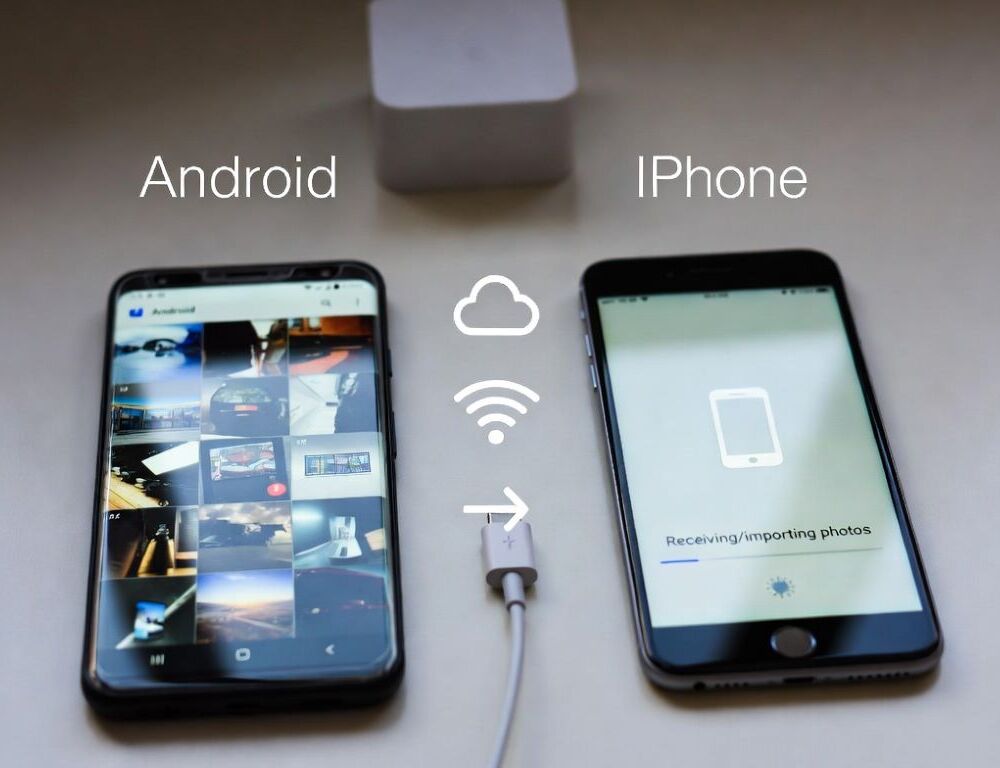
Transferring data from Android to iPhone after iPhone is set up works either by erasing the iPhone for Move to iOS or by moving data category by category. The safest choice depends on whether the iPhone already contains data you cannot erase.
A practical rule is simple: use erase + Move to iOS for a near-complete move, use category transfer when the iPhone is already in daily use.
- Why Move to iOS does not run after iPhone setup is finished
- Which transfer option makes sense when the iPhone is already configured
- How to transfer data from Android to iPhone by erasing and using Move to iOS
- How to transfer data without erasing by moving categories one by one
- Why transfers fail and which checks fix most issues quickly
- How to proceed when the Android phone is unstable or the screen barely responds
- Which mistakes create data loss or messy duplicates during Android to iPhone transfer
- Which signs mean you should stop troubleshooting and ask for service help
- What to verify before wiping the old Android phone
Why Move to iOS does not run after iPhone setup is finished
Move to iOS is designed for the initial iPhone setup flow, so it does not appear on an already configured iPhone. The workaround is always one of two paths, erase the iPhone to re-enter setup, or transfer data manually using apps, accounts, and local copies.
Validation: iPhone Settings will not offer a “start Move to iOS now” option on a configured device.
Which transfer option makes sense when the iPhone is already configured
The decision is mainly about whether erasing the iPhone is acceptable. If the iPhone already has photos, chats, or work apps, category transfer is usually the lower-risk approach.
A quick decision check:
- you want a one-shot migration and can erase, choose erase + Move to iOS;
- you want to keep current iPhone content, choose category transfer.
Avoid running both paths for the same data sets, duplicates become likely.
How to transfer data from Android to iPhone by erasing and using Move to iOS
Move to iOS tends to be the most complete option when the iPhone is reset and going through first-time setup. Risk: erasing the iPhone removes its data, so create a backup before continuing.
Steps:
- Back up the iPhone (iCloud or computer) if it already contains important content.
- Go to Settings > General > Transfer or Reset iPhone > Erase All Content and Settings (labels may vary, Settings search works).
- During setup, pick the option to move data from Android, keep both phones on power.
- Install Move to iOS on Android, start the transfer, and let it finish without switching apps.
Validation: contacts and other selected categories appear on the iPhone after setup completes.
How to transfer data without erasing by moving categories one by one
Category transfer is more controlled because each data type has its own best method. That control helps you spot gaps early and avoid re-importing the same folders twice.
| Category | Best method without erase | Validation |
| Contacts | export/sync, then import on iPhone | contact count and key groups match |
| Photos and videos | one transfer path, app or computer | photos from multiple dates open correctly |
| Files | copy into Files via storage or computer | a document opens and file size looks right |
| WhatsApp’s supported transfer flow | an older chat opens with attachments | |
| Telegram | sign in to the same account | chats and channels appear normally |
Validate each category before moving to the next one.
How to transfer contacts cleanly when contacts are split across sources
Contacts transfer works best when you pick one source of truth on Android, SIM, phone storage, or a specific account. If duplicates already exist, cleaning them first reduces noise during import, and the workflow from transfer contacts from phone to phone and avoid duplicates helps keep the result tidy.
Validation: the iPhone Contacts list shows complete cards and search does not return repeated entries.
How to move photos without creating duplicates in iPhone Photos
Duplicate photos usually come from mixing two transfer methods for the same folders. Pick one lane, either an app-based library sync or a computer copy, then avoid re-importing the same DCIM content again.
Validation: Recents does not show identical pairs, and videos play with normal duration.
How to move WhatsApp when the transfer option is missing
WhatsApp transfer usually requires up-to-date WhatsApp on both devices and access to the same phone number. If the transfer option is missing, update WhatsApp, confirm the Android device still has the full history, and keep WhatsApp on the old phone until verification is complete.
Validation: an older WhatsApp chat opens and media loads without errors.
Why transfers fail and which checks fix most issues quickly
Most failures come from network instability, VPN, battery saving, or low storage on the iPhone. A consistent check order reduces repeated attempts.
Checks to run:
- stable Wi-Fi, VPN off, no forced switching between Wi-Fi and mobile data;
- battery saving off, screens stay unlocked for prompts when needed;
- enough free storage on the iPhone for photos and files;
- restart both devices if the same failure repeats.
Validation: the transfer completes instead of stopping at the same point repeatedly.
How to proceed when the Android phone is unstable or the screen barely responds
An unstable Android phone is safer to treat as a data rescue case, not a full migration case. The safest first move is copying critical data to a computer, an SD card, or via a wired file copy while the device still powers on.
If an intermediate Android device is available, the steps from transfer data without a Google account can help you stabilize the data first, then move to iPhone with less pressure.
Validation: files open outside the failing phone and are not only visible as empty placeholders.
Which mistakes create data loss or messy duplicates during Android to iPhone transfer
Loss and duplication are most often caused by parallel methods and wiping the old phone too early. Verification after each major category is the easiest control point.
Common mistakes:
- running Move to iOS while also importing the same photos separately;
- removing a messenger on Android before verifying chat history on iPhone;
- importing contacts from multiple sources at the same time.
Fix the cause, then transfer only the missing category, not everything again.
Which signs mean you should stop troubleshooting and ask for service help
Service help is justified when the Android device overheats, disconnects while copying, or reboots during transfers. Risk is also high when you cannot approve file access prompts because the screen is not responsive.
A safer alternative is making a local copy to a computer first, then dealing with hardware.
What to verify before wiping the old Android phone
Safe wiping is based on spot-checking, not on a “completed” message. Verify photos across dates, a few documents, access to critical apps, and key chat history.
Risk: a factory reset permanently removes data, so keep a backup and confirm results before erasing.