
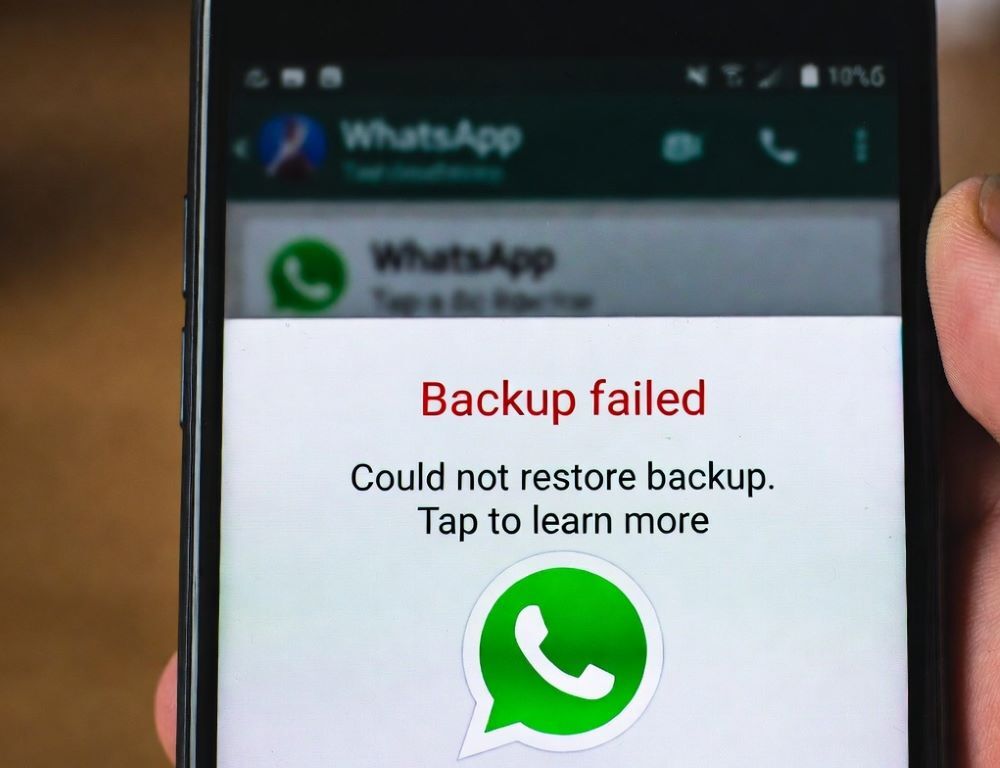
WhatsApp won’t restore a backup (Google Drive/iCloud) when the account, phone number, or setup flow doesn’t match the backup. Most cases come down to confirming the right cloud account, having enough storage, and repeating restore during the initial WhatsApp setup.
- What quick checks take two minutes when WhatsApp can’t find a backup?
- Why does WhatsApp skip the restore prompt during setup?
- What should be checked on Android when Google Drive restore won’t start?
- What should be checked on iPhone when iCloud restore doesn’t work?
- What should be done if restore is stuck or sits at one percentage?
- What limitations matter when moving between Android and iPhone?
- What mistakes most often prevent WhatsApp backup restoration?
- When is it smarter to stop and avoid third-party restore tools?
- What short plan most often brings chats back without losing data?
What quick checks take two minutes when WhatsApp can’t find a backup?
Quick checks for “WhatsApp won’t restore a backup” usually reveal whether a compatible backup exists and is reachable. Start with these basics, then follow the Android or iPhone branch.
Fast checks that break restore most often:
- The same phone number is verified during setup.
- The same cloud account is signed in: Google account on Android, Apple ID on iPhone.
- Enough storage is available on the phone and in Google Drive/iCloud.
- A stable connection is used, preferably Wi-Fi, with VPN filters paused.
- WhatsApp is up to date, and Google Play services exist on Android.
A short diagnostic table helps decide what to fix first.
| Check | Expected result | Next step |
| Cloud account | Correct Google account / Apple ID is active | Sign in, then reboot |
| Free space | Enough space for chats and media | Free 1–3 GB and retry |
| Network | Stable Wi-Fi, no drops | Pause VPN and retry |
| App version | Latest WhatsApp build installed | Update and redo setup |
If a backup exists but WhatsApp never offers restore, the issue is usually timing or account mismatch.
Why does WhatsApp skip the restore prompt during setup?
The WhatsApp restore prompt is tied to the setup flow after phone number verification. If the Restore screen never appears, WhatsApp usually cannot match your current number and cloud account to the backup, or the backup is not considered compatible.
A reliable retry sequence:
- Uninstall WhatsApp.
- Reinstall it from the official store.
- Verify the same phone number.
- Accept restore as soon as the prompt appears.
- If restore was skipped, repeat the reinstall and avoid skipping that step.
Validation is simple: the setup flow shows Restore, then chat history starts downloading.
What should be checked on Android when Google Drive restore won’t start?
Android restore fails most often when the wrong Google account is selected, Google Play services are missing, or the Drive backup is unavailable. The PDF “Backing up WhatsApp data on Android” notes that restoring is tied to the Google account used for the backup, and it also warns that WhatsApp backups in Google Drive can be purged after long inactivity.
A practical checklist:
- Confirm the correct Google account is added in Android settings.
- Update Google Play services if available, then reboot.
- If WhatsApp opens, check
Settings>Chats>Chat backupand look at the last backup date. - If the backup looks missing or outdated, create a fresh backup on Wi-Fi while charging, then reinstall WhatsApp and restore during setup.
A successful path ends with the Restore prompt and chat history appearing before media fully finishes.
What should be checked on iPhone when iCloud restore doesn’t work?
iCloud restore problems usually come from iCloud Drive being off, a different Apple ID, insufficient iCloud space, or an outdated backup. The Apple Platform Security guide describes iCloud Backup conditions that typically require the device to be locked, connected to power, and on Wi-Fi, so a very old backup often means the backup routine hasn’t been completing.
Steps that cover most cases:
- Open iOS
Settings> Apple ID >iCloudand confirmiCloud Driveis on. - Confirm WhatsApp is allowed to use iCloud in the app list (labels vary by iOS version).
- Check iCloud storage and free space on the phone.
- Charge the phone, connect to Wi-Fi, lock the screen for 10–20 minutes, then recheck the backup timestamp.
Validation: WhatsApp detects an iCloud backup during setup and offers restore.
What should be done if restore is stuck or sits at one percentage?
A stuck WhatsApp restore is usually a network or storage problem, or a large media library. A safe approach is to stabilize the network, ensure free space, and let chats restore first.
Order of actions:
- Switch to stable Wi-Fi and pause VPN filters temporarily.
- Free storage, then redo the restore flow.
- If chats appear but media is slow, keep WhatsApp open on a charger for 30–60 minutes.
Progress is confirmed when chats load, search works, and media downloads in waves.
What limitations matter when moving between Android and iPhone?
Cross-platform restore often fails because Android backups rely on Google Drive while iOS backups rely on iCloud. The PDF “Backing up WhatsApp data on Android” explicitly states that the Android app uses Google Drive and the iOS app uses iCloud, so a standard restore across platforms won’t work.
A safe decision path:
- Android → Android: use Google Drive with the same Google account.
- iPhone → iPhone: use iCloud with the same Apple ID.
- Android ↔ iPhone: use only official transfer options that WhatsApp provides for your version, and avoid unvetted migration tools.
While restore is being resolved, a browser-based fallback can keep you reachable, for example via Telegram Web without installing anything.
What mistakes most often prevent WhatsApp backup restoration?
Restore failures usually happen after one of the identifiers changed or the restore step was skipped.
Common mistakes:
- Verifying a different phone number than the one used for the backup.
- Switching to a different Google account or Apple ID “just for restore.”
- Trying to restore on unstable mobile data.
- Running out of storage mid-restore, causing a silent failure.
After fixing one mistake, reinstalling WhatsApp is often the quickest way to get the restore prompt back.
When is it smarter to stop and avoid third-party restore tools?
Third-party “chat recovery” tools often request account access, backup files, or uploading archives to external servers, which increases privacy risk. Stopping is the safer choice if a tool asks for Google/Apple passwords, verification codes, or remote access to your device.
Safer alternatives:
- Use only WhatsApp’s built-in restore flow and the official cloud account.
- If you need a temporary alternative for international chats, pick one from top messaging apps used in America while you resolve the backup issue.
A safe outcome is restoring chats without handing data to any third party.
What short plan most often brings chats back without losing data?
The shortest reliable plan for “WhatsApp won’t restore a backup” is checking the correct account, ensuring storage, and repeating restore during the setup flow. When the phone can see a valid backup in Google Drive or iCloud, WhatsApp typically offers Restore and recovers chats first, then media.
Sources: