
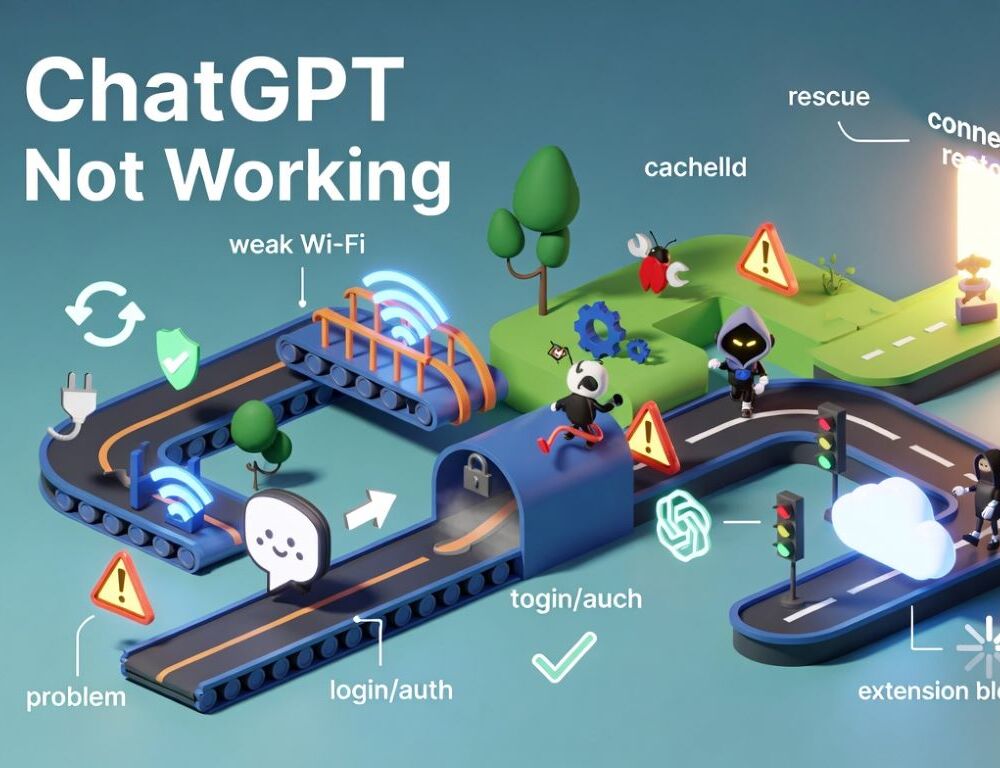
ChatGPT not working problems are resolved faster when you separate a service-side issue from a browser, login, or network issue before changing anything major.
- Why is ChatGPT not working right now, and what should you check first?
- How do you tell whether the problem is your browser session and not ChatGPT itself?
- What should you do if ChatGPT is not loading or shows a generic error?
- Why can’t you log in to ChatGPT, and how do you confirm the correct sign-in method?
- What should you check if ChatGPT fails on one network but works on another?
- Which troubleshooting mistakes should you avoid before reinstalling or resetting anything?
- What should you do if none of these steps fix ChatGPT?
Why is ChatGPT not working right now, and what should you check first?
The reason ChatGPT is not working right now is easiest to identify with a short triage sequence that checks service status and your local environment in a low-risk order.
- Check the service status page.
- Refresh the tab or start a new chat.
- Open ChatGPT in an incognito/private window.
- Try a different network or device.
If it works in private mode, the cause is usually your browser session data or an extension. If it fails everywhere, move to network checks and retry later instead of changing system settings.
RFC 9110 defines Retry-After and states that with an HTTP 503 response it indicates how long a client should wait before a follow-up request, so waiting and retrying is often the correct move during temporary overload.
| Symptom | Likely cause | What to check first | What to do next if it fails |
| Blank page or infinite loading | Cache, cookies, extensions | Private/incognito mode | Clear ChatGPT cookies, test another browser |
| Login loop | Session issue or sign-in method mismatch | Repeat the same sign-in method | Clear cookies, switch browser or network |
| Generic error or failed response | Temporary service issue or network | Status page, page refresh | Test another network, retry later |
| Works on another network | Traffic filtering, proxy, corporate controls | Mobile data or different Wi-Fi | Disable proxy, escalate to admin |
| Works in browser but not app | App issue or outdated version | Test web version on same device | Update app, sign in again |
How do you tell whether the problem is your browser session and not ChatGPT itself?
The way to tell whether the problem is your browser session and not ChatGPT itself is to compare a normal window, private mode, and a second browser on the same network.
Which browser-session checks should you run first for ChatGPT?
The browser-session checks you should run first for ChatGPT are clearing cache and cookies for ChatGPT, then repeating the same action that failed.
After clearing cookies, test login and page load again. If the loop, blank page, or repeated reload is gone, stop there; if not, continue to extension isolation.
RFC 6265 defines cookies as a way for servers to store state at user agents and maintain a stateful session over HTTP, which is why broken session data can affect login and loading behavior.
How do you test whether a browser extension is blocking ChatGPT?
The way to test whether a browser extension is blocking ChatGPT is to use private mode or temporarily disable extensions that filter scripts, page content, or web traffic.
If ChatGPT starts working after one extension is disabled, re-enable the others one by one and test after each change. If nothing changes, continue with network checks or login-method checks.
What should you do if ChatGPT is not loading or shows a generic error?
The correct response when ChatGPT is not loading or shows a generic error is to use a repeatable sequence that tests browser, network, and device variables one at a time.
Refresh the page, open a new chat, switch browsers, test another network, and then retry on your main device. If the error disappears on another network, the issue is usually local connectivity or traffic filtering, not your account.
Why can’t you log in to ChatGPT, and how do you confirm the correct sign-in method?
The reason you can’t log in to ChatGPT is often a mismatched sign-in method, repeated failed attempts, or a temporary restriction after unusual login activity.
Use the same method you used at signup, such as password, Google, or Microsoft, and avoid switching methods randomly between attempts. If you have multiple failed attempts, pause, switch browser or network, and try again later.
NIST SP 800-63B-4 requires verifiers to implement rate limiting for failed authentication attempts and describes an upper bound of 100 consecutive failures in a general throttling section, so temporary login restrictions are a normal security control.
What should you check if ChatGPT fails on one network but works on another?
The key check when ChatGPT fails on one network but works on another is whether a proxy, security filter, certificate inspection, or corporate policy is interfering with traffic.
Disable proxies and extra filtering tools where you can, then test on mobile data or another Wi-Fi network. If the problem disappears on a different network, document the exact symptom and time of failure before escalating to an admin.
How do you verify the issue is only in the app and not in the browser?
The way to verify the issue is only in the app and not in the browser is to test ChatGPT in a web browser on the same device and network.
If the web version works, update the app and sign in again. If both fail in the same network, continue with network troubleshooting before reinstalling anything.
Which troubleshooting mistakes should you avoid before reinstalling or resetting anything?
The troubleshooting mistakes you should avoid before reinstalling or resetting anything are the ones that destroy evidence and make the root cause harder to confirm.
- Do not change multiple settings at once.
- Do not reset the whole browser profile before testing private mode.
- Do not reinstall the app before testing browser, login, and network variables.
- Do not repeat login attempts continuously after an error.
- Do not skip testing on a second device or network.
A single validation check after each change shows what actually fixed the issue and prevents unnecessary rework.
What should you do if none of these steps fix ChatGPT?
The next step when none of these steps fix ChatGPT is to escalate with a short, structured report of the symptom, device, network, and what you already tested.
Record where the failure happens (loading, login, response generation), which devices reproduce it, and whether another network changes the result. That information makes support and IT troubleshooting much faster.
Sources: