
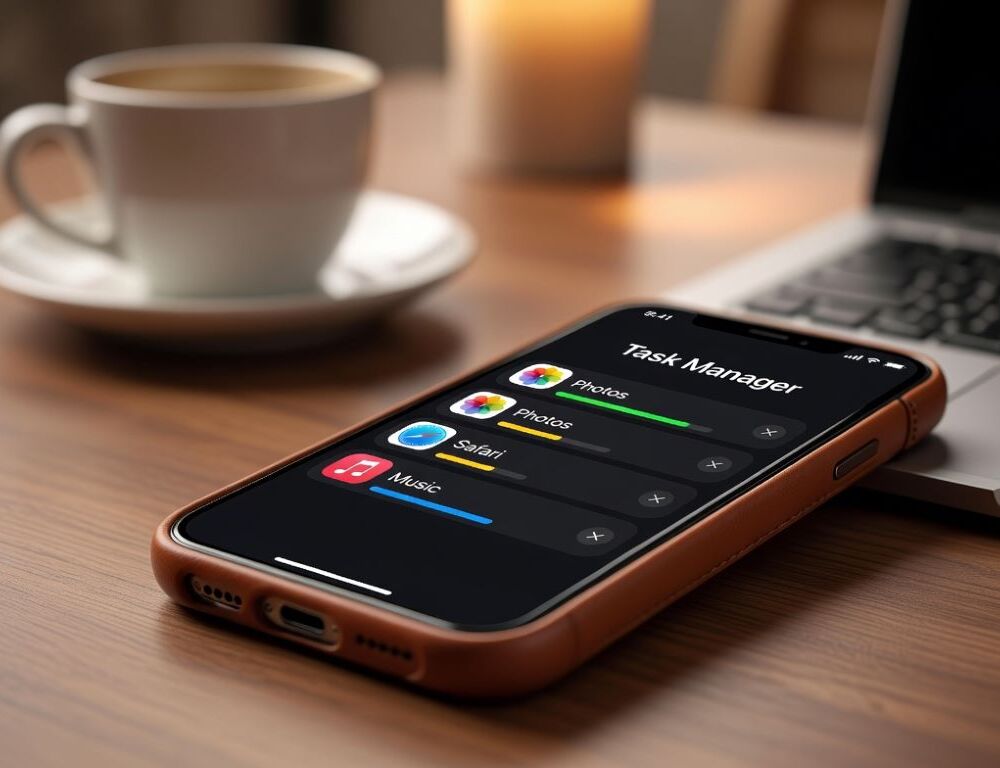
iPhone task manager is best understood as the App Switcher plus a few Settings screens that help you control background activity and spot problematic apps.
When something feels stuck, the safest workflow is one change at a time, then a quick re-test.
- Where is the iPhone task manager if you want to see what is open?
- How do you close a frozen app using the iPhone task manager?
- Why does task manager show multiple Apple apps and background activity?
- Is there a task manager Apple shortcut on iPhone?
- Apple task manager vs a task management app: what is the difference?
- What mistakes make the iPhone task manager feel useless?
- What should you do if the issue persists across multiple apps?
Where is the iPhone task manager if you want to see what is open?
iPhone task manager access on iOS starts with the App Switcher, which shows your recently used apps as cards.
Do this:
- On iPhones with Face ID: swipe up from the bottom edge and pause briefly.
- On iPhones with a Home button: double-press the Home button.
Validation: you can see app cards and jump back into the app you need.
If the switcher does not appear, restart the iPhone and try again. If it still fails, check whether a case or screen protector makes the gesture unreliable.
How do you close a frozen app using the iPhone task manager?
iPhone task manager behavior for a frozen app is to force-close that specific app from the App Switcher.
Do this:
- Open the App Switcher.
- Find the frozen app card.
- Swipe the card up to close it.
- Reopen the app.
Validation: the app launches and responds normally.
If the problem returns, update the app and restart the iPhone. If it only happens in one app, delete it and reinstall it.
Why does task manager show multiple Apple apps and background activity?
Task manager on Apple devices (in the iPhone sense) is mostly about permissions and background refresh rather than a process list.
Check these controls:
Settings→General→Background App RefreshSettings→Cellular(app-by-app data access)Settings→Battery(which apps are using power most)
Be Connected (eSafety) notes that if an app is only hidden, it may still use data in the background, which is why fully closing a problematic app can matter in some cases.
Validation: after you limit background refresh or cellular access for one app, its data usage or battery impact should drop.
If notifications stop arriving, re-enable background activity only for the apps where you actually need it.
Is there a task manager Apple shortcut on iPhone?
Task manager Apple shortcut behavior on iPhone is gesture-based, not keyboard-based, so there is no desktop-style shortcut equivalent.
The practical replacement is the App Switcher gesture and the Battery screen for confirmation.
Validation: you can reliably open the App Switcher and identify the problem app by battery usage patterns.
If you need repeatable troubleshooting, write down the exact symptom and the one setting you changed, then re-test the same action.
Apple task manager vs a task management app: what is the difference?
Apple task manager on iPhone is not a to-do list tool, so it will not organize your personal tasks or team projects.
If you meant productivity, you need a dedicated app for tasks. If you meant app control, the App Switcher plus Settings is the correct path.
Validation: you can state your goal clearly, fixing a stuck app or organizing work tasks, and choose the right tool.
If you are preparing to switch devices and want to avoid sync conflicts while moving content, a practical reference is transferring data from iPhone to Android.
What mistakes make the iPhone task manager feel useless?
iPhone task manager results degrade when you close everything blindly instead of checking which app is actually causing the drain or data use.
Common mistakes:
- Force-closing every app instead of checking
BatteryandCellular. - Disabling background activity for messaging apps and then losing timely notifications.
- Ignoring system warnings that an app may be draining the battery, which Be Connected (eSafety) explicitly mentions as a type of system alert.
- Skipping app updates when the same crash repeats.
Validation: after one change, you can confirm whether the same test action improved or stayed the same.
If the issue looks account-related (repeated sign-in prompts, security blocks), a safe next step is changing your iPhone password for Apple ID access.
What should you do if the issue persists across multiple apps?
iPhone task manager tools can identify and stop individual app problems, but repeated system-wide issues often require OS-level checks.
Update iOS, make sure you have free storage, restart the iPhone, and then re-test. If the behavior repeats across different apps, prepare a short symptom list and contact official support.
Sources: