
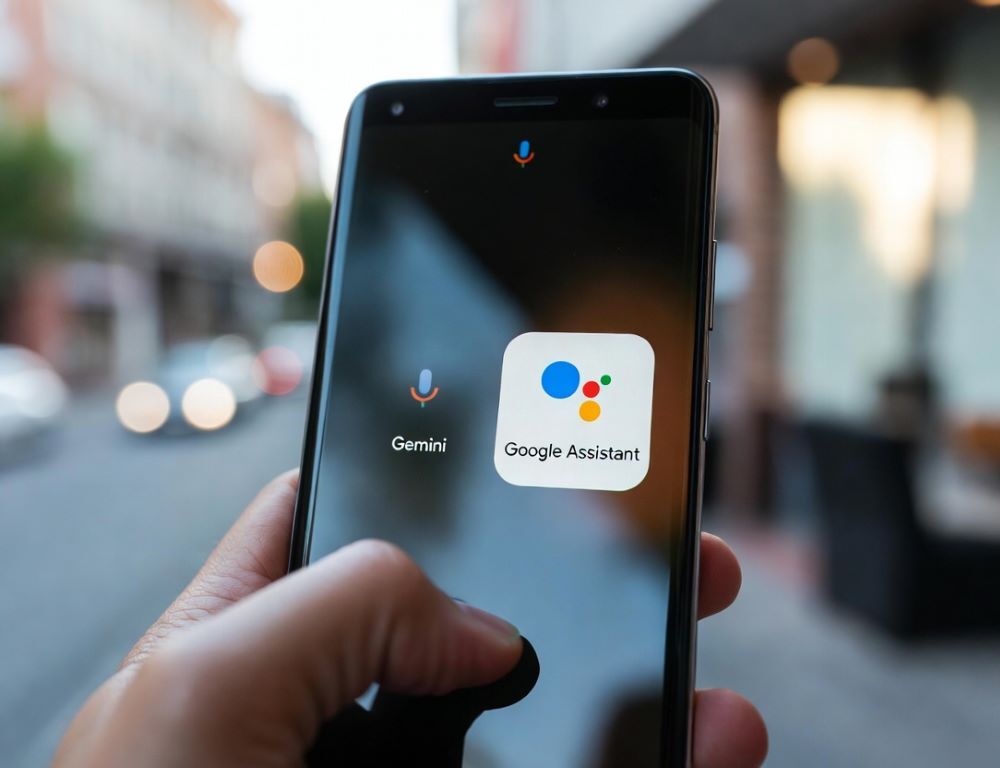
Disable Google Gemini and switch back to Google Assistant by changing your default digital assistant on Android, then separately adjusting Gemini’s activity and integrations if you want tighter privacy.
- What does it mean to turn off Google Gemini, and which switch do you need?
- How to switch back to Google Assistant from Gemini on Android phones?
- How to remove Gemini from Google Assistant prompts and stop it from launching?
- How to turn off Gemini activity and delete past prompts without disabling the assistant?
- How do you disable Google Gemini integrations and keep connected services off?
- Why can’t you switch back to Google Assistant from Gemini?
- What mistakes should you avoid when you disable Google Gemini?
What does it mean to turn off Google Gemini, and which switch do you need?
Turning off Google Gemini can mean three different things, and choosing the wrong one is why people feel like nothing changed.
Most common scenarios are:
- You want Google Assistant back as the default assistant, so Gemini stops launching on assistant triggers.
- You want to remove the Gemini app from your phone, so it cannot be invoked at all.
- You want to keep Gemini available, but turn off Gemini activity and reduce connected integrations.
Pick the scenario first, then apply one change at a time and validate it.
If you are setting this up on an Apple device instead of Android, a practical starting point is Google Gemini on iPhone: how to use the iOS app.
How to switch back to Google Assistant from Gemini on Android phones?
Switching back to Google Assistant from Gemini is done by selecting Google Assistant as your digital assistant in Google settings or inside the Gemini app settings.
The Gemini Mobile App infosheet states that you can switch back your digital assistant in Settings, which is a useful confirmation that the change is intended to be reversible.
If you need a basic decision framework, use which should you choose: Gemini vs Google Assistant?.
Try path A via the Gemini app:
- Open the Gemini app.
- Tap your profile icon.
- Open Settings.
- Find Digital assistants from Google (wording can vary) and select Google Assistant.
Try path B via Android Settings:
- Open Android Settings.
- Use Settings search for Gemini, Assistant, or Digital assistant.
- Open the Google section where the digital assistant choice appears, then select Google Assistant.
Validation: trigger the assistant the same way you usually do and confirm Google Assistant launches instead of Gemini. If the UI still looks like Gemini, restart the phone and repeat the validation.
How do you verify the Google Assistant Gemini transition actually reverted?
Verifying the Google Assistant Gemini transition is simplest when you test one trigger and one basic action.
Do this:
- Trigger the assistant using your usual method.
- Ask for a timer or a reminder.
- Confirm the assistant interface and response behavior match Google Assistant.
If Gemini still opens, return to the digital assistant selection and confirm Google Assistant is selected.
How to remove Gemini from Google Assistant prompts and stop it from launching?
Removing Gemini from Google Assistant prompts typically means uninstalling the Gemini app and clearing any default assistant bindings that still point to it.
Try these steps:
- Uninstall the Gemini app if it is installed as a separate app.
- Clear defaults for Gemini in Android app settings if that option is available on your device.
- Check your device’s button or gesture configuration for assistant launch, and make sure it points to Google Assistant.
Validation: trigger the assistant again and confirm Gemini no longer launches. If you keep seeing a prompt to re-enable Gemini, re-check the digital assistant selection.
How to turn off Gemini activity and delete past prompts without disabling the assistant?
Turning off Gemini activity is a separate control from switching the default assistant, and it is the right move if your main goal is privacy rather than behavior.
The Gemini Mobile App infosheet says you can review your prompts, delete your Gemini activity, and turn off Gemini activity in My Activity at any time, which makes activity controls the correct place to start for history-related concerns.
Practical steps:
- Open Gemini settings and locate the activity/history section.
- Turn off activity saving if that is your goal.
- Delete prior activity if you want a clean slate.
Validation: start a fresh interaction and confirm your history behaves the way you configured it.
A practical reference point is how to use Google Gemini.
How do you disable Google Gemini integrations and keep connected services off?
Disabling Gemini integrations is the cleanest way to reduce how much context Gemini can pull from connected services, even if you still use it occasionally.
Google’s Personal Intelligence PDF explains that Connected Apps settings are off by default and opt-in, and that you can choose whether to turn those features on or off in Gemini settings.
Do this:
- Open Gemini settings and find connected services or connected apps.
- Turn off anything you do not want connected.
- Keep Android app permissions as narrow as your use case allows.
Validation: repeat a task that previously relied on a connected service and confirm the connection is no longer used.
Why can’t you switch back to Google Assistant from Gemini?
Not being able to switch back to Google Assistant from Gemini is usually caused by device management, an outdated Google app stack, or a hardware/region condition that changes what options appear.
Check these in order:
- Whether your phone has a work/managed profile that restricts assistant settings.
- Whether the Google app and Gemini app are up to date.
- Whether your assistant trigger is mapped to a specific app regardless of default assistant.
- Whether your device model or region limits the assistant options you can select.
Validation: after each change, run the same assistant trigger test so you know which step mattered.
What mistakes should you avoid when you disable Google Gemini?
Mistakes happen when people mix assistant selection, activity controls, and uninstall steps into one big change, then cannot tell what worked.
- Do not uninstall apps first if your goal is just switching the default assistant.
- Do not confuse turning off Gemini activity with switching away from Gemini as the default assistant.
- Do not change multiple settings at once if you want a reliable diagnosis.
One change, one validation test, then the next change keeps troubleshooting clean.
Conclusion: disabling Gemini and returning to Google Assistant is primarily a default-assistant change, while privacy and integrations are separate controls you can tighten afterward.
Sources: