
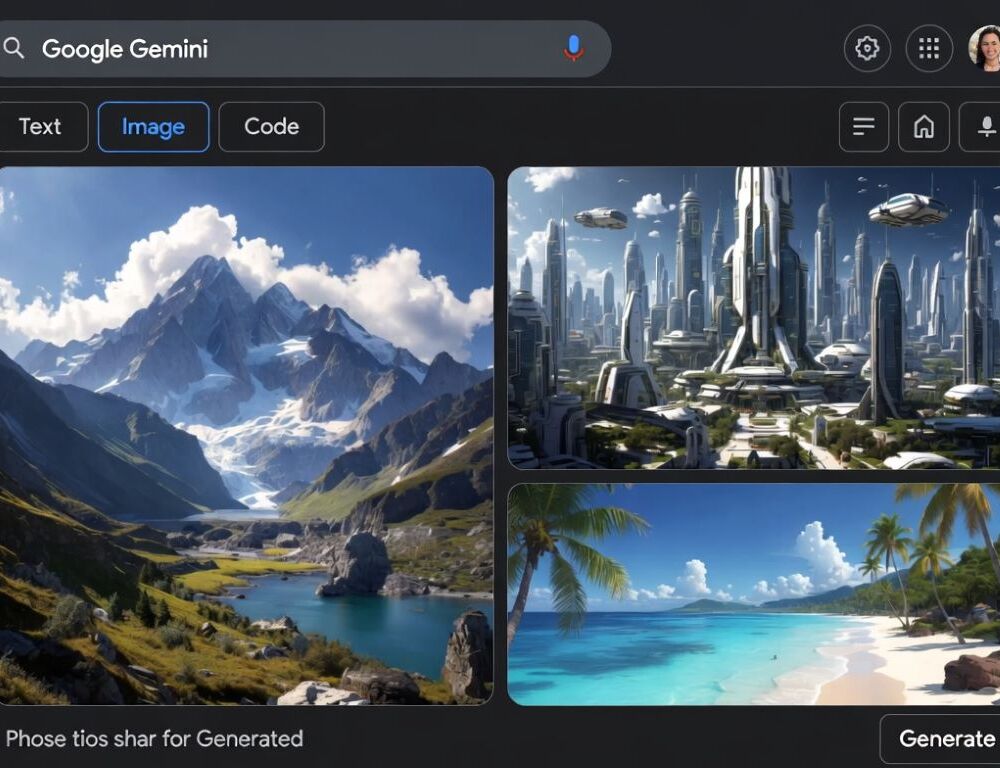
Google Gemini image generation photo prompts become more controllable when you describe a concrete scene, lock the style and camera details, then iterate one variable at a time.
- What should you check first before you try Google Gemini image generation?
- How do you write a Google Gemini AI photo prompt that stays controllable?
- How do you write Google Gemini photos that look realistic instead of generic?
- Which details improve composition in Google Gemini pictures?
- How do you refine Google Gemini images without restarting from zero?
- How do you use a Google Gemini trending photo prompt without copying a viral template?
- Why does Google Gemini image generation refuse a prompt, and what should you change first?
- What mistakes should you avoid with Google Gemini image prompts?
What should you check first before you try Google Gemini image generation?
Google Gemini image generation fails most often because of account access, network filters, or an overly sensitive prompt, not because the idea is impossible.
Check these in order:
- You are signed into the Google account that has image generation available.
- VPN or DNS filtering is off, especially if images fail to load.
- Your first test is a simple, neutral prompt that confirms image output works.
- You are not asking for restricted content or highly identifiable real people.
Validation: run one short test prompt after each change so you can see which step fixed the issue.
To rule out the most common causes fast, use Google Gemini free vs paid: what the upgrade really changes.
How do you write a Google Gemini AI photo prompt that stays controllable?
A Google Gemini AI photo prompt stays controllable when it reads like an instruction with a clear output, not a pile of adjectives.
A Think with Google prompt guide defines a prompt as an instruction you write to interact with a chatbot, and that framing helps you write in an outcome-first way.
What is a simple Google Gemini photo prompt template you can reuse?
A reusable Google Gemini photo prompt template works best when you consistently cover role, task, context, and output format, which aligns with Google’s Gemini for Google Workspace prompting handbook.
Create an image of <subject> <doing an action> in <place>.Style: <photo / illustration / poster>, mood <…>.Lighting: <…>, camera: <lens / depth of field>, angle: <…>.Constraints: <no text / no logos / no people / no brand marks>.Format: <aspect ratio>.This template makes troubleshooting easier because you can see exactly what you changed.
A practical reference point is how to use Google Gemini.
How do you write Google Gemini photos that look realistic instead of generic?
Google Gemini photos look realistic when you describe the scene like a camera shot and include constraints that prevent style drift.
Google’s Gemini for Google Workspace prompting guide reports that the most fruitful prompts average around 21 words with relevant context, while many user attempts are usually under nine words, which is a practical reminder that a bit more context often improves output.
What is a photorealistic prompt structure for Google Gemini image generation?
A photorealistic prompt structure for Google Gemini image generation is strongest when you specify subject, lighting, lens, and a short list of “must not” constraints.
Create a photorealistic photo of <subject> in <setting>.Lighting: <golden hour / soft studio>, shadows <…>.Camera: <35mm>, shallow depth of field, subtle natural grain.Details: <materials / textures / colors>, no artifacts, no text.After the first image, change only one block so the effect is easy to verify.
Which details improve composition in Google Gemini pictures?
Details that improve composition in Google Gemini pictures work best when you name them explicitly and keep them short.
Useful controls:
- angle: eye level, top-down, low angle, three-quarter view
- framing: close-up, medium shot, wide shot, macro
- composition: centered, rule of thirds, symmetrical, negative space
- background: minimal studio, city street, natural landscape
Validation: ask for the same composition to be preserved while changing only lighting or background.
How do you refine Google Gemini images without restarting from zero?
Refining Google Gemini images works better when you keep a “base prompt” and request one specific change per iteration.
A clean loop:
- Save the base prompt that produced the closest result.
- Add a line that says to keep everything the same except one change.
- Modify in this order: lighting, angle, background, then style.
- Run the same comparison check after each iteration.
This approach reduces random drift and makes results easier to reproduce.
A Google Gemini trending photo prompt works best when you describe the effect and materials instead of copying a word-for-word viral prompt.
Try this pattern:
- name the transformation: miniature figure, retro film photo, poster look
- add 2–3 style signals: texture, lighting, mood
- add constraints: no text, no logos, no recognizable brands
You will usually get the vibe without tripping over brand or policy issues.
For comparing scenarios, see Google Gemini Pricing: Cost, Plans, Advanced, and Pro.
Why does Google Gemini image generation refuse a prompt, and what should you change first?
Google Gemini image generation refuses a prompt most often when the request lands in a safety or identity-sensitive area, or when details are too explicit.
Google’s AI Principles Progress Update 2023 notes that generative AI image technology is made available with clear guardrails, including safety classifiers and filters, so small wording changes can matter.
Validation-first fixes:
- remove graphic or sensitive details and restate the mood and composition
- avoid requests to replicate real people or protected logos
- ask for a fictional, generic subject with the same visual setup
If a safer rewrite works, add details back gradually so you can see what triggers refusal.
What mistakes should you avoid with Google Gemini image prompts?
Mistakes with Google Gemini image prompts usually come from vagueness and changing too much at once.
- Do not describe only a style without a subject, action, and setting.
- Do not change five parameters in one edit if you want consistent progress.
- Do not rely on tiny readable text inside images if it is not essential.
- Do not request an exact brand logo recreation, describe a generic style instead.
One stable template plus one controlled change per iteration keeps the workflow predictable.
Conclusion: Google Gemini image generation is easiest to control when you start with a reusable prompt skeleton, add camera-level detail for realism, and validate each change with a small, repeatable test.
Sources: